

Todd Shaner
Legend
March 16, 2021

P: 10.2 Grain Effects Render Incorrectly In Develop Module

  • March 16, 2021
  • 67 replies
  • 10695 views

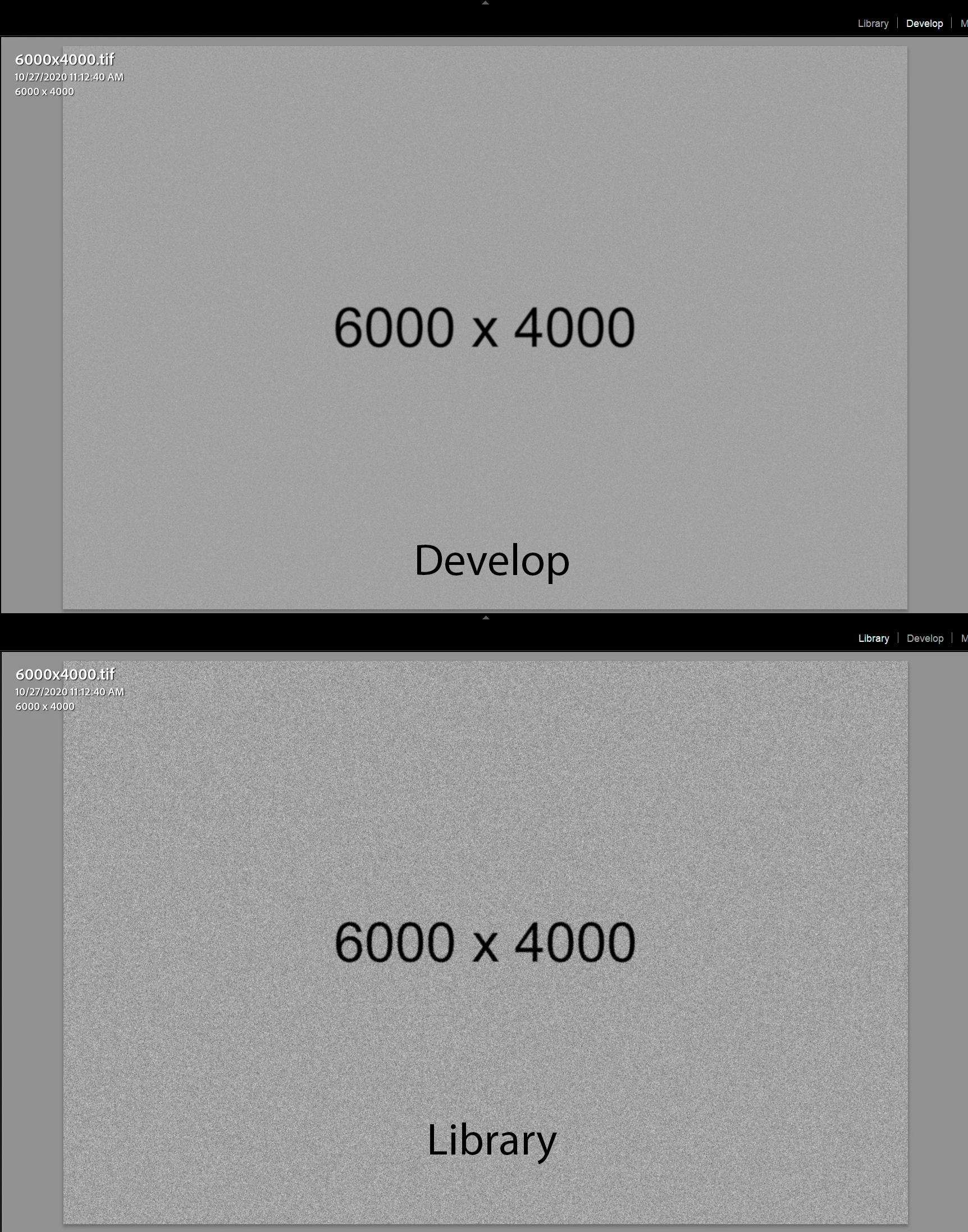
The Develop module no longer properly renders the Grain Effect settings in LrC 10.2, which appear much more pronounced and correct in the Library module and exported files. I tested with GPU enabled and disabled with LrC restarted and the issue persists on my Windows 10 system.


The below screenshots are with LrC 10.2 using Grain settings Amount 100, Size 50, and Roughness 100.
 

This topic has been closed for replies.

67 replies

Participating Frequently
July 2, 2022

WITHDRAWAL:

Sorry for blaming Adobe in that case. It was clearly my fault as I had checked the option to use Smart Previews instead of Originals in the preferences > performance dialog! Now it looks all fine as expected 🙂

Participating Frequently
July 2, 2022

Just updated to 11.4.1

No change.

Participating Frequently
June 30, 2022

I'm sorry, but this bug is not yet fixed.

I also have that problem although I already updated to version 11.4.

When I switch between photos in develop module, the grain is not visible until the sliders and panels on the right side are loaded. Then the grain (33/25/25) appears as if it was zoomed by a factor of 100 and gives the photo and overall pale look.


My system:

Win11, AMD

GeForce 1050Ti (no effect if GPU support in enabled or disabled)

4k Monitor (Windows scaling 150 %)

The example is from an uncropped 24 MP photo with "fit" view.


Participant
April 15, 2022

Yes, I tried all graphic possible combinations but it did not resolve the problem.

my configuration is :

MAC PRO 2019 / Montery and Vega pro II  (96gb ram )


😞

Todd Shaner
Legend
April 14, 2022

You may have a GPU issue. Try disabling the GPU and see if that fixes it.

In LrC Edit> Preferences> Performance set 'Use Graphics Processor' to Off as shown below. Close and restart LrC to apply the setting change. Does that fix the issue?

Participant
April 14, 2022

It's Lightroom 11.3 now and still hasn't been fixed. Sorry but in the next daay i'll switch to C1.

Steve Michalak
Participant
March 7, 2022

Develop module not showing grain effects as they should appear. Showing fine in library module. Been an issue for a while. I saw this reported about a year ago. I've noticed it for at least that - if not longer. Never been a fixed through any update for me


Currently running V11.2, CR14.2 on Mac Montery 12.1

TheDigitalDog
Inspiring
March 7, 2022

You are zooming in at 1:1 or greater?

Try disabling GPU in preferences and view again; any different?

Author “Color Management for Photographers" & "Photoshop CC Color Management/pluralsight"
Steve Michalak
Participant
March 9, 2022

Zooming in shows the effect properly, I've known about this. It's not a fix for the issue at hand (seeing the grain effect in full/"fit" view).

Todd Shaner
Legend
February 8, 2022

The LrC 11.2 and LR Desktop 5.2 updates have fixed this issue on my Windows 10 system. Thank you!

Rikk Flohr_Photography
Community Manager
Community Manager
February 8, 2022

Updates to the Adobe Photography Products were released today and contain a fix for this issue. Please install the update via your Creative Cloud Desktop App or your respective App Store. 


Note: 

You may need to refresh the Creative Cloud App for desktop software to show an update available.  ([Ctrl/Cmd]+[Alt/Opt]+ [ R ])

For Mobile downloads, it may take several days for the update to appear in your respective App Stores.


Thank you for your patience. 

Rikk Flohr: Adobe Photography Org
Participating Frequently
January 31, 2022

Hi.  I have been working with Lr for a few months without issue.  But today I have edited some photos as normal, tried to export and they then go grainy and poor quality.  Can you advise what's wrong please?  I have tried resetting my preferences but it hasn't worked.

Legend
January 31, 2022

We'd need to see a screen capture of this poor quality export. We'd need to se a screen capture (proabably several screen captures) showing the Export dialog box. And we probably need to know the size of the image before export (in pixels, width and height, do not tell me megabytes) and we probably need to know how (what software and what magnification) you are using to view this poor quality export.


Include screen captures in your reply by clicking on the Insert Photos icon. Do not attach files.