

Carlos_Oliveras
Known Participant
November 20, 2018

P: Converting raw files to lossy DNG sometimes results in purple-cast previews in the Library module

  • November 20, 2018
  • 25 replies
  • 1922 views

I convert whole folders of raw files to lossy DNG on a regular basis, and since earlier this year (at least), I've noticed a problem that affects a very small percentage of the files (sometimes it doesn't happen at all), but it's starting to become a little annoying.

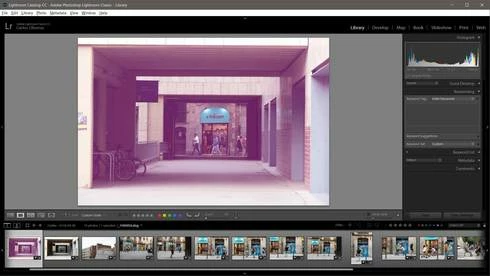
The problem (when it happens) is that some of the resulting lossy DNG files look good in the Develop mode of LR Classic and in Camera Raw. Even the preview from Windows file explorer (and when using image viewers that display the embedded jpg preview) looks ok. But when displaying these problematic files from the Library module in Lightroom Classic, they show a strong purple cast. So, I think there is some problem with the preview generated by LR.

Like I said, this problem happens very rarely, but it keeps happening every now and then. Most of the times I am able to fix the "pink preview" by re-building 1:1 previews, or just removing and reimporting the file. But there must be something going on with the preview generation for lossy DNG files since I also read about it (or a very similar problem) in this thread: https://forums.adobe.com/message/10758722

I am using Windows 10 and the latest versions of Lightroom Classic CC (8.0) and Camera Raw 11.0, but this was happening already with some LR CC 7.x versions. Thanks.
This topic has been closed for replies.

25 replies

Rikk Flohr_Photography
Community Manager
June 29, 2023

This is an older bug that is no longer reproducible under the current Operating Systems and Lightroom versions. We are closing this bug. Should a similar bug arise, please create a new bug report. This thread will be closed.

Rikk Flohr: Adobe Photography Org
Participant
November 29, 2021

I have the same issue, some intermittent pictures that are imported in Lightroom (LrC 11.0) has a pink tint on it. I came to conclusion that it is something to do witht he way Lr coverts my RAW (CR3) to DNG. I tried to disable "Embed Fast Load Data" option in Lr, but in vain. Interestingly this tint is only visible outside of Lr. Also, it is not visible in RawTherapee. I used Adobe DNG converter and applying this technique of disabling "Embed Fast Load Data" coverts the image without the Pink Tint. Then I can import or add to Lr's catalog. This is one of the most annoying flaw in Lr I have found. Needless to say so many of my imported pics have this tint and does not look good. I think my saving grace would be to re-export them, so far I have tried to export the tinted pics in jpeg and it does not show any pink tint.

Todd Shaner
Legend
June 10, 2021

I just made another discovery concerning the pink square Spot Removal issue using LrC 10.3. If you uncheck 'Embed Fast Load Data' in the Export Module> File Settings Spot Removal works properly with no pink squares. So we have another workaround. I also noticed files synced to the Web in LrC 10.3 work properly with no Spot Removal pink squares.

Todd Shaner
Legend
December 30, 2020

I just discovered that using Sync from the original file with 'Check All' selected fixes the lossy DNG pink square Spot Removal issue. Give it a try.

Todd Shaner
Legend
April 24, 2020
"However, I still experience this problem with some raw files without a crop, so I guess there's something else going on."

I notices that as well. Some files exhibit the issue with no crop applied. No idea why, but Adobe should be able to duplicate issue as I outlined.
Bob Somrak
Legend
April 24, 2020
Amazing sleuthing job there Todd.  Well done.
M4 Pro Mac Mini. 48GB
Carlos_Oliveras
Known Participant
April 24, 2020
I agree with Todd - I haven't bothered to post anymore in this thread since sometimes I get tired of "working" for the LR team (assuming there is such thing as a LR team). But yes - some time ago I also did realize that most of the dng's with green/pink casts were created from raw files where a crop had been applied.
However, I still experience this problem with some raw files without a crop, so I guess there's something else going on. But then again, it looks like applying a crop and then converting to DNG increases the chances of this problem arising.
Anyway, as with so many other LR-related bugs, I've just given up on hoping they'll fix it, and I've just learnt to live with it.
Todd Shaner
Legend
April 24, 2020
I've found the reason only some Lossy DNG export files exhibit the green tint in the Library Preview. The image has to have a crop applied and 'Resize to Fit' selected in the Export module. To demonstrate:

1) In the LR Develop module crop a raw file to about 3000 px long edge.
2) In the Export module select Image Format DNG, check Lossy Compression, select Resize to Fit Long Edge 1000 px and export.

The Lossy DNG file will appear with a green tint in the Library module and appear normal in the Develop module. If the file is exported it also appears normal with no green tint so this is strictly a Library Preview issue. In addition the long edge will be less than the 1000 px selected in the Export module. So there are two issues! In the below example the 6016 x4016 NEF file was cropped to 4042 x 2698 and then exported using the above settings. Note the long edge of the export DNG file is 672 px and not 1000 px.


It appears Nikon NEF files exhibit a green tint, but Canon CR2 files exhibit a pink tint as mentioned by others in this post. Here's a Canon 600D CR2 file example:


Inspiring
December 26, 2019
To anyone still experiencing this issue...

I came across this thread (and several others) looking for a solution to a magenta cast on files converted from RAW to DNG using the Adobe DNG Converter.. So I noticed many people were experiencing the same issue; however, in some cases conversion was working fine before (without the color pink/magenta cast) with a previous version of the program.. This was important.

In my case I solved the problem by using the command line option: -dng1.3
While the default (-dng1.4) does produce the undesirable color cast.

To set the DNG version on the program GUI:
Preferences -> Compatibility -> Personalized/Custom -> Version -> DNG 1.3

Hope this helps!
Todd Shaner
Legend
April 28, 2019
I see the same behavior. Clone or Heal spots are not being properly applied to the lossy DNG image data. Moving the clone/heal spot slightly causes it to be properly reapplied.
As I mention above LR 5.71 does NOT exhibit this issue so something was changed in the LR/ACR lossy DNG conversion process that's causing the issue.This post is still marked 'In Progress' so hopefully it will be fixed in the next update.