Participating Frequently
October 28, 2020

P: Copy/Sync Crop and Spot Removal wrong results at portrait photos

  • October 28, 2020
  • 46 replies
  • 1884 views

Copy or sync crop and spot removal develop settings causes wrong results at portrait photos. The crop and spot removal settings are wrong by 90° after copy/paste or sync.


Here an example photo to reproduce.

- Importing in Lightroom Classic 10

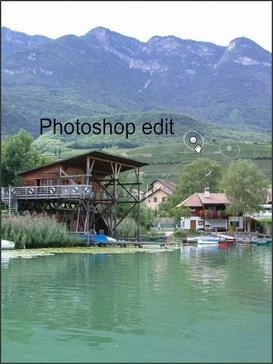
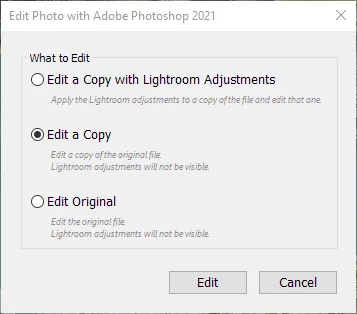
- Create a copy by edit in Photoshop 
- Make a small edit, e.g. add text "Photoshop edit" and save.

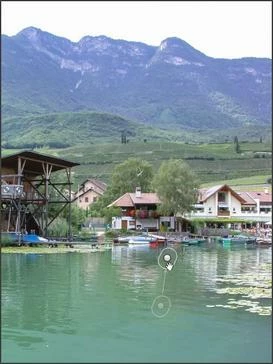
- Add a crop and spot removal e.g.
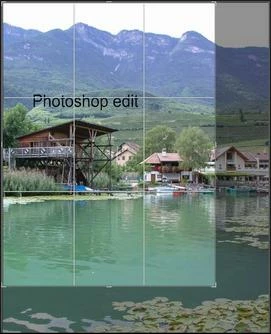
 

- Copy or sync the crop and spot removal develop settings to the same/original photo before the edit in Photoshop. But the result of the crop and spot removal is totally wrong:
This topic has been closed for replies.

46 replies

Participating Frequently
March 25, 2021

Version 10.1.1 Camera `3.1 Build 202101041610-8c69aa4e works correctly.

Before sync. 

After Sync.
Rikk Flohr_Photography
Community Manager
March 25, 2021

If you roll back, @JWacher  please confirm here that the behavior is different in the previous version. 

Rikk Flohr: Adobe Photography Org
johnrellis
Legend
March 25, 2021

"Is there a way to roll back to a previous release?"

See https://www.lightroomqueen.com/roll-back-update-previous-classic/ 

Participating Frequently
March 24, 2021

Just did portrait to portrait.  Is fine except when the portrait was originally a landscape. Sample first is after 2nd before.

Participating Frequently
March 24, 2021

That works except in one or two cases that I will have to isolate as for reason.  Problem is, I have been doing this for several years and have never had to isolate orientation when synching the aspect ratio.  Is there a way to roll back to a previous release?

Rikk Flohr_Photography
Community Manager
March 24, 2021

The workflow is normally to:

  1. Select all
  2. Apply Aspect
  3. Tweak Crops as necessary

In your case, you've pre-cropped without Aspect Ratio so it is a manual process to fix them all now. 

What happens if you sync portrait only to portrait and landscapes only to landscapes?

Rikk Flohr: Adobe Photography Org
Participating Frequently
March 24, 2021

The green images are what I started with and the red is after quick develop. The aspect ratio is now 16:9, 

but the original crop is gone.

Rikk Flohr_Photography
Community Manager
March 24, 2021

You change it in QD Panel in the top section (You may have to expand the disclosure triangle).  There is a 16x9 option in the Crop Ratio pulldown.

Rikk Flohr: Adobe Photography Org
Participating Frequently
March 24, 2021

LR Classic  10.2 Release Build 202103041821-226a1211

Camera Raw 13.2

As for the previous version Creative Cloud updates my apps automatically so I would not know. Guess I should start keeping track of the versions and dates .

I can find nothing in quick develop to change the aspect ratio of the photos from (2x3/4x6) to (16x9). 

The only thing Sync screws up that I am aware of is changing from 2x3/4x6 to 16x9 when the orientation of the photo was changed from the original and is different from the base photo used in the sync operation.

Yesterday I took a set of photos and selected all the 4x6 landscape photos and using sync converted them to 16x9 using a landscape shot as the base. Then I selected all the portrait photos and did the same using a portrait shot as the base..  Very few of the photos required anything other then the normal minor adjustments to height and width.

Is there any way I can tell what release I was on before and return to it?

johnrellis
Legend
March 24, 2021

"Why does Lightroom write metadata to the JPG when I have explicitly disabled it in the catalog settings? As you can see in the video, the JPG is modified and after deleting the images in Lightroom and re-importing, the last rotation is loaded."

LR doesn't consider rotation and flipping to be "develop settings".  They aren't copied by Copy Settings/Sync, they can't be set by presets, and they don't show up in the History panel. (But they do get copied by Develop Auto Sync -- go figure.)

Thus, since rotation and flipping aren't "develop settings" in LR's eyes, they get saved to the EXIF:Orientation field regardless of the setting of Catalog Settings > Metadata > Including Develop Settings.