Participating Frequently
October 28, 2020

P: Copy/Sync Crop and Spot Removal wrong results at portrait photos

  • October 28, 2020
  • 46 replies
  • 1884 views

Copy or sync crop and spot removal develop settings causes wrong results at portrait photos. The crop and spot removal settings are wrong by 90° after copy/paste or sync.


Here an example photo to reproduce.

- Importing in Lightroom Classic 10

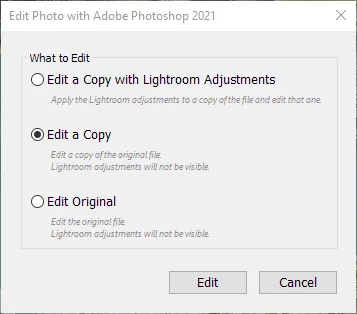
- Create a copy by edit in Photoshop 
- Make a small edit, e.g. add text "Photoshop edit" and save.

- Add a crop and spot removal e.g.
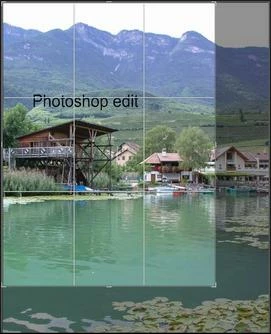
 

- Copy or sync the crop and spot removal develop settings to the same/original photo before the edit in Photoshop. But the result of the crop and spot removal is totally wrong:
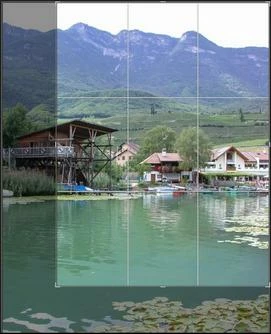
This topic has been closed for replies.

46 replies

johnrellis
Legend
March 23, 2021

Interesting, I don't know why you're observing different behavior than I am.  Guess it's part of the bug (by definition, a "bug" is where the program isn't behaving in the way we expect).

Participating Frequently
March 23, 2021

Oh, sorry, unfortunately I had forgotten to activate the "Local Adjustments" when copy the settings. Here is a new video where I exactly follow your instructions.

<iframe src="https://www.youtube.com/embed/OsKdVOXFgEk" style="max-width: 100%; max-height: 100%;" width="640px"></iframe>

On the normal way, nothing works, crop, spot removal and local adjustments -> everything is wrong. After deleting the images and re-importing (but without rotation), the crop and local adjustments are correct, but spot removal is still wrong.

Why does Lightroom write metadata to the JPG when I have explicitly disabled it in the catalog settings? As you can see in the video, the JPG is modified and after deleting the images in Lightroom and re-importing, the last rotation is loaded.

Rikk Flohr_Photography
Community Manager
March 23, 2021

I believe you said so above but can you confirm the version you are on currently and the version you were on before your Auto-update?

If, on screen 3, rather than sync the images you select all in Grid and use the Quick Develop crop, what does your grid look like?

Rikk Flohr: Adobe Photography Org
Participating Frequently
March 22, 2021

@John_R_Ellis 

Hello John

Thanks for the support and the video.
I did exactly the same thing on my Windows 10 as you did in the video and unfortunately it doesn't work for me.
I then turned off that Lightroom writing metadata to the JPEG (rotation). But that does not work either. The file date was from 2005, after using it in Lightroom the file date was current. Lightroom still writes metadata to the JPG instead of XMP files and also external image viewers follow the new written JPEG rotation after that.
In addition, I then imported the 2 images again (this time without rotation) and changed the other image and then copied the settings to the Photoshop image, but that also does not work.

<iframe src="https://www.youtube.com/embed/yvBCR6e42JA" style="max-width: 100%; max-height: 100%;" width="640px"></iframe>

Looks like there are several bugs with basic tasks in the current version.

johnrellis
Legend
March 21, 2021

"lock for crop is wrong"

See this existing bug report:

https://feedback.photoshop.com/conversations/lightroom-classic/lightroom-classic-selected-aspect-ratio-is-not-locked-on-synced-images-in-v102/605155d4bc5b8a6d33b5d1bc?commentId=60540ba5530ec71eee5759e3 

Click Like and Follow at the bottom of the first post, to make it more likely Adobe will prioritize a fix and to be notified when the bug's status changes.

johnrellis
Legend
March 21, 2021

The Edit A Copy metadata bug was creating confusion. Once I worked around that, I can copy crops and all the local adjustments EXCEPT spot removal correctly. (Prior to LR 10.2, none of those would copy correctly between photos with different orientations.)

Here's a video of the steps below:
https://www.dropbox.com/s/dimgdadxk9meljm/copying-local-adjustments.2020.03.20.mov?dl=0 

1. Set the option Catalog Settings > Metadata > Automatically Write Changes Into XMP.

2. Import a JPEG that doesn't have in-camera rotation applied.

3. Do Photo > Rotate Right.

4. Wait until the metadata badge in the upper-right corner of the thumbnail goes away, indicating that metadata has been saved to the photo.

5. Do Edit In > Edit In Photoshop, Edit A Copy.

6. In PS, add some brush strokes and close the photo.

7. In LR, select the edited photo and do Metadata > Read Metadata From File.

8. Take the edited photo into Develop, crop it, and add a spot removal, a gradient filter, a radial filter, and an adjustment brush.

9. In Grid view, select the edited photo and do Photo > Develop Settings > Copy, selecting Local Adjustments, Spot Removal, Crop, and Process Version.

10. Select the original photo and do Photo > Develop Settings > Paste Settings.

11. Observe that the crop, gradient filter, radial filter, and adjustment brush are correctly copied, but the spot removal is placed in a different location.

johnrellis
Legend
March 21, 2021

"Result: the copy (right) by Photoshop is completely different to the source (left) and also significantly distorted."

This is a distinct bug that was adding to confusion about what we are seeing.  I filed a separate bug report for that here:

https://feedback.photoshop.com/conversations/lightroom-classic/lightroom-doesnt-correctly-import-a-rotated-jpeg-after-editing-in-photoshop/6056ab8af6975e4168c21e5a 

There are two workarounds to this bug: After PS returns to LR, do Metadata > Read Metadata From File, or use Edit A Copy with Lightroom Adjustments instead of Edit A Copy.

Participating Frequently
March 19, 2021

Snip 3 showing photos after syncing the 1st photo which had been changed from 4x6 to 16x9. Photos that did not have their original orientation changed are fine, the ones that were changed from landscape to portrait are not.

Participating Frequently
March 19, 2021

Snip 2 showing cropped edited photos ready to be changed to 16x9

Participating Frequently
March 19, 2021

Snip 1 showing original photos.