johnrellis
Legend
October 13, 2021

P: Develop zoom interpolation algorithm incorrectly including input pixels from outside the crop bou

  • October 13, 2021
  • 21 replies
  • 921 views

[Update: The bug is caused by the Develop zoom interpolation algorithm incorrectly including input pixels from outside the crop boundary.  See here:

https://community.adobe.com/t5/lightroom-classic-bugs/small-display-glitch-in-develop/idc-p/12456139#M20245]


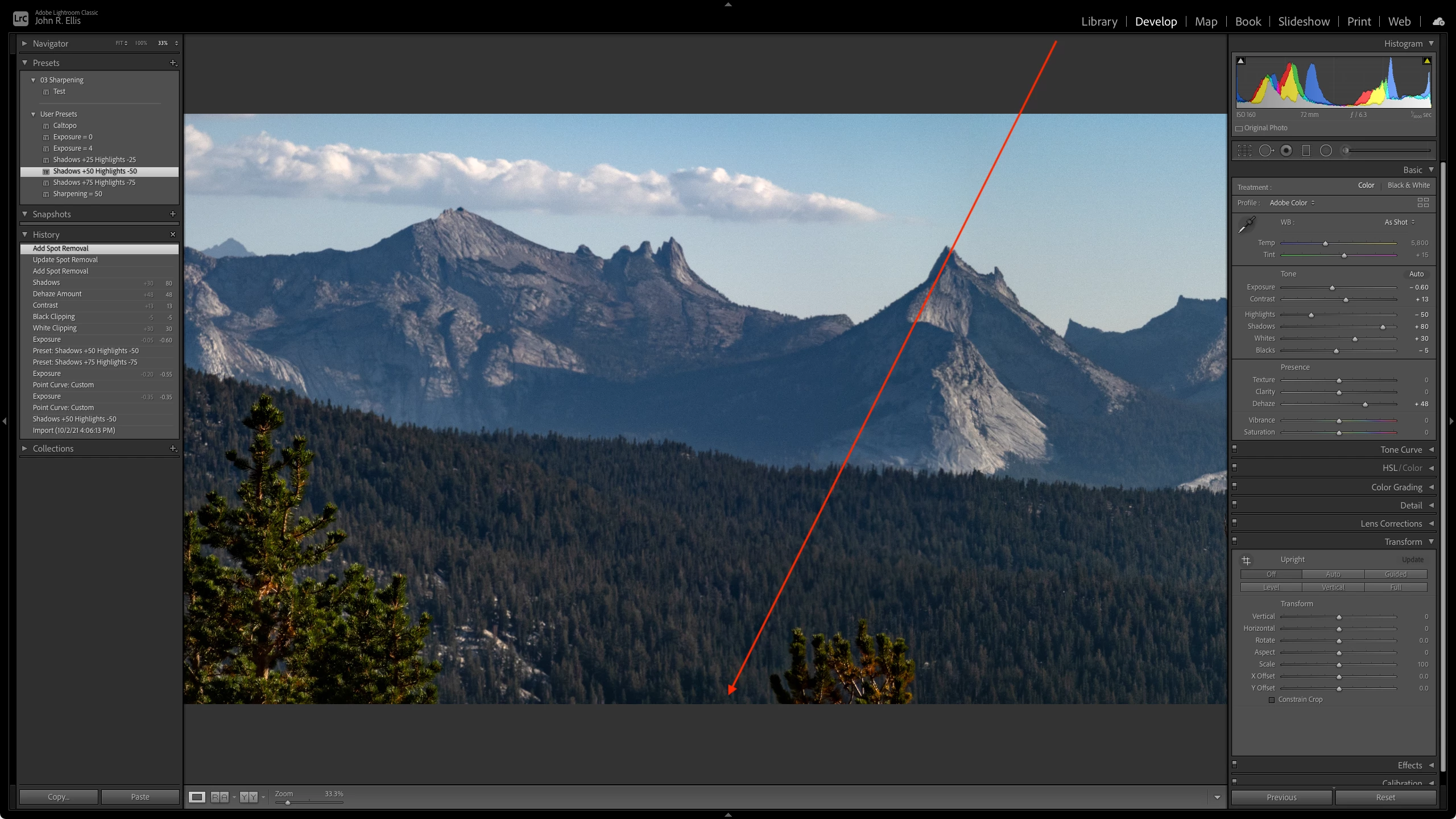
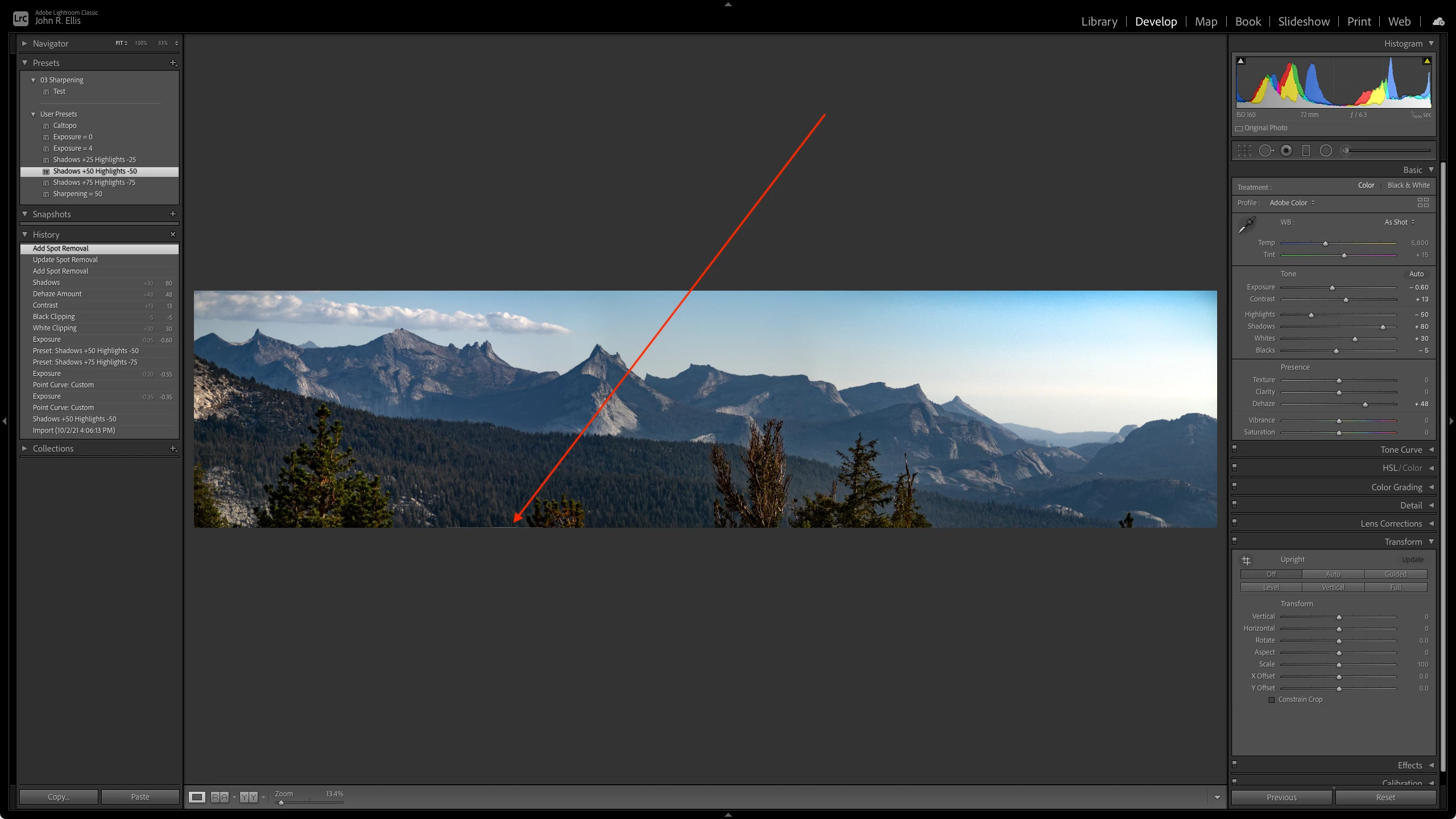
Develop at Fit zoom shows a small glitch on the bottom edge of a LR-made panorama.  The glitch appears at zooms of 25% and smaller but disappears at zooms 33% and larger. Disabling the GPU has no effect. The glitch doesn't appear in Library Loupe at any zoom. LR 10.4 / Mac OS 11.6. 


Here's the offending DNG:

https://www.dropbox.com/s/1nu6fvp9d26lmn0/DSC00452-Pano.dng?dl=0 
 

This topic has been closed for replies.

21 replies

johnrellis
Legend
October 18, 2021

[This post contains formatting and embedded images that don't appear in email. View the post in your Web browser.]


"What I'm also seeing on my Windows 10 system with LrC 10.4 is that the artifact does not appear when 'Use Graphics Processor' is set to Off."


Interesting. On closer examination, I see that on my Mac, the artifact is more noticeable with the GPU on but still present with it off:


Todd Shaner
Legend
October 18, 2021

"Another way to think about this: LR is currently zoom-interpolating the image first, then cropping the result. It should crop first, then zoom-interpolate."


John, that appears to be the case. What I'm also seeing on my Windows 10 system with LrC 10.4 is that the artifact does not appear when 'Use Graphics Processor' is set to Off. However, if I just uncheck 'Use GPU for image processing' the artifact is present. So it appears the artifact is being created in the GPU display output path only, at least on Windows 10. Regardless of the cause it should be fixed.


I've noticed other anomalies due the "order" that Develop settings are being applied. It appears the local adjustments are applied before the global adjustments. For example this causes the new Color Range mask tool to create an edge artifact when the shooting lens has visible color aberrations. This is because the 'Remove Chromatic Aberration' and 'Defringe' controls are being applied after the local controls. This causes the Color Range Mask tool to create additional color fringing, which can't be removed by the local controls. Feedback from Rikk Flohr is that Adobe Engineering has stated it will require a new process version to fix it. Hopefilly they can also fix this issue if and when a new process version is created.


https://feedback-readonly.photoshop.com/conversations/camera-raw-and-dng/lightroom-and-camera-raw-color-range-mask-edge-artifacts/5f5f45dd4b561a3d4263dc2e


johnrellis
Legend
October 18, 2021

[This post contains formatting and embedded images that don't appear in email. View the post in your Web browser.]


By "incorporating pixels outside of the crop boundary", I mean that when the interpolation algorithm computes a pixel value inside the crop boundary, its using as input to the interpolation the values of pixels that are outside the crop boundary. 


For example, here's the bottom edge of a 4000 x 4000 TIFF shown in Photoshop, with the pixels in row 3999 (the bottom row) changing from green to white to blue:


I cropped that image to 4000 x 3999, cropping out the last row of pixels. Here's a closeup of how the new bottom edge displays in Develop at 21.4% zoom:


The interpolation of the bottom edge in the cropped image has used the values of the pixels in row 3999 (the last row of the original image), even though row 3999 is outside the crop boundaries.


Why is that wrong?  Develop's display of a cropped image should always match that of the exported image, reimported into Develop.


Another way to think about this: LR is currently zoom-interpolating the image first, then cropping the result.  It should crop first, then zoom-interpolate. 


Todd Shaner
Legend
October 17, 2021

"the interpolation algorithm is incorrectly incorporating pixels outside of the crop boundary. An interpolation algorithm should only use as input those pixels that lay within the crop boundary."


I hear what you're saying, but with your DSC00452-Pano.dng file both the Develop module and Library module previews show the same pixel dimensions using screenshots compared in PS using layers. If the Develop module was incorrectly incorporating pixels outside of the crop boundry wouldn't its height dimesnion be larger (i.e. 3116 vs 3115)? I agree this can probably be fixed, but just not sure what's actually causing it. Perhaps a rounding error soemwhere.

johnrellis
Legend
October 17, 2021

Excellent observation about the lower edge of the auto-cropped panorama.  However, the bug is not related to the  differences between the interpolation algorithms of Develop and Library -- rather, the interpolation algorithm is incorrectly incorporating pixels outside of the crop boundary. An interpolation algorithm should only use as input those pixels that lay within the crop boundary.


There would be no significant performance penalty to fixing this bug. To see why, consider this screenshot from Develop of a simple example 4000 x 4000 TIFF, with a 1-pixel white "notch" along the bottom edge, cropped to 4000 x 3999 to exclude the notch:

(Click the image and then right-click it to download to your computer, so you can zoom in on the bottom edge.) In Develop at zooms less than about 53%, the notch still appears.


Now consider this screenshot from Develop of a 4000 x 3999 TIFF exported from the cropped original:

Of course, Develop correctly displays this at all zoom levels. Surely a fixed Develop interpolation algorithm could display a 4000 x 4000 image cropped to 4000 x 3999 just as fast as it can a 4000 x 3999 image.


You can download these two sample images from here:

https://www.dropbox.com/s/x56ddobaob5tv0j/crop-display-bug.2021.10.17.zip?dl=0

Todd Shaner
Legend
October 17, 2021

John, I downloaded the panorama DSC00452-Pano.dng file and can see the artifact on my Windows 10 system using LrC 10.4. Looking at the uncropped image in PS at 1200% zoom there is a 1 pixel stairstep artifact visible along the bottom edge. The crop line is right across this 1 px stairstep. Did you use Auto Crop in the Panorama Merge settings? The Develop module uses a simpler zoom interplation algorithm, which is creating the artifact. The Library module's more accurate zoom interpolation does not reveal the artifact.


I'm not sure what's creating the stairstep in the panorama DNG file, but the simplest solution is to just manually reset the bottom crop line up a few pixels.


johnrellis
Legend
October 14, 2021

The glitch also occurs on my LR 10.4 / Windows 10 (in a virtual machine, thus not using the GPU):


Lightroom Classic version: 10.4 [ 202108071231-af9219b9 ]
License: Creative Cloud
Language setting: en
Operating system: Windows 10 - Home Premium Edition
Version: 10.0.19043
Application architecture: x64
System architecture: x64
Logical processor count: 16
Processor speed: 2.4GHz
SqLite Version: 3.34.0
Built-in memory: 16383.5 MB
Real memory available to Lightroom: 16383.5 MB
Real memory used by Lightroom: 3375.0 MB (20.6%)
Virtual memory used by Lightroom: 3918.6 MB
GDI objects count: 967
USER objects count: 2724
Process handles count: 1987
Memory cache size: 72.7MB
Internal Camera Raw version: 13.4 [ 872 ]
Maximum thread count used by Camera Raw: 5
Camera Raw SIMD optimization: SSE2,AVX,AVX2
Camera Raw virtual memory: 2132MB / 8191MB (26%)
Camera Raw real memory: 2207MB / 16383MB (13%)
System DPI setting: 96 DPI
Desktop composition enabled: Yes
Displays: 1) 2560x1440
Input types: Multitouch: No, Integrated touch: No, Integrated pen: No, External touch: No, External pen: Yes, Keyboard: No

Graphics Processor Info:


Application folder: C:\Program Files\Adobe\Adobe Lightroom Classic

johnrellis
Legend
October 14, 2021

Lightroom Classic version: 10.4 [ 202108071231-af9219b9 ]
License: Creative Cloud
Language setting: en
Operating system: Mac OS 11
Version: 11.6.0 [20G165]
Application architecture: x64
Logical processor count: 16
Processor speed: 2.4GHz
SqLite Version: 3.34.0
Built-in memory: 32,768.0 MB
Real memory available to Lightroom: 32,768.0 MB
Real memory used by Lightroom: 3,330.7 MB (10.1%)
Virtual memory used by Lightroom: 16,135.6 MB
Memory cache size: 2.9MB
Internal Camera Raw version: 13.4 [ 872 ]
Maximum thread count used by Camera Raw: 5
Camera Raw SIMD optimization: SSE2,AVX,AVX2
Camera Raw virtual memory: 841MB / 16383MB (5%)
Camera Raw real memory: 926MB / 32768MB (2%)
Displays: 1) 2560x1440

Graphics Processor Info:
Metal: AMD Radeon Pro Vega 20

johnrellis
Legend
October 14, 2021

Resetting preferences (and changing the background to Darker Gray) doesn't help -- the small glitch is still there at zooms 25% or smaller:


johnrellis
Legend
October 14, 2021

You can see the screenshot at full resolution by clicking it, then right-clicking it and saving it to your computer.  Here's what the relevant portion looks like:


As described above, that small glitch only appears at zooms of 25% and smaller, including Fit zoom.