Cletus
Known Participant
December 9, 2016

P: Erroneous warning message on Catalog Backup

  • December 9, 2016
  • 25 replies
  • 846 views

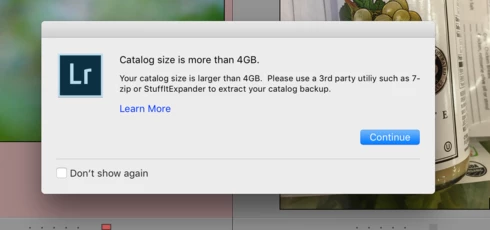
I now get a warning about  zipping backup catalog files larger than 4GB Even though the catalog file is only 1.6GB.   I'm running MacOS 10.12.1

This topic has been closed for replies.

25 replies

Adobe Employee
December 13, 2016
Make sure that you have enough free disk space on your system C: drive. For performance reason's, Lightroom would create a zipped catalog backup in your system %TEMP% directory during backup, and then move the result into your specified backup location. So you need to make sure that you have enough free space on where your %TEMP% directory is located.
Participant
December 13, 2016


Can ́t do the catalog backup. it says i don ́t have space or permission in the destination folder ans that i have to choose another. If i choose another, it dysplays the same message
steveh96983136
Participating Frequently
December 13, 2016
Okay thanks so much. Sounds easy.
Victoria Bampton LR Queen
Community Expert
Community Expert
December 12, 2016
If your catalog is bigger, the backup will run just fine. If you need to RESTORE a backup, double clicking to unzip it won't work because the macOS can't unzip bigger zip files. You'll just need to download StuffIt Expander (free from the App Store) and drop the backup zip onto that app to unzip it. Nothing at all to worry about.
Victoria - The Lightroom Queen
steveh96983136
Participating Frequently
December 12, 2016
Sunil

So when my catalog does become larger than 4GB, does this  uncompression occur during normal use, or just when the backup is needed for some reason? Also, how does someone employ the 3rd party unzip software.... once installed does it just run in the background? I have a macbook pro running 10.12.1

Thank you for your time.
Sunil_Bhaskaran
Inspiring
December 12, 2016
Steve,
We are aware of this issue.
The error message appears for every operations, even if the catalog size is less than 4 GB.
Ignore the message in that case.

In 6.8, even if the catalog size is above 4 GB, Lightroom compresses it. In that case, you need to use a third-party zip utility to uncompress.

Thanks,
Sunil
steveh96983136
Participating Frequently
December 12, 2016


After upgraded to Lightroom 6.8 and attempting to backup the catalog, I got a message saying my catalog is larger than 4GB and I need to use 3rd party software to decompress said catalog. As far as I can tell my catalog is only 2.23GB...??? Also, the dialog contained in the explanation contradicts itself by saying in 1st paragraph 6.1 and later doesn't compress catalogs larger than 4GB and then later in the narrative it claims that update 6.8 does compress catalogs greater than 4GB..?? So which is it and do I still need 3rd party software to decompress catalog?
see    https://helpx.adobe.com/lightroom/kb/extract-large-catalog-backup-macOS.html
Victoria Bampton LR Queen
Community Expert
Community Expert
December 12, 2016
It's an internal bug ID Noah, but this thread will be updated when a fix is released, so as long as you're getting email notifications, you'll hear about it.
Victoria - The Lightroom Queen
Adobe Employee
December 12, 2016
See this solution document for a workaround: https://helpx.adobe.com/lightroom/kb/unable-to-back-up-catalog.html

Its a bug in calculating the catalog size to show this information. Its harmless otherwise, just select "don't show again" and continue. We have the bug with us and would fix it soon.

@Teuvo what you are describing is another issue. Copying from Adobe forums:
Our engineers are looking into this, looks like a double byte character issue in Lrcat file name. 
For a workaround, if you can remove any double byte character from cat name or could you please try the following
  1. Open Lightroom.
  2. Invoke Lightroom > Preferences... menu command
  3. When the Preferences dialog appears, select the Presets tab.
  4. Click on the button labeled “Show Lightroom Presets Folder...”
  5. Lightroom will reveal the root preset folder in the Finder/Explorer.
  6. Now goto Adobe Creative Cloud  and download the config.lua file and copy it into the root preset folder (under "Lightroom") at step 5. The config.lua file will reconfigure the old backup behaviour. 
  7. Relaunch Lr and follow your normal routines to reproduce the issue to see if it improves. 
  8. (Later)Remove or rename the config.lua from the root preset folder once the bug is fixed.
Thanks!
Inspiring
December 12, 2016
In windows 10  LR cc 2015.8 don't back up big catalogs at all.  My biggest is 3.7mt (lrcat -file).