

johnrellis
Legend
June 13, 2019

P: HEIC photos import with Metadata Status: Changed On Disk

  • June 13, 2019
  • 13 replies
  • 510 views

When HEIC photos from an iPhone are imported, they immediately have Metadata Status: Changed On Disk. Editing the photos changes the status to Conflict Detected.The incorrect status prevents metadata changes from being written to the .xmp sidecars when the option Automatically Write Changes Into XMP is enabled.

To reproduce:

1. Download and unzip these sample photos: https://www.dropbox.com/s/h9xwwlk11d3jdcc/heic-metadata-bug-2019-06-13.zip?dl=0

2. Import the photos into LR using the import option Add.

3. Wait a few seconds and notice the metadata status changes to Changed On Disk:
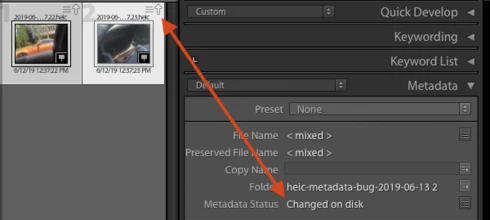


Tested on LR 8.3.1 / Mac OS 10.14.5 / Iphone 7 / Ios 12.1.4

This topic has been closed for replies.

13 replies

johnrellis
Legend
June 13, 2019
I'm guessing this has something to do with the shortcut Adobe took implementing metadata for HEIC files. 

With all other non-raw files (JPEG, TIFF, PNG, PSD), LR uses the industry-standard metadata sections in the files themselves to store metadata.  But with raws, LR uses .xmp sidecars to store metadata, with the received wisdom being that raw formats (except DNG) are proprietary. (But do note that Adobe Camera Raw reads the proprietary raw files.)

But strangely, LR uses .xmp sidecars for HEIC files, even though HEIC has a well-defined industry standard for metadata (HEIC is based on QuickTime). I'm guessing that the product engineers didn't have a readily accessible code library for writing HEIC metadata and thus took the expedient route of using .xmp sidecars. This is ironic, since Adobe has resisted for years using .xmp sidecars for storing video metadata.

Since HEIC is the only non-raw still format using sidecars, there's probably some code path that's gotten confused about this.
johnrellis
Legend
June 13, 2019
LR has long had problems with spurious metadata conflicts (since LR 3, at least). If you're sure that you haven't changed a photo with an external application, it's safe to do Metadata > Save Metadata To File with Overwrite Settings.
Participant
June 13, 2019
I also have seen this problem, on macOS Mojave 10.14.5, running Lightroom Classic 8.3.1. Note that the problem does not occur with Lightroom Classic CC 8.2.1 (I reverted to this version to double check), so this bug is new, starting with 8.3.

Starting with Lightroom Classic 8.3, when I import iPhone XS HEIC photos, I get an icon on each image indicating the Metadata Status is "Conflict detected." When I click on the icon, or the "Metadata Status" in the "Metadata" panel, I get a pop-up that says, "The metadata for this photo has been changed by both Lightroom and another application. Should Lightroom import settings from disk or overwrite disk settings with those from the catalog?" with buttons "Import Settings from Disk", "Cancel", and "Overwrite Settings".

I have never seen this before, but now I see it every time I try to import iPhone HEIC photos. I haven't changed the method I use to import iPhone photos.

It's frustrating because the icon shows up immediately. I have no other apps running (there presumably could be some background processing running that I'm unaware of). I also have no indication about what metadata has changed; Lightroom doesn't say what is different. So besides the fact I don't expect this "Conflict detected" state to exist, it's hard to make a decision about which option is the appropriate one to choose.

I import iPhone photos by letting my photos sync in iCloud (full resolution), open Apple Photos, select the photos, and export to a local drive with File->Export->Export Unmodified Originals... Then, I import these into Lightroom Classic using Import with the "Move" option to both import the photos and move them to be co-located with all my other Lightroom managed photos.

When I import Canon CR2 RAW files from a CF card via a CF card reader, I don't see this behavior.

I also reported this here: https://forums.adobe.com/message/11118757