
Participating Frequently
August 19, 2021

P: Lightroom Classic: Applying develop preset to multiple images transfer all settings

  • August 19, 2021
  • 36 replies
  • 8579 views


I have a preset for sharpening. When I select multiple images and apply this develop preset there is a weird behaviour. The preset is applied but also all other images get develop settings from the active image in the selection.


This started happening in 10.4. I use this regularly and it never behaved like this.
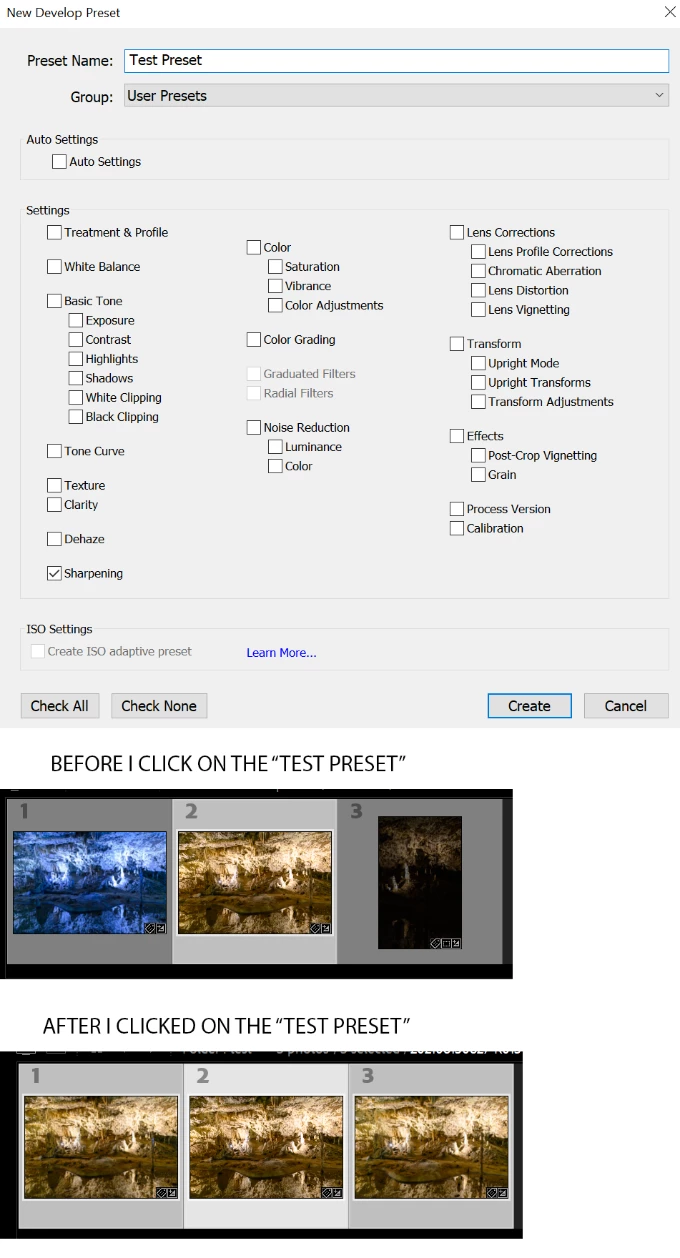


Lightroom Classic version: 10.4 [ 202108071231-af9219b9 ]
License: Creative Cloud
Language setting: en
Operating system: Windows 10 - Business Edition
Version: 10.0.19043
Application architecture: x64
System architecture: x64
Logical processor count: 12
Processor speed: 3,1GHz
SqLite Version: 3.34.0
Built-in memory: 49076,1 MB
Real memory available to Lightroom: 49076,1 MB
Real memory used by Lightroom: 4036,5 MB (8,2%)
Virtual memory used by Lightroom: 5463,4 MB
GDI objects count: 818
USER objects count: 2310
Process handles count: 3956
Memory cache size: 3950,8MB
Internal Camera Raw version: 13.4 [ 872 ]
Maximum thread count used by Camera Raw: 5
Camera Raw SIMD optimization: SSE2,AVX,AVX2
Camera Raw virtual memory: 924MB / 24538MB (3%)
Camera Raw real memory: 932MB / 49076MB (1%)
System DPI setting: 144 DPI (high DPI mode)
Desktop composition enabled: Yes
Displays: 1) 3840x2160
Input types: Multitouch: No, Integrated touch: No, Integrated pen: Yes, External touch: No, External pen: Yes, Keyboard: No

Graphics Processor Info: 
DirectX: Radeon RX 580 Series (27.20.22001.14011)

This topic has been closed for replies.

36 replies

johnrellis
Genius
October 28, 2021

"this is only fixed if you have a computer that supports a Mac OS later than Mojave. If I don't, I am stuck with this issue forevermore?"


There's a straightforward workaround: Go to Library Grid view (g). Select the desired photos and then apply the preset using the Saved Preset menu in the Quick Develop panel in the right column.

Known Participant
October 28, 2021

Hiya, this is only fixed if you have a computer that supports a Mac OS later than Mojave. If I don't, I am stuck with this issue forevermore?

Rikk Flohr_Photography
Community Manager
Community Manager
October 26, 2021

Greetings,


The Max 2021 Photography products updates have been released and include remedies for this topic.  The updates will be rolling out worldwide, October 26 and 27, 2021. If you do not see the updates in your Creative Cloud Desktop app, you can refresh the apps to see if the updates are available in your region.  The keyboard shortcut to refresh is [Cmd/Ctrl] + [Opt/Alt] + [ R ]. 


Note: iOS and Android updates may take up to a week to appear in your App Store.


Thank you for your patience.

Rikk Flohr: Adobe Photography Org
Known Participant
October 21, 2021

This bug suddenly showed up whilst editing...when I apply ALL settings to a virtual copy it looks vastly different. The white balance has the same numbers, but looks overly yellow and magenta. It is the exact same photo with the exact same settings. I need to adjust the white balance way cooler and more green. 

elishawhite
Participating Frequently
October 19, 2021

hello

i am having the exact same problem, i have an edited cropped image, then i right click to select virtual copy, the vitrual copy is created and it is cropped the same as the orginal, then i add my black and white preset, and as the preset is applied to the vitural copy the cropping seems to have a mind of its own, some have even made up its own crop that is nothing like the original or it reverts back to the uncropped original image, i have restarted lightroom classic, and started again and it may not replicate the first time but it will after one or two successful goes. has there been any resolution or solution for this, as i have a huge backlog and cant afford the extra time editing please help!


johnrellis
Genius
October 19, 2021

First troubleshooting steps:


1. Do the menu command Help > System Info and copy/paste the first ten lines here.


2. Select several photos and go into Develop.  Is the menu item Settings > Enable Auto Sync checked?

elishawhite
Participating Frequently
October 19, 2021

1.

Lightroom Classic version: 10.4 [ 202108071231-af9219b9 ]
License: Creative Cloud
Language setting: en-AU
Operating system: Mac OS 10
Version: 10.14.6 [18G9323]
Application architecture: x64
Logical processor count: 8
Processor speed: 4.2GHz
SqLite Version: 3.34.0
Built-in memory: 16,384.0 MB


2.

Using Lightroom Classic

under develop tab, under settings enable auto sync not ticked.


thanks so much for helping. i usually create a virtual copy of a photo manually then apply a black and white preset, the vitrual copy is cropped as per original, but when i apply the preset the cropping either reverts back to as shot, or it has been actually making up its own crops, one photo wasnt cropped then i created the vitrual copy then applied the preset and it actually cropped it despite the original photo not having any cropping applied. its very odd.


Participant
October 17, 2021

When, for example I highlight an image and multiple other images to apply a simple property change such as a curve, noise reduction, or exposure with a preset, Lightroom performs the preset but ADDITIONALLY changes all of the highlighted images to match those of the highlighted image. The cropping, colour/B&W setting and every other property of the highlighted images is transferred to those additional images. This of course renders the whole concept of the Autosync function pointless with respect to presets. I would add that this does not occur if you manually make the changes to the highlighted image, in which case autosync performs as it should. 


This is a function that I use regularly to batch edit noise reduction at the end of an editing session and you can imagine my horror at finding hours of work destroyed by this anomoly. My only option was to revert countless images using the history panel!


Does anyone else experienced this anomoly and have any suggestions of how to overcome it please?

JohanElzenga
Community Expert
Community Expert
October 17, 2021
-- Johan W. Elzenga
roger_hanuk
Participant
October 13, 2021

LR Classic 10.4

Windows 10 Home version 2004


I am having a problem with the Autosync function which when I use it to apply a preset  keeps resetting any crops I have performed.

I normally use the Autosync at the beginning of developing a batch, and before any cropping has been done so have never seen this before. 

Today after processing a number of images including croppng  I wanted to apply a Colour Grading preset across the batch, but when I used it I noticed that all the crops had been reset. My first thought was that the preset had  inadevertently included a crop setting, but it doesn't. In fact I remade the preset to be sure. I also tested using numerous other presets, including a number of the ones installed recently as part of an update. Results were the same. Whenever I  use Autosync with a preset any crops are resets.


The History for any Autosynced images just shows the preset as applied. If you toggled between the preset and the previous action you can see the preset and the crop reset being undone and then applied

Is there a setting I am missing or is this a bug


johnrellis
Genius
October 13, 2021

It's a known bug acknowledged by Adobe. A workaround while awaiting the fix: Go to Library Grid view (g). Select the desired photos and then apply the preset using the Saved Preset menu in the Quick Develop panel in the right column.

Participant
October 10, 2021

Hello


For some reason when I have multiple pictures highlighted and autosync turned on it is changing the crop on all pictures when I pick ANY preset I have saved.


So if I have gone through and fix the crop on all the pictures, I then highlight them all and pick a preset for them (ones I've used for years and never had this problem) it is then changing the crop on all the pictures to be the same as the "main picture" I'm clicked on.


It's just started doing this today for no reason at all. I guess I've accidently turned on a setting but I don't know how to turn it off.


Any ideas?


Many thanks

DdeGannes
Community Expert
Community Expert
October 10, 2021

This is a known bug which has been acknowledged by Adobe. Best not to activate “Auto-Sync” and to use the Sync (copy paste). Hopefully a fix will be available soon.

The bug relates to all the settings from the source image being applied to the target images. Fixing the crop may not rectify the problem.


Regards, Denis: iMac 27” mid-2015, macOS 11.7.10 Big Sur; 2TB SSD, 24 GB Ram, GPU 2 GB; LrC 12.5,; Lr 6.5, PS 24.7,; ACR 15.5,; (also Laptop Win 11, ver 24H2, LrC 15.0.1, PS 27.0; ) Camera Oly OM-D E-M1.
Participant
October 10, 2021

Thank you so much! It was driving me crazy and thought it was something I did wrong. Glad it's not just me and hope it gets fixed soon. Thank you

DdeGannes
Community Expert
Community Expert
October 5, 2021

My thoughts on this on this issue is as follows, when you have multiple files selected with Auto-Sync activated do not apply presets, profiles, auto tone etc and only use individual edit features.

To be sure I will not utilize the Auto-Sync function until this rectified.


Regards, Denis: iMac 27” mid-2015, macOS 11.7.10 Big Sur; 2TB SSD, 24 GB Ram, GPU 2 GB; LrC 12.5,; Lr 6.5, PS 24.7,; ACR 15.5,; (also Laptop Win 11, ver 24H2, LrC 15.0.1, PS 27.0; ) Camera Oly OM-D E-M1.
Participant
October 4, 2021

Not sure if this is a setting or a glitch, but when I auto-synch and apply a preset to multiple photos it also crops them. This is really slowing down my work flow. Would appreciate any advice.