November 30, 2025

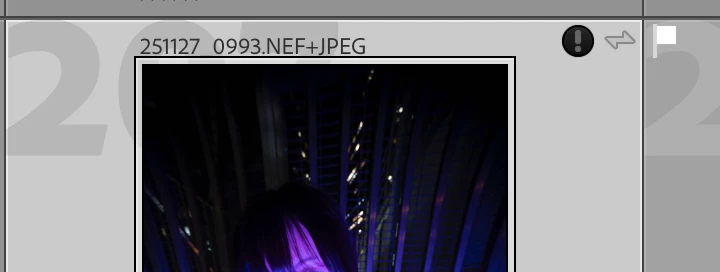
P: Lightroom has encountered problems reading this photo. After upgrade to v15

  • November 30, 2025
  • 17 replies
  • 5974 views

I got this error after upgrade to LrC 15.0. Update 15.0.1 not fix this issue.


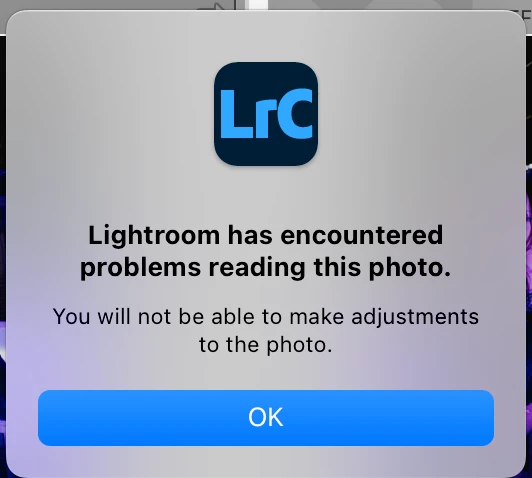
"Lightroom has encountered problems reading this photo. You will not be able to make adjustments to this photo."


My photos file are OK, restart LrC will able to edit again, but it will happen again sometimes after I sync the photo setting form one photo to another one.


OS is macOS 15.7.2.
17 replies

Known Participant
January 7, 2026

This is a known issue since revision 14 or so. Lightroom displays a black mark on the thumbnail and the develop module is greyed out, the file cannot be edited. Lightroom reports "an unknown error occurred". 


The common conception is that the raw file got corrupted, but that is not the case. I have had this problem since version 14 and it still happens with V 15.1. Random files having this issue, different files on different computers. I found that is is the xmp sidecar file that screws it up. If I delete that .xmp AND also remove and re-import the raw file, the issue goes away. Just removing the xmp doesn't help. 


Now, I also have this issue with some DNG files, which I created with the HDR functionality. That file doesn't have an xmp sidecar file, but it is likely the way Lightroom writes that same information into the DNG. For that, I removed the file and re-imported it and it was fine. 


I am speculating that this is the recently added denoise or some other new feature that causes this. 


Lightoom Classic 15.1, latest updates from Adobe. Windows 10 and 11 Pro, NVIDIA drivers updated. 

Known Participant
January 7, 2026

The raw files are not corrupt!


I have had this problem since version 14 and it still happens with V 15.1. Random files having this issue, different files on different computers. I found that is is the xmp sidecar file that screws it up. If I delete that .xmp AND also remove and re-import the raw file, the issue goes away. Just removing the xmp doesn't help. 


Now, I also have this issue with some DNG files, which I created with the HDR functionality. That file doesn't have an xmp sidecar file, but it is likely the way Lightroom writes that same information into the DNG. For that, I removed the file and re-imported it and it was fine. 


I am speculating that this is the recently added denoise or some other new feature that causes this. 

dj_paige
Legend
January 8, 2026

Hello @JLobert 


Historically, these exclamation point icons and this error message meant that the files were corrupt, and then a bug appeared which caused these exclamation point icons and this error message to appear even when the files were not corrupt. Then Adobe acknowledged that sometimes it happens with files that are not corrupted because of a bug, and claims to have fixed it, but the reports of it happening on non corrupt files continue. So it is good that people (like you @JLobert ) continue to report this happening. 


While re-importing the photos may work for you, anyone else reading along should know that re-importing will cause you to lose information. If there is no .xmp when you import, then you have lost all your work on these re-imported photos. Even if there is .xmp file present when you import, it may not contain all of your edits and even if it does contain all of your edits, you will still lose things like collection membership, edit history sequence, virtual copies, pick flags and a few other thing that I can't remember right now. So in general, re-importing is not a good long-term solution.

Participant
December 27, 2025

Same issue here after upgrading to LrR 15.1. I can reproduce the behaviour: it only happens after I Denoised, closed LrC and reopened it. Then the black exclamation mark appears and I cannot edit the picture any more. 

However, I can delete the picture from LrC, re-import the same picture from my HD again, apply Denoise, close LrC, re-open and the mark is back. 

I'm on macOS 26.1

2025-12-27_10-54-57.png

Participant
January 2, 2026

I'm having the same issues, and only with files that have had denoise applied before. This is a serious problem. As others have said, the files themselves are fine, there's probably some corruption between the lrcat and lrcat-data files. 

dj_paige
Legend
January 3, 2026

what do you mean by "the files themselves are fine"?? How do you know?? Please explain.

Rikk Flohr_Photography
Community Manager
December 16, 2025

Greetings all,
 
A new update for the Adobe Photography products has been released. The December release contains an update regarding this issue. 

If you do not see the update in your Creative Cloud Application, you can refresh it by pressing [Ctrl/Cmd]+[Alt/Opt]+[ R ]. 

Note: It may take up to 24 hours for your update to be available in your Creative Cloud app.
 
Thank you for being so patient.

Rikk Flohr: Adobe Photography Org
dj_paige
Legend
December 16, 2025
quote

Greetings all,
 
A new update for the Adobe Photography products has been released. The December release contains an update regarding this issue. 

If you do not see the update in your Creative Cloud Application, you can refresh it by pressing [Ctrl/Cmd]+[Alt/Opt]+[ R ]. 

Note: It may take up to 24 hours for your update to be available in your Creative Cloud app.
 
Thank you for being so patient.


By @Rikk Flohr: Photography


Rikk, may I make a suggestion for greater clarity here? Please use the version NUMBER of the release, rather than the month it was released. A user reading this post many months in the future will not know what version NUMBER the December release was, and would have a hard time determining what version NUMBER he/she needs or whether or not they have the December version or later. If you say LrC version 15.1, the user can easily determine if he has that version, or later.  You could also use words like "Lightroom Classic 15.1 / December 2025 release" to increase the clarity.

Adobe Employee
December 9, 2025

@46949785

Thanks for posting. We’ve identified one scenario where this message appears, and a fix will be included in an upcoming release. To confirm if your case matches, please help us by answering the following:

  1. Do you see this error after importing JPEGs with Minimal Previews?
  2. Is there a workflow where you can reproduce this issue consistently?
  3. Is it image-specific or any edit specific ? If yes, could you share the image+sidecar privately?
  4. After reproducing the issue, please close the application and share the logs from the following folder:
    ~/Library/Application Support/Adobe/CameraRaw/Logs
December 9, 2025
Issue should be same as what matthiass mentioned.
 
macOS 15.7.2
LrC 15.0 to 15.0.1
Camera Nikon ZF nef+jpg. High efficiency most compressed raw.
 

Q1 No error during import.

Q2 No step can 100% reproduce, quite random. Usually happened with the following flow
1 I edit a photo (nef+jpg) with a lot settings include adaptive masks.
2 sync the setting to multiple photos.
3 go to the another photo just got sync, issue may happen. Settings seems applied, but the edited effect is not show up, zoom 100% can.t display a clear image, warning ! logo show up.
4 restart LrC , back to the issue photos, everything resumed normal. 
5 after some edits… issue will happen with another photo. Loop back to step 4.
 
Q3 not specific to one or two photos
Q4 next time will collect the logs.
November 30, 2025

Thanks but not the same case.

My files are good.

Completely fine after restart LrC, but it will keep happening again with other photos after I sync settings. 

I believe it is software bug.

dj_paige
Legend
November 30, 2025

Completely fine after restart LrC, but it will keep happening again with other photos after I sync settings.


This does not rule out hardware problems. Could be computer memory problem, could be hard disk problem, and maybe it could be other things. And yes, it could be a software bug, Adobe claims to have fixed this bug in a recent release (I don't remember which one) and maybe it hasn't been fixed for everyone.

Participant
January 1, 2026

Screenshot 2025-12-31 234809.png

Community Expert
November 30, 2025

A little searching and the suggestions are that you are having some sort of hardware issue.  It might even be your SD card.   Try reading this topic from an earlier topic.  

https://community.adobe.com/t5/lightroom-classic-discussions/lightroom-has-encountered-problems-reading-this-photo-you-will-not-be-able-to-make-adjustments/td-p/12182557