



johnrellis
Legend
April 21, 2022

P: Metadata Auto Sync doesn't update the display of fields in the Metadata panel

  • April 21, 2022
  • 8 replies
  • 2918 views

Metadata Auto Sync doesn't correctly update the display of  copied metadata fields like Caption in the Metadata panel, another problem with the 11.3's caching of metadata in "<catalog> Helper.lrdata". You can work around this bug by enabling Catalog Settings > Metadata > Automatically Write Changes Into XMP.


Note that this is a different bug than the one reported for Sync Settings not displaying correct Cropped dimensions.  Sync does correctly display the copied caption -- it's just Auto Sync that is broken.


Tested on LR 11.3.1, Mac OS 11.6.2 and Windows 10. To reproduce:


1. Make a new catalog.


2. Import two photos.


3. Turn off Catalog Settings > Metadata > Automatically Write Changes Into XMP.


4. Select both photos.


5. In the Metadata panel, select Target Photo.


6. Enable the menu item Metadata > Enable Auto Sync.


7. Change Caption to "Hello".


8. Select the other photo and observe in the Metadata panel that Caption is blank.


9. Restart LR and observe that photo's caption is still blank.


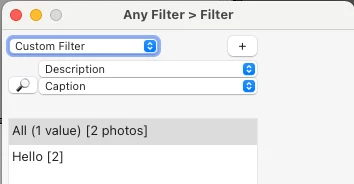
10. Run the Any Filter plugin's Filter command and observe that it displays "Hello" as the caption for both photos, demonstrating the the catalog has correctly recorded the new caption:
 

11. Exit LR, delete "<catalog> Helper.lrdata", and restart LR; observe that both photos now display "Hello" as the caption.


This topic has been closed for replies.

8 replies

Rikk Flohr_Photography
Community Manager
June 14, 2022

Greetings,


Updates to the Adobe Photography Products were released on June 13. The update contains a fix for this issue.  Please download and the latest version of your application via the Adobe Creative Cloud Application or your respective device app store.

If you do not see the update (Mac and Win) you can refresh your Creative Cloud App with the keyboard shortcut [Ctrl/Cmd]+[Alt/Opt]+[ R ]. 


Note: App store availability can take several days for the update to appear and be available. 


Thank you for your patience.

Rikk Flohr: Adobe Photography Org
Twisted_Mind
Participant
June 11, 2022

I will roll back to 11.2

But I still fail to comprehend how to software can be released to public with such a huge bug effecting basic most used features of Lightroom Classic. 

Participant
June 4, 2022

Hey everyone!

For weeks I am experiencing an annoying and time consuminng bug with Lightroom Classic, Version 11.3.1 running on Mac OS Montery version 12.0 on a 2021 Macbook Pro.

When I am filling in my Metadata, and I am selecting multiple pictures it does not fill in the Metadata in all the selected pictures (I have automativ syncronisation switched on). It does fill in tags to all selected pics. It makes no difference if i fill it in directky in the metadata spots or open the syncronisation window.

Any help or ideas would be very welcome, this is costing me hours of work.

(englisch is not my first language, so please excuse me if some words are not correct..)
Thanks,
Anthea

johnrellis
Legend
June 4, 2022

[This post contains formatting and embedded images that don't appear in email. View the post in your Web browser.]


"I am selecting multiple pictures it does not fill in the Metadata in all the selected pictures (I have automativ syncronisation switched on)."


Metadata Auto Sync has a severe bug introduced in LR 11.3 -- while it correctly changes the metadata fields stored in the catalog, the fields in the Metadata panel don't get updated and will continue to show the old values, even after restarting LR:

https://community.adobe.com/t5/lightroom-classic-bugs/p-metadata-auto-sync-doesn-t-update-the-display-of-fields-in-the-metadata-panel/idi-p/12898391


There are three workarounds:


1. Instead of using Metadata Auto Sync, select all the photos to be changed, click Selected Photos at the top of the Metadata panel, then enter the new values into the desired fields:


The changes will occur to all the selected photos.


2. Use the Sync button or the menu commands Metadata > Copy/Paste Metadata to copy the changed fields to the other photos.


2. Roll back to LR 11.2.

Participant
April 25, 2022

Hallo zusammen!


LR Classic 11.3.1

Mac OS 12.3.1


Seit dem letzten Update synchronisiert LR die IPTC-Daten nicht mehr.


Wenn ich mehrere Bilder auswähle und IPTC-Felder ausfülle, werden diese Änderungen nur beim ersten ausgewählten Bild erkannt, nicht aber bei allen anderen.


Der Schalter für automatisches Synchronisieren ist aktiviert. Auch wenn ich manuell auf synchronisieren drücke funktioniert das nicht.


Auch wenn ich ein Bild wähle, im Menü auf Metadaten kopieren drücke, und danach andere Bilder wähle und auf Metadaten einfügen drücke, funktioniert das nicht. Er arbeitet, meldet auch Daten werden eingefügt, aber die Felder sind weiterhin leer.


Ich würde mich über jeden Hinweis freuen.


Danke,

Tim

DdeGannes
Community Expert
Community Expert
April 25, 2022

See if the info in the article below assist in solving your problem.

https://www.lightroomqueen.com/multiple-metadata-11-0/


Regards, Denis: iMac 27” mid-2015, macOS 11.7.10 Big Sur; 2TB SSD, 24 GB Ram, GPU 2 GB; LrC 12.5,; Lr 6.5, PS 24.7,; ACR 15.5,; (also Laptop Win 11, ver 24H2, LrC 15.3; PS 27.0; ) Camera Oly OM-D E-M1.
Rikk Flohr_Photography
Community Manager
April 24, 2022

Investigating

Rikk Flohr: Adobe Photography Org
DdeGannes
Community Expert
Community Expert
April 22, 2022

johnrellis stated " You can work around this bug by enabling Catalog Settings > Metadata > Automatically Write Changes Into XMP. "

The LrC default operation is to read and write to the Catalog file. The option "Automatically write changes Changes into XMP ", this is to allow info to be shared with other Adobe applications, mainly PS / Camera Raw Plug-in.

Features in LrC should not require that option to be selected for them to function. I do not use that option in my workflow.


Regards, Denis: iMac 27” mid-2015, macOS 11.7.10 Big Sur; 2TB SSD, 24 GB Ram, GPU 2 GB; LrC 12.5,; Lr 6.5, PS 24.7,; ACR 15.5,; (also Laptop Win 11, ver 24H2, LrC 15.3; PS 27.0; ) Camera Oly OM-D E-M1.
Rikk Flohr_Photography
Community Manager
April 22, 2022

Requesting a ruling from the team on the collision we are seeing. 

Rikk Flohr: Adobe Photography Org
psamathe_net
Known Participant
April 21, 2022

Under 11.3 and 11.31 in Library module I select e.g. 10 photos and change pretty well any text metadata e.g. Caption. You do briefly get the "Multiple ..." progress bar top left but the change is only applied to the main/1st of the selected images. Under 11.2 it works properly, metadata changed in all selected images.

I'm not 100% sure exact circumstances as import a new load of images, select them all and add new metadata (e.g. Caption blank to "Test 1") and it works as expected. But selected those imported images again and change caption from "Test 1" to "Test 2" and it does not work, only the main/1st selected image data is changed.

Changes are not made (rather than made but not displayed) as exit LrC and restart and only the main image has changed metadata.

Autosync (at bottom of metadata panel) is definately enabled and options set appropriately.


Doing an manual metadata sync works fine, it's just the Auto-sync that is not working. e.g. make a change to copyright field with autosync enabled, press the autosync button (ensure sync of changed field enabled) and press sync and only the 1st/main selected photo is changed. But disable auto sync and change e.g. copyright text field and press sync (check field enabled) and press "Sychronise" and it workd.


Complete nuisance as I'd been just assuming it was working so having to go back over loads of images I'd just assumed had been changed and to re-apply the changes!

Ian

psamathe_net
Known Participant
April 21, 2022

Should add: macOS latest release version as well as macOS 10.15.7. Same on both OSs Both on MacBook Pros with plenty of disk space and RAM.

dj_paige
Legend
April 21, 2022

Make sure the text Selected Photos is highlighted.