
Known Participant
March 24, 2020

P: Rectangle appears on images after editing in Photoshop and returning to Lightroom Classic

  • March 24, 2020
  • 27 replies
  • 836 views

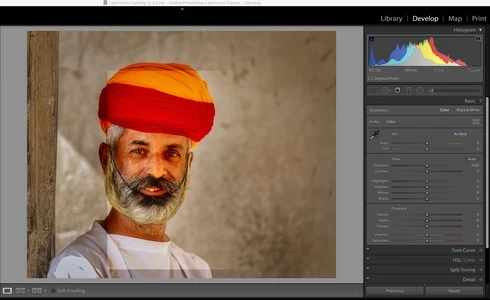
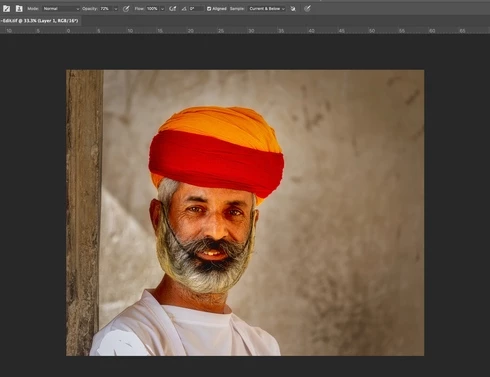
Whenever I export from Lightroom Classic and do some editing in Photoshop and return to Lightroom Classic on saving, there is always a rectangle at a different light level than the rest of the image.  This is corruption, I don't see this rectangle at all in Photoshop and if I reopen the file in photoshop it is not there, just in Lightroom.

It is sooooooooo annoying.

You can see it in this attached image, it happens almost every time I edit in Photoshop and return to Lightroom.  I have more examples.

Iain

Mac OS 10.15.3, iMac 27" 2018, Benq SW321C Photographer Monitor. Adobe Photoshop 21.1.1 Lightroom Classic 9.2

Same image in Photoshop:
27 replies

johnrellis
Legend
March 24, 2020
Let's tease apart concerns and focus on the image(s) with feathered layer masks first.

Re your sample TIFF, I don't see the symptoms when I open it in Mac Preview or LR. But some further testing shows that the bug only appears to occur when you open a raw in PS, add a feathered layer, and save it as a PSD or TIFF. If you reopen that PSD or TIFF in PS and force a resave, either by making a small change or by doing File > Save As, the image then appears correctly in LR and other external apps.

So it's the first time you open a raw and save as a PSD/TIFF that provokes the bug.  Subsequent PS edits to that PSD/TIFF cause the bug to go away.

(Note that I've eliminated LR from the equation -- all my testing is with Photoshop and Mac Preview, which reads the compatibility layer to display a layered PSD or TIFF.   The bug is rendering the compatibility layer incorrectly.)
Known Participant
March 24, 2020
I'll be doing some editing tonight, I will post an example when there is no feathered masking, I'll upload the Tiff etc.

Thanks!
johnrellis
Legend
March 24, 2020
I just retested, and the bug with feathered layer masks occurs with both PSDs and TIFFs.
Known Participant
March 24, 2020
Ok, here is the file.  I closed and opened Lightroom 22 times and now its gone. Surely I can't be expected to do that in my workflow.....

https://www.dropbox.com/s/5v5st04ayy5t0jm/6N8A6210-Edit-Edit.tif?dl=0

Known Participant
March 24, 2020
That doesn't explain why it happens in other images that have no feathered masks.
Known Participant
March 24, 2020
I do have a feathered mask in Photoshop though, only 3 layers, clone stamp, feathered exposure mask for vignette.
johnrellis
Legend
March 24, 2020
I think the most effective next step is, as Jeffrey Tranberry suggested, to upload a sample file showing the problem to Dropbox or similar and posting the sharing link here. That will help identify whether the problem is specific to the file or your particular configuration.
Known Participant
March 24, 2020
I don't think this is the same bug, this is an original Cr2 file in Lightroom, basic edited in Lightroom, opened to edit in Photoshop, saved and closed and now this is what it looks like in Lightroom.  Therefore it's a Tiff, not a PSD.
Known Participant
March 24, 2020
I have done that 3 times now, it makes no difference.
johnrellis
Legend
March 24, 2020
Iain, I just posted this reply to your original thread in the user-to-user forum:
https://community.adobe.com/t5/lightroom-classic/square-image-in-my-images-after-importing/m-p/11000...

"Reading through the jumbled order of replies, it's not clear that you've tried enabling the Photoshop option Preferences > Performance > Legacy Compositing, as suggested by Bob Somrak, and then resaving the image after making a trivial change. There is a bug in PS 21.0 and 21.1 that incorrectly renders the final image as seen by LR and other apps (PS displays the image correctly):

https://feedback.photoshop.com/photoshop_family/topics/reproducible-bug-in-feathered-layer-masks-photoshop-lr-classic?topic-reply-list%5Bsettings%5D%5Bfilter_by%5D=all"