

johnrellis
Legend
June 12, 2024

P: Remove brush strokes appear in the wrong place on rotated images

  • June 12, 2024
  • 23 replies
  • 3817 views

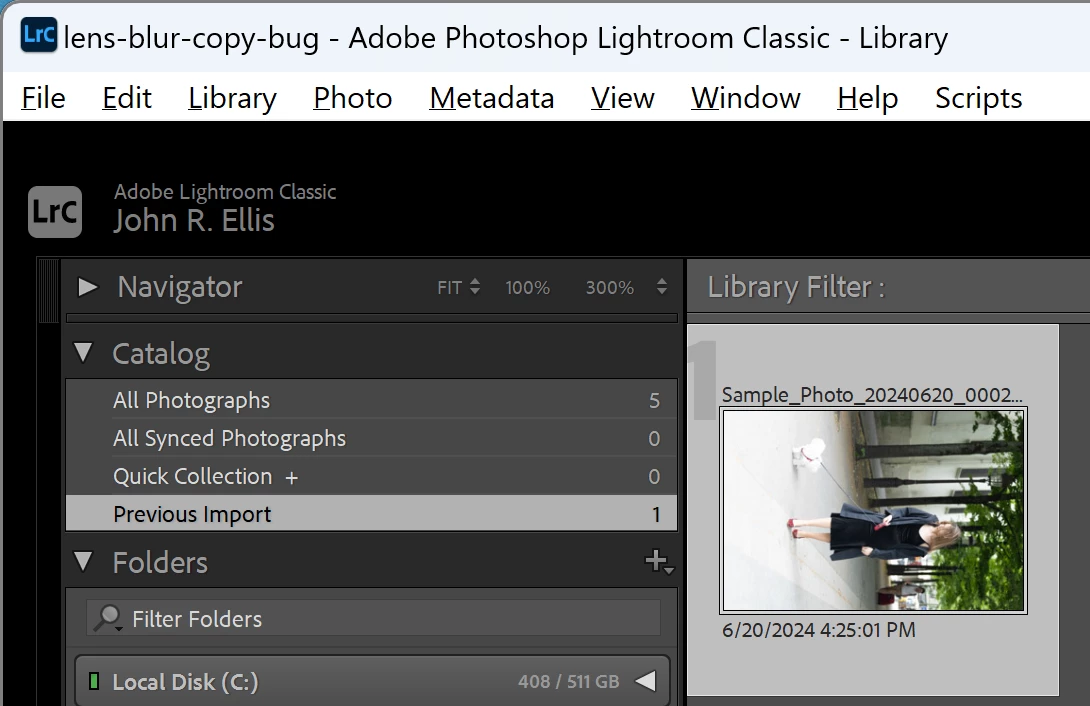
Brush strokes made with the Remove tool appear in the wrong place on a portrait image, rotated 90 degrees counter-clockwise. This occurs in LR 13.4 / Windows 11, but it doesn't occur on Mac OS 14.5.


To reproduce:


1. Download and import this photo:

https://www.dropbox.com/s/ko89pejpmicyqie/rotated-remove-brush-bug.2024.07.01.CR3?dl=0


 Observe that it hasn't been rotated to portrait mode :
 

2. With Exiftool, observe that the camera has recorded landscape orientation:


[EXIF] Orientation : Horizontal (normal)


3. Do Photo > Rotate Left.


4. In Develop, open the Remove tool and select Remove mode.


5. Brush anywhere on the photo and observe that the brush strokes appear on the wrong place on the iamge, rotated 90 degrees counter-clockwise.  See the attached screen recording.


6. Select the other modes (Heal, Clone) and observe similar misbehavior.

23 replies

Participating Frequently
July 4, 2024

Thank you so much!

Participating Frequently
June 22, 2024

I am using Photoshop Lightroom Classic 13.3.1. When I use the brush under Develop > Remove section, it doesn't paint in the area where I paint. Instead, it paints in an area that 90 degrees in the counter lock wise direction.


I have given below a screenshot where I am trying to select the man in background (I have indicated roughly where I am trying to paint in red color). But the brush paints in the top left corner of the photo.


johnrellis
Legend
June 22, 2024

There's been another report about this but we've been unable to reproduce the problem in other LR configurations. Unfortunately, if Adobe isn't able to reproduce the problem, they're not likely going to pay any attention to these reports. 


Please upload an original photo (not an export or screenshot) that's having this problem to Dropbox, Google Drive, or similar and post the sharing link. If that allows us to reproduce the problem, then we can submit an actionable bug report.

Participating Frequently
June 25, 2024

Hello John,


Thanks for the reply!


I have uploaded the original photo here.

https://we.tl/t-S34vyANZBw


However, this happens on all photos across several folders. But there are certain folders in which they don't happen. As far as I have noticed, this happens on folders that are present in the external hard disk (SSD) but doesn't happen on laptop's internal drives (also SSD).


Also, this issue is specific to the brush under Develop > Remove section. For example, the brush tool used for masking works well in all cases.

Participating Frequently
June 12, 2024

Hello:
I scanned a roll of film today, and am working on the scans. The spot removal tool seems not to be working. If I chooes "Remove" (no generative or object-aware) and click on a spot, nothing happens. Opacity is at 100%. If I also select "Object Aware" and click over a spot, a mysterious red blob will appear at a ramdom point in the image. I have never seen this happen before. It always worked exactly like the tool in Photoshop. I have read on the Web that this is not a bug, but a feature. This happens with images that have NOT been edited since scanning. No AI has been used.


What the flap is going on, and how do I stop it?

Les

Participating Frequently
June 12, 2024

I noticed something. I accidentally loaded the scanner incorrectly, and so I flipped all the images horizontally. If I "unflip" them, the spot healing works.

johnrellis
Legend
June 13, 2024

In the past, LR has had many bugs with local adjustments and photos that have been flipped or rotated. It would be good to file a bug report on this if there's a bug. But I can't reproduce your symptoms -- if I flip a photo horizontally, all three Remove tools still work correctly.  Perhaps you could upload one of the scans to Dropbox, Google Drive, or similar and post the sharing link here?