

johnrellis
Legend
October 22, 2017

P: Sync from iPhone sets inconsistent capture date, incorrect sorting

  • October 22, 2017
  • 26 replies
  • 659 views

When a photo is synced from LR iPhone, the capture date in LR Classic is set inconsistently, causing the photos in Library grid view to sort incorrectly.  

A workaround is to select all of the synced photos, do the menu command Metadata > Edit Capture Time, and click Change All. This appears to set the catalog's internal capture date fields consistently.

This is yet another instance of LR's internal architecture maintaining multiple fields for capture date in the catalog database and a programmer incorrectly setting some of them.  There are other bugs (outstanding for years) caused by this architectural defect: 
https://feedback.photoshop.com/photoshop_family/topics/lightroom-still-inconsistent-capture-date-tim...
I'm not merging this bug report with that one, though, because all the symptoms in that one are caused by importing photos missing EXIF capture dates. Whereas this bug occurs cloud-syncing photos with valid EXIF capture dates.

In this instance, one of the catalog database fields is getting set with a UTC value where it should be in the local time zone, or vice versa. 

To reproduce:

1. Create a new catalog.

2. Import a photo with a valid capture date and rename it A.jpg.

3. Empty your LR CC of all photos.

4. Sync this catalog with your LR CC account.

5. In LR iPhone, take a photo within the app.

6. Wait until that photo syncs to LR Classic and rename it to B.dng.

7. Use ExifTool to observe that B.dng has valid metadata date fields:

$ exiftool -a -G B.dng | grep -i date
[File]          File Modification Date/Time     : 2017:10:21 17:38:58-07:00
[File]          File Access Date/Time           : 2017:10:21 17:42:08-07:00
[File]          File Inode Change Date/Time     : 2017:10:21 17:38:58-07:00
[EXIF]          Modify Date                     : 2017:10:21 17:38:24
[EXIF]          Date/Time Original              : 2017:10:21 17:38:23
[EXIF]          Create Date                     : 2017:10:21 17:38:23
[EXIF]          GPS Date Stamp                  : 2017:10:22

8. Use Metadata > Edit Capture Time to set the date of A.jpg to be the date of B.dng + n hours - 1 second, where n is the negative of your computer's current time zone offset.

For example, my computer is set to PST (UTC - 7), so n is 7.  The date of B.dng is 10/21/17 5:38:23 PM, so the date of A.dng is set to that date + 7 hours - 1 second = 10/22/17 12:38:22 AM.

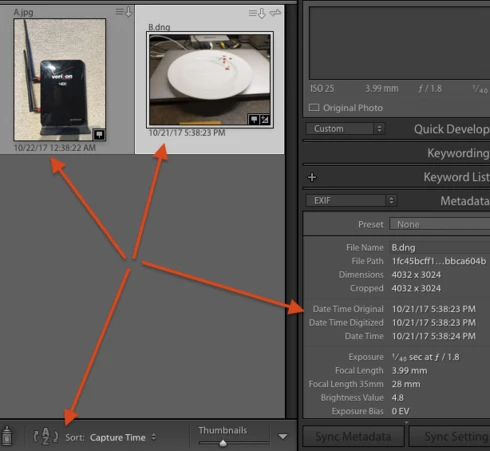
9. Do View > Sort > Capture Date and > Ascending.

10. Observe that A.jpg incorrectly sorts before B.dng, even though the date shown for A.jpg comes after the date shown for B.dng:


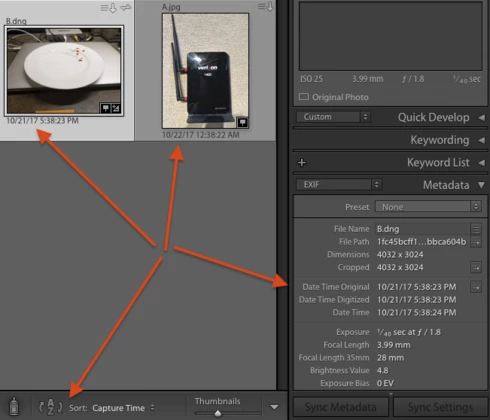
11. Select B.dng, do Metadata > Edit Capture Time, then click Change.  

12. Observe that B.dng now sorts before A.jpg, even though it displays the same capture date/time under its thumbnail and in the metadata panel.


Tested on LR Classic 7.0 / MacOS 10.12.6, LR CC iPhone (updated two days ago) / iOS 11.0.2 / iPhone 7.

This topic has been closed for replies.

26 replies

johnrellis
Legend
September 22, 2018
I just tested the recipe at the top of this topic, and LR 7.5 no longer produces the reported symptoms.   So I think this particular bug is fixed.

However, LR has long had bugs with reading capture times correctly, and some of them have never been fixed. So you may be tripping over one of them.

I recommend starting a new topic on your problem. Please include lots of detail, including the first ten lines of Help > System Info and screenshots of Library grid view showing the capture date under each thumbnail and the capture date showing in the Metadata panel (similar to the screenshot in the first post of this topic).
Participant
September 22, 2018
I do not understand why this bug is signed as solved. May be they fixed "Import" bug, but I still see photos sorted by some other time rather than EXIF capture time. I'd expect Adobe not only to fix the bug but also to provide the tools to resolve the mess caused by it in the catalog.
Participant
March 26, 2018


I'm in the middle of a major catalog re-build and am just now finding out about all this. I've been working for weeks trying to fix my archive because of an EXIF dating error caused during imports from my iPhone going directly into Lightroom. It caused all the videos to be dated seven hours behind their actual capture date, and many of the photos to have an entirely wrong capture date altogether, putting them into the wrong dated folder on my local drive. Total chaos. I tried talking to Adobe, reading everything I could find online, until finally realizing that I am just going to have to go back to every photo and video one at a time and re-enter everything manually. All because Adobe wouldn't invest their time and resources into fixing this issue with iPhone imports.

What I'm saying is that for some people its nothing new to see that Apple and Adobe are not playing along as well as they should be, and I see here that I am not alone with feeling like I am at a crossroads with Adobe entirely. 

What I would like to know are people's thoughts on continued iPhone imports into LR classic using the compressed JPEG's (lame I know) with the intention of switching out those images with HEIC's in the future. How would you do this? Like really, if you think you have a clever way of doing it I think that would be helpful here. I do what a lot of users do, which is import my images into a dated file structure with dated folders, and rename all my images upon import using a reverse date YYYYMMDD etc etc file naming system. So assuming that you stashed away all your HEIC's together in one place, which all have the native iPhone IMG_#### file names, how in the heck would you make the switch? 

In other words, it would be great if Adobe would not only listen to their loyal base LR archivists and roll out the red carpet for HEIC ASAP, but also come up with a way to bridge the imported iPhone JPEGs to their HEIC counterparts stored off catalog. Is this possible? Is there a better way? Am going crazy lol?

Participant
March 22, 2018
Same probem - Lightroom Classic CC 7.2 - I import selected photos from the card on my iPhone for editing on the go (using the camera connection kit). Then when I'm able to, import the whole card via PC lightroom. I use 'sort by date' to cull the odd duplicate from the iPhone import. The workaround I use is to use 'Edit Capture Time' to shift date by an hour and then change it back.
Inspiring
February 15, 2018
I have a sort by capture date/time bug that is fixed by the same workaround as this, but I use the android Lightroom, and Lightroom Classic on my Windows computer
Inspiring
January 16, 2018


Since Lightroom Classic CC came out I‘m no longer able to let LR sort my images by capture date and time. As I often first import the pics of my main camera and later the iPhone pics that were shot in the same period of time they are no longer in the correct order when sorted by creation date/time. Is this a known bug?
johnrellis
Legend
January 15, 2018
I think Adobe support was mistaken in this instance (unfortunately, a not uncommon occurrence).
dedreiix
Participating Frequently
January 15, 2018
I was told by the support, with a link, to post my issue to this thread.
johnrellis
Legend
January 15, 2018
Felix, are you referring to LR Classic's Import screen?  If so, then your observation doesn't pertain to the problem reported here, which is about photos that are synced into LR Classic from LR Mobile, not imported by the Import screen.
dedreiix
Participating Frequently
January 15, 2018
Hi,
I found out that it may be related to sorting the files on the import-dialoge.
The last time I had this issue I have imported photos from two different cameras. On the import-screen I sorted them by date and directly after the import the order was wrong.

Next time I sorted them by "none" and then the order was right and worked as intended.