harrybarnettw
Inspiring
August 21, 2019

P: Unexpected error opening catalog on macOS

  • August 21, 2019
  • 28 replies
  • 1807 views

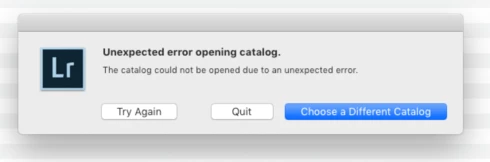
I am running Lr Classic. "8.4 Release". My catalog that has all of my pictures, and that I have always used on a daily basis, will not open. What is the issue?!

This topic has been closed for replies.

28 replies

harrybarnettw
Inspiring
August 24, 2019
Can I manually move the location of the new backup to the original backup folder and then direct any future backups to the original folder?
Victoria Bampton LR Queen
Community Expert
Community Expert
August 24, 2019
When the backup dialog next pops up, you can set the location of your choice in there.
Victoria - The Lightroom Queen
Inspiring
August 24, 2019
Not sure, maybe the Adobe employees or Victoria knows, but it’s not normal. Maybe if you “adopted” a backup as your new catalog it creates a new set of backups for that?
harrybarnettw
Inspiring
August 24, 2019
Thanks for your help! One thing I notice now is I now have 2 separate Backups folders. One with my old backups, and a new one where any future backups will go it appears. Is this expected?
Victoria Bampton LR Queen
Community Expert
Community Expert
August 24, 2019
Excellent news. We may never get to the bottom of what corrupted the catalog (but it could have been the Dropbox sync), but I'm really pleased we got you back up and running!
Victoria - The Lightroom Queen
harrybarnettw
Inspiring
August 24, 2019
Update: details on how this problem was resolved here
Inspiring
August 23, 2019
Yes that's sufficient. You can find the Adobe support number on their site? PS-don't upgrade the OS to 10.14.6 (it breaks the panorama function in LR). Also, have you tried opening one of the Backups (by double-clicking on one)? The Backup folder is in the same folder as your Lightroom catalog, generally in Pictures? Choose the most recent, if that's hosed then try other recent ones.
harrybarnettw
Inspiring
August 22, 2019
Carlos, I am back. I downloaded and ran Onyx without success. Below is an image of what I cleared using it. Would this have been sufficient?

Alternatively, is there an Adobe support person I can communicate with? This is a massive roadblock in my workflow. 

harrybarnettw
Inspiring
August 22, 2019
Can you confirm this is the correct Onyx software?
https://www.titanium-software.fr/en/onyx.html
Inspiring
August 22, 2019
You could delete Launch Services (which just resets which app opens which files by default, but if you’ve ever changed that, with a right-click “Open with...”, you’d have to reset it (so unless there’s an issue with that I just leave it alone). Use your knowledge of internet browsing to save your browser history, form values, cookies, etc. if you don’t know what something means, like “cookies”, then do a web search for it. Generally it’s mostly the internet cache that you’re trying to delete in the Internet area. If you don’t understand something don’t delete it! Mostly you’re trying to get rid of caches, application states and saved versions.