harrybarnettw
Inspiring
August 21, 2019

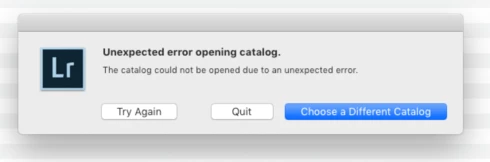
P: Unexpected error opening catalog on macOS

  • August 21, 2019
  • 28 replies
  • 1807 views

I am running Lr Classic. "8.4 Release". My catalog that has all of my pictures, and that I have always used on a daily basis, will not open. What is the issue?!

This topic has been closed for replies.

28 replies

harrybarnettw
Inspiring
August 22, 2019
Here is a view of my catalogs in my HD. The "primary" is the one I typically use, and the one that is producing the error. When I open Lr using the "backup", this is my view. It looks like there is a .lock file 2 files below the backup. 

harrybarnettw
Inspiring
August 22, 2019
Hey Carlos, hoping for some clarity on the below as I am on a work computer, which I cannot jeopardize. The "things you may not want deleted" particularly has me worried. 

"In Onyx just run almost everything in the Maintenance tab, deselecting things you may not want deleted, like Launch Services"
Inspiring
August 22, 2019
The .lockfile appears only when LR is open, it disappears when closed. If it’s there when closed, delete it!!
Inspiring
August 22, 2019
Thanks I’ll fix it. In the meantime Google “Onyx Software”.
harrybarnettw
Inspiring
August 21, 2019
Got a 404 error with the https://www.titanium-software.fr/en/o  link. 
harrybarnettw
Inspiring
August 21, 2019
I am running OS Mojave 10.14.5, which actually has an update. Could this be the issue? I do not believe I have a .lock file next to the catalog on my system. If you mean physically next to my catalog on my HD, I only have a .lrdata file near it. 
Participant
August 21, 2019
Hi Barnett, 
Which OS are you facing this issue? Do you have a .lock file next to the catalog on your system? 
If you hold down the Ctrl key (Windows) / Opt key (Mac), will it allow you to create a clean catalog?   
Inspiring
August 21, 2019
Did you reboot? It may also be a corrupt cache or application state, or directory damage. Please give your Mac the "once over"! Run the free Onyx (https://www.titanium-software.fr/en/o...), reboot. (In Onyx just run almost everything in the Maintenance tab, deselecting things you may not want deleted, like Launch Services . Hit the "Options" button and deselect more stuff like Cookies & Other Site Data, Browser History, Form Values, etc.), then hit Run Tasks. After it's done it will ask for a reboot.

If that doesn’t work try launching Lightroom from your other (admin or test) account, with a new catalog, as a test. Does it run OK? If it does it may be a corrupted preference in your Username/Library folder. Check The Lightroom Queen site for instructions on how to reset your preferences (https://www.lightroomqueen.com). Basically:
1. Close Lightroom.
2. Hold down [Alt/Opt]+[Shift] while restarting Lightroom.
3. Overwrite the Preferences when prompted by the dialog.
4. Close Lightroom.
5. Restart Lightroom.