


Participant
August 20, 2024

16 Bits/Channel Image Mode Not Working

  • August 20, 2024
  • 7 replies
  • 377 views

Hi there,


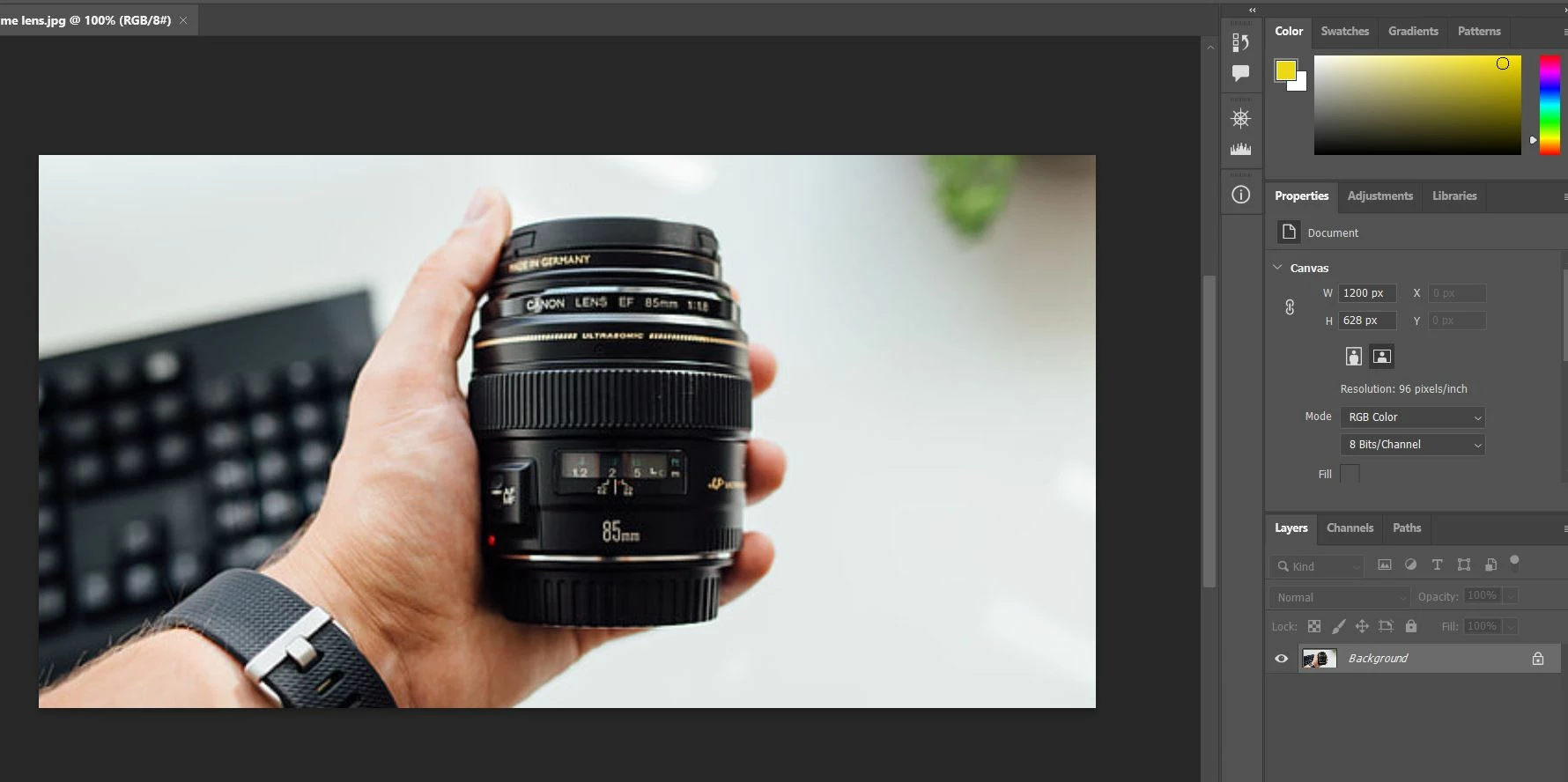
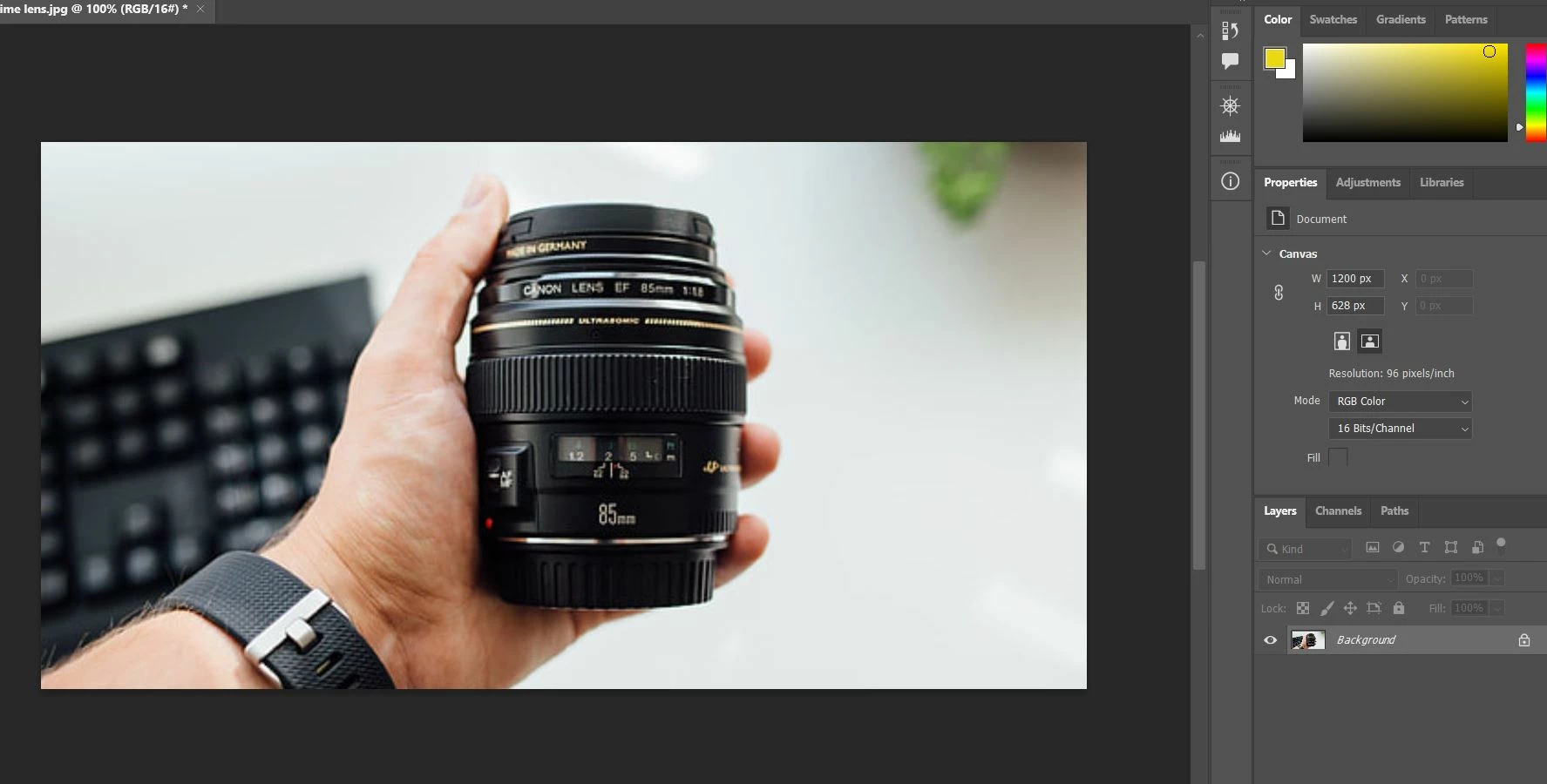
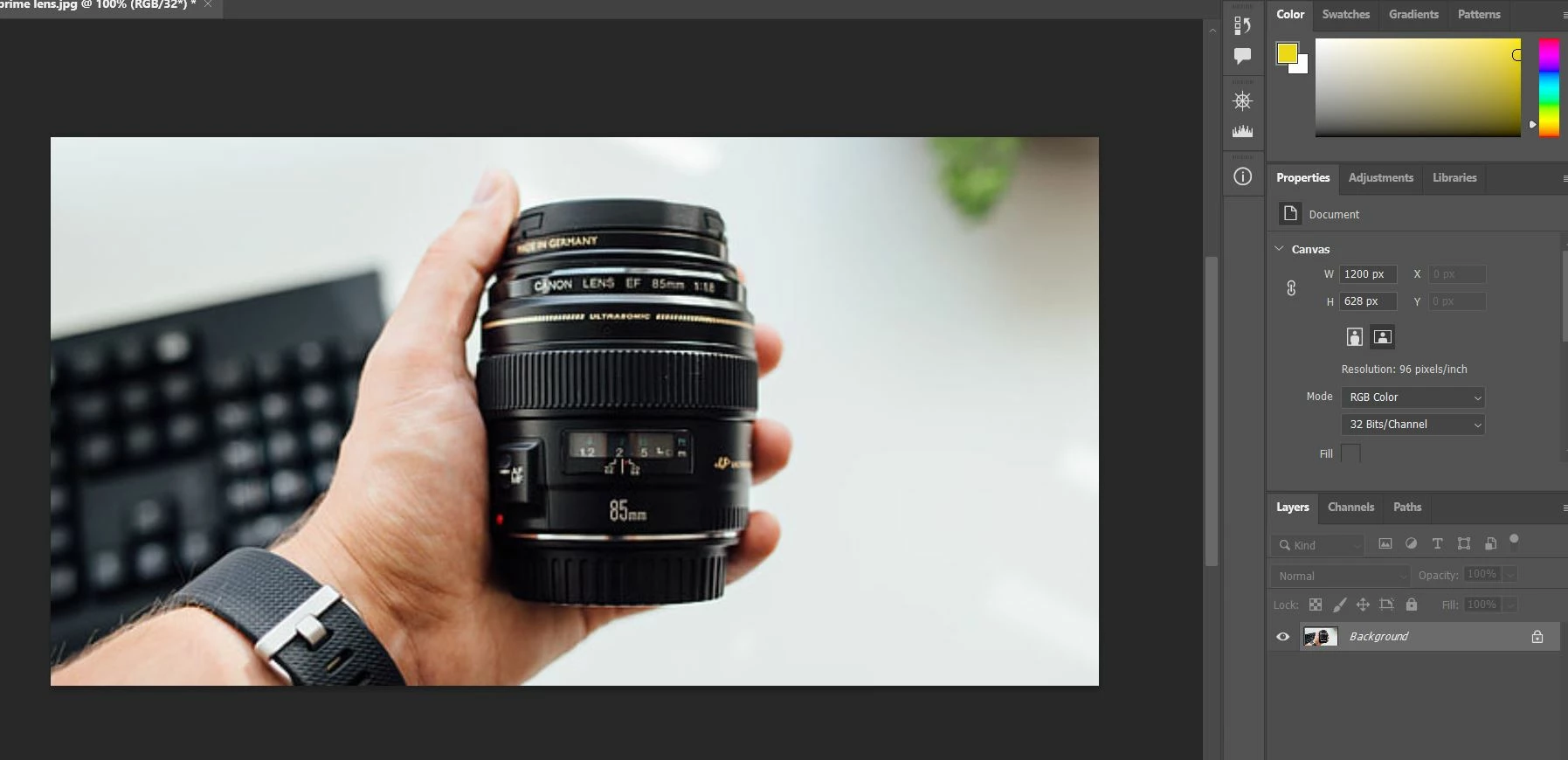
All of a sudden, the 16 bit mode stopped working in Photoshop 25.11 (Desktop/Windows). It was fine till yesterday but now I'm not noticing any change when I change the mode from 8 Bit to 16 bit. However, when I make the change to 32 bit, it seems to work fine. I'm attaching three screenshots below and the Color tab on the right verifies that there no change at 16 bits:


At 8 Bit
 

At 16 bit (no change)


At 32 bit (seems fine)


I've further verified this by editing the images at both 8 and 16 bits. And they are yielding identical results whereas this was not the case till yesterday.


So can anyone tell me what's happening here?


I've also tried reinstalling Photoshop, disabling and enabling GPU and a host of other things that Chat GPT told me to but nothing has worked so far.


Would be grateful if someone can provide me a soution.


Thanks!

7 replies

davescm
Community Expert
Community Expert
August 20, 2024

That looks normal, as explained above , the 8 and 16 bit adjustments should give the same results (with possible stepping/banding in the 8 bit version)

Dave

Participant
August 20, 2024

These are the edits. I'm using the HSL adjustment function to change the hues of Blue color. Here are the results:

8 bit


16 bit


32 bit


Since this issue started happening, the 8 bit and 16 bit results were identical. Whereas till yesterday, on the 16 bit, I was getting similar results as to what can be seen on the 32 bit.

davescm
Community Expert
Community Expert
August 20, 2024

Edits between 16 bit and 8 bit should be identical (both share the same dynamic range and gamma curve) with the exception of seeing some possible banding introduced in the 8 bit version. Obviously, with multiple edits the effect of such banding can build up so you can get a combing effect with less levels being used than even 8 bit supports.  So what differences were you seeing?


Edits in 32 bit mode work differently (due to the extended range and the linear gamma) and can look very different (also - not all editing tools are available in 32 bit)


Dave

Participant
August 20, 2024

Alright but what about the issue of the identical edits? That wasnt happening till yesterday. I used the same image and the same edit using the HSL adjustment function using both modes. Till yesterday the 16 bit version was producing high quality results which I am only achieving on the 32 bit now. The 16 bit and 8 bit are giving identical results now all of a sudden.

davescm
Community Expert
Community Expert
August 20, 2024

No 'solution' is needed as your screenshots show Photoshop working correctly.


You should not see any change between 8 bit and 16 bits. 

When switching from 8 bits/channel to 16 bits /channel mode, the same colour space (black point, white point, colour primaries) are used but are divided into many more steps, each represented by an integer value.The addditional steps can help prevent the 8 bit banding appearing in your image as you make adustments (due to teh limited number of step values.

However, 32 bit is very different. When switching to 32 bits/channel then the colour space is extended so the image can contain values blacker then the black shown on screen, and whiter then the white shown on screen. Each value is represented by a 32 bit floating point number. The gamma is also moved to be linear. This is why it is used for high dynamic range images and also why a preview exposure slider appears at the bottom left of the screen to allow you to choose which part of that extended range you are previewing on your screen.

Dave 

Participant
August 20, 2024

Thanks Ben. Yes, the beta version was installed during this whole time. I will uninstall it and do a clean reinstall of Photoshop and report back. 

Community Expert
August 20, 2024

Do you have any betas installed? If so, did you try uninstalling them when you re-installed photoshop? I'm not sure what ChatGPT told you to do so if you could post some of those it might help us understand further what you did because if it did something you shouldn't have you may need to use the Creative Cloud cleaner tool to fully remove all traces for a clean re-install https://helpx.adobe.com/creative-cloud/kb/cc-cleaner-tool-installation-problems.html unless you already did that with your re-installation.