


Participating Frequently
November 5, 2024

Filter: Stylize: Oil Paint produces odd vertical black line with painted results

  • November 5, 2024
  • 6 replies
  • 874 views

When enhancing an image with Filters, I often use the Oil Paint filter with wonderful results.

Lately when I click Filter: Stylize: Oil Paint - - - and apply that filter to my image it produces, in addition to the filter process, an odd black line within an hoizontally squeezed duplicate of the original image with obvious edges, inset at the left side.  This has happened multiple times with multiple different original images and I get the same result each time I use that Filter.  Images below.

Ann K

MaggieRossDogs
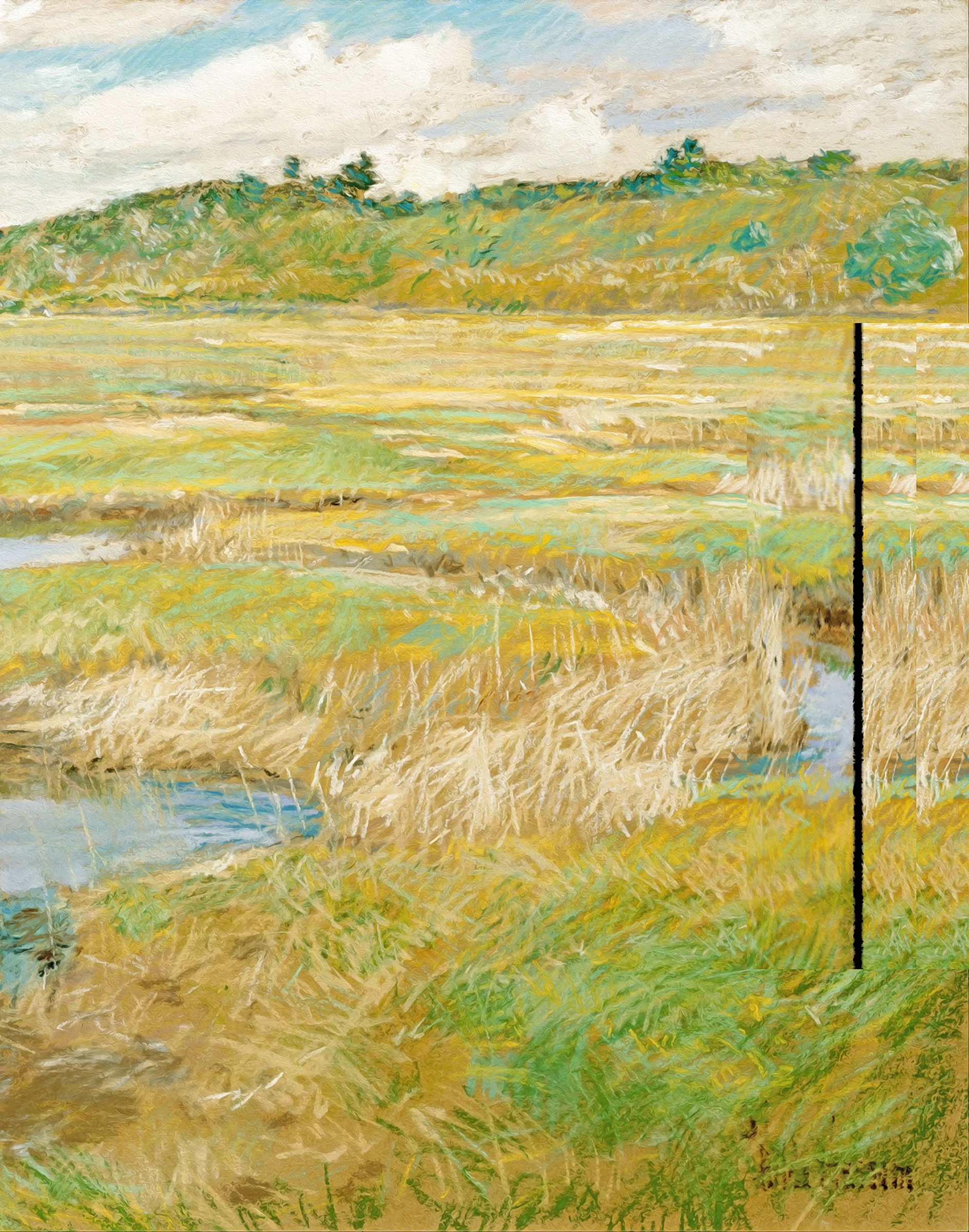
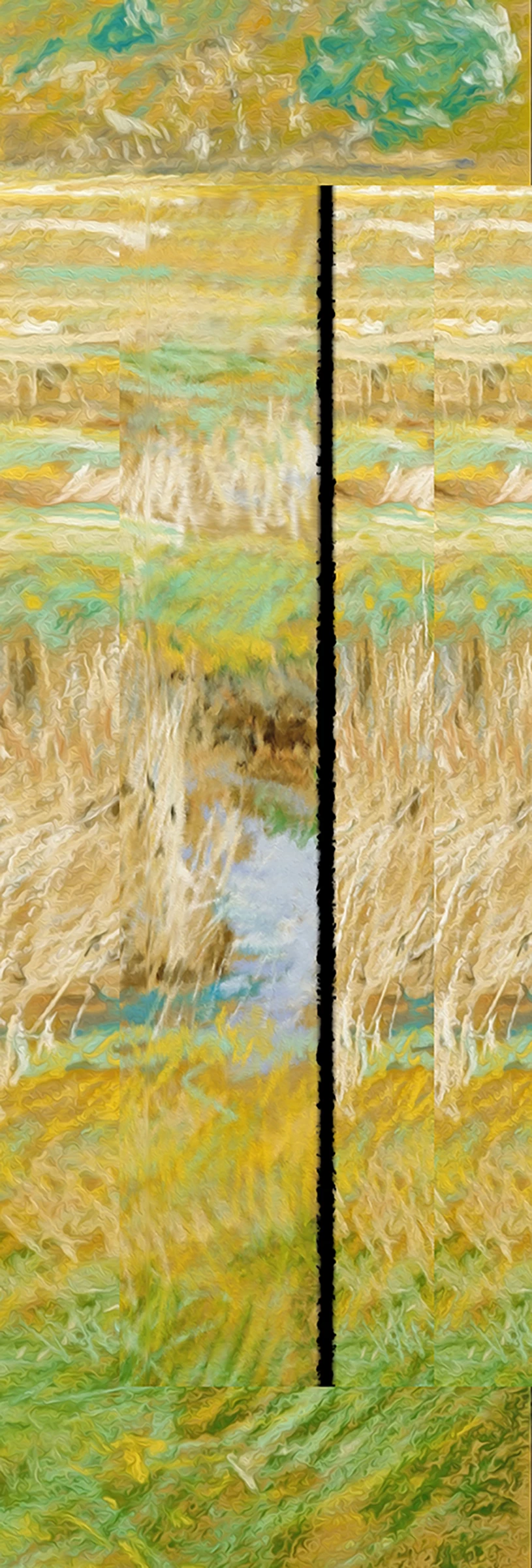
6 replies

Participating Frequently
December 17, 2024

Thank you, Americo287141671arb !  Changing my Cache settings from 4 to 6 FIXED THE PROBLEM for me! 

Ann K.

Participating Frequently
December 17, 2024

Thank you, I will try changing the cache levels.

Ann K.

Participating Frequently
December 2, 2024

No, @Americo287141671arb,  I have not received a solution to the Problem.  No one has responded beyond what is shown above. 

Turning off the GPU totally removes the Filter, so that is NOT a solution. 

My desktop computer us still running version 25.9.5 of Photoshop, and the Filter works just fine, there.

The Black Line Problem is only appearing on my Wacom Tablet which I have upgraded to work with Photoshop version 26.0.0.

Ann K.

Participant
December 17, 2024
Anna, thsnk you for your response. I did get it to work with v26 on my Surface Laptop and my Dell XPS 17. I don't quite remember exactly what I did but think that changing the cache levels from 4 to 6 did the trick. This is a screenshot of my settings.
Participant
December 2, 2024

Did you ever receive a reply/solution? I'm having the same problem and updating Photoshop to v26 did not fix it. I think I may have to use an earlier version on this computer since it works on my Dell XPS 17. The computer I'm having problems with is a Microsoft Surface Pro Laptop 3 running Windows 11.

Participating Frequently
November 7, 2024

Thank you CMass - I just tried turning off the GPU in Preferences and when I then opened an image file to test it, and clicked on Filter: Stylize, the option for Oil Paint is greyed out.  I have been working around the glitch by using the Filter, then flipping my image and using the Filter again and then selecting out, copying and pasting the stylized parts of the image - but that is very time-consuming!

Attached is a txt file of the System Info for my Photoshop25 in the Wacom Premier Pro Tablet.

Thanks, again for any suggestions to help me get back to use of this Filter feature!

Ann K.

Maggie Ross Dogs

Oh!  I have the System info saved as a txt file, but how do I attach it to this reply?


Participating Frequently
November 5, 2024

Sorry . .  . the black line is at the right side and I am using Windows OS on a Wacom Premier Pro Tablet.  Ann K.

CMass
Legend
November 7, 2024

Hi @annk10529470


Thank you for reaching out. May I ask if you've tired turning off the GPU? 

  1. Navigate to Edit > Preferences > Performance (Windows) or Photoshop > Preferences > Performance (macOS).
  2. Uncheck Use Graphics Processor. 
  3. Restart Photoshop. 

Also, could you share your system info? You can find this by going to Help > System Info, copying it into a text file, and attaching it here.


^CM