PixelDeluxe
Known Participant
September 24, 2026
Question

Incorrect Alphas/Transparency show in documents

  • September 24, 2026
  • 9 replies
  • 40 views

I’m getting incorrect transparency showing in documents in the latest version of Photoshop. I’ve had to roll back to 2025 for documents to work correctly.

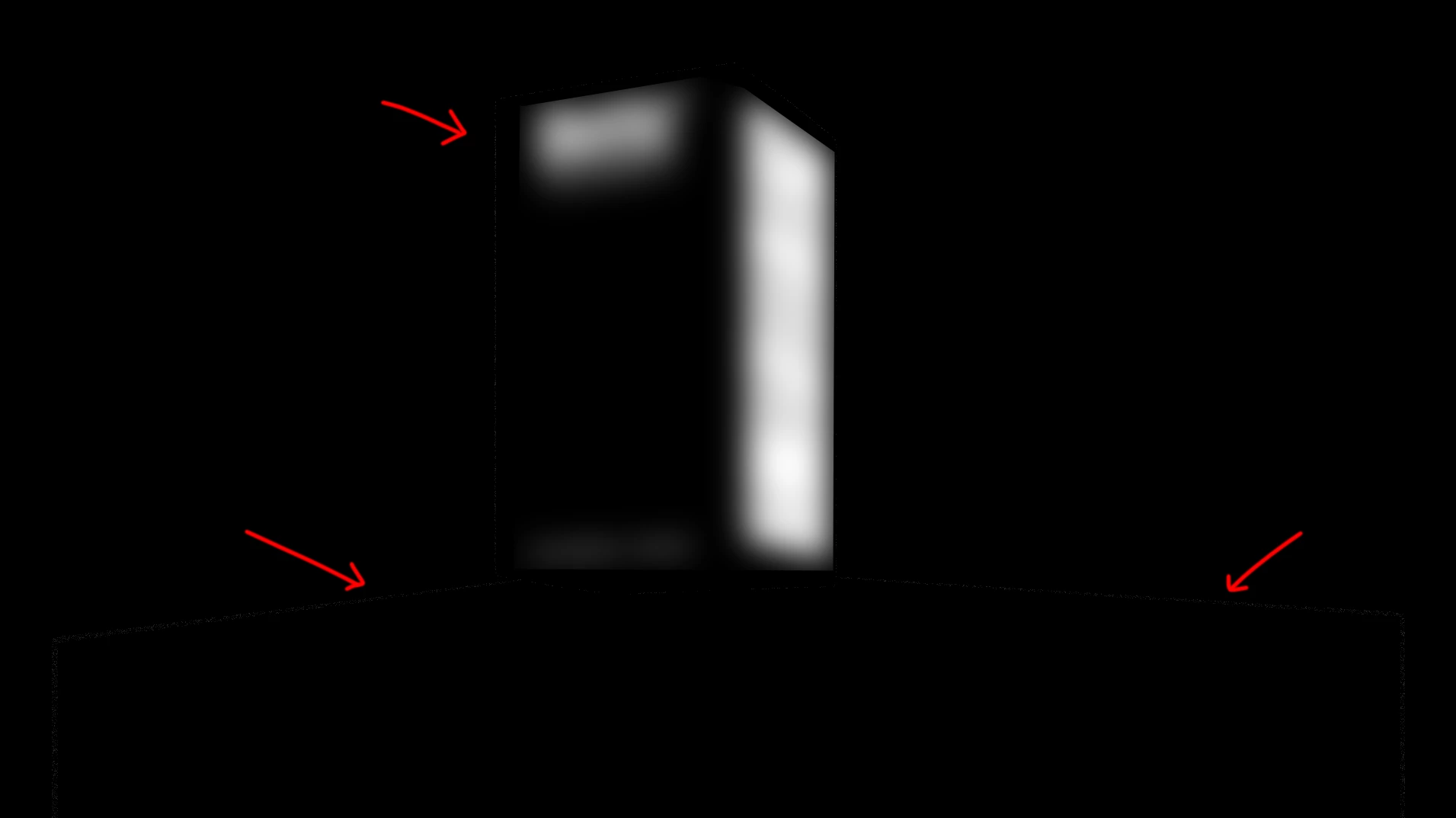
In the below image you’ll be able to see a faint outline of the underlying transparency/alphas that are in my photoshop document.

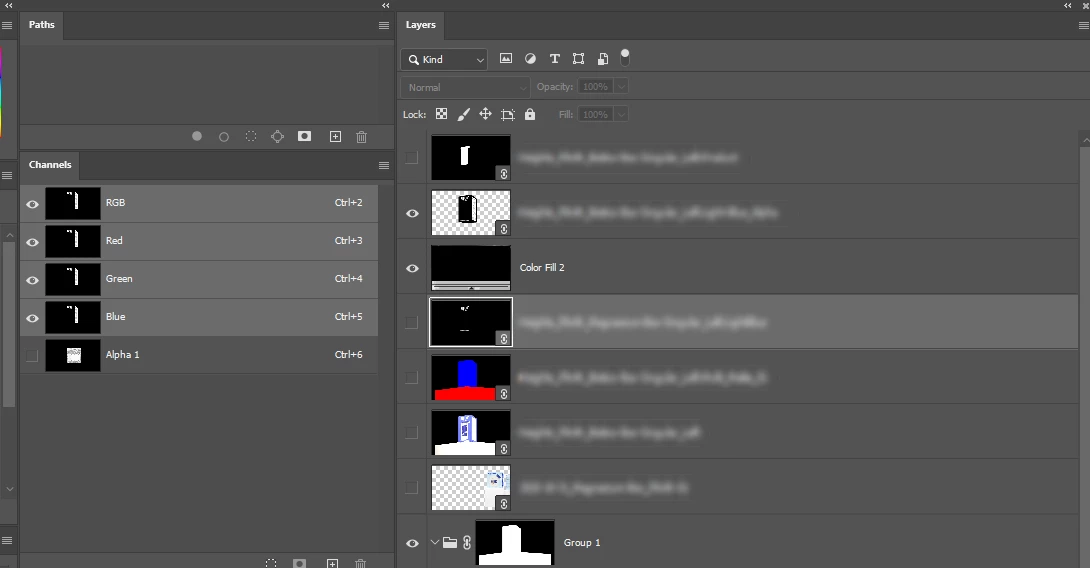
As you can see, I’ve got a solid colour fill at the top of the stack with another black & white image placed above it. I’ll be using the B&W image for making perfect alpha selections.

The solid should give me a fully-solid background, yet transparency is still visible. This can lead to incorrect masking if I’m using the RGB channels for selections.

This has been happening since Adobe messed around with the new alpha selection for EXR layers/files that are brought in.

Please get this fixed asap, we shouldn’t have to roll back to previous versions for stuff like this.

Photoshop 29.9.1 / Windows 11.


    9 replies

    davescm
    Community Expert
    Community Expert
    September 29, 2026

    Hi thanks for the files. I was able to isolate and replicate the issue into a much simpler file. 

    To replicate :
    1. Make a simple 3 layer file in 32 bits /channel linear. That file to contain 
    A layer with solid 0,0,0 black at the bottom
    A layer with a filled ellipse in the middle and transparency outside that ellipse
    A layer with solid black at the top
    2. Turn visibility of the bottom layer off
    3. Turn up the 32 bit preview exposure slider (bottom left of the window) to make the issue clearer

    Expected result :
    The top layer only should be visible i.e. solid black

    Actual result :
    The edges of the oval are visible through that solid layer above it


    Workarounds :
    1. Turn off Use Graphics Processor and restart Photoshop (not really a practical workaround when working with large images).
    2. Turn on the solid layer at the bottom (this can be any colour it does not need to be black)

    Photoshop 27.9.1, Windows 11, RTX3090 GPU

    Example file attached

    ​@Sameer K Can this thread be moved to bugs please and renamed ‘Partial transparency showing through solid layer on 32 bit images’

    PixelDeluxe
    Known Participant
    September 29, 2026

    Thank you for taking the time in looking in to the issue, glad to see it wasn’t just a problem on my end! Fingers crossed for a quick fix in an update soon, I’ll continue with using the legacy version for the time being.

    davescm
    Community Expert
    Community Expert
    September 24, 2026

    Hi , I downloaded your screenshot and do not see anything next to the red arrows, just black (RGB 0,0,0). That could though be due to the forum’s conversion software which changes uploaded images to webp format.
    Are you able to attach a sample PSD or TIFF file (rather than embed an image) that we can test. It doesn’t have to be a full image - crop it down to an area that shows the problem, but leave the layers and channels  intact so the problem shows up.

    Dave
     

    PixelDeluxe
    Known Participant
    September 24, 2026

    Hi Dave, are you not able to see the semi-transparent outline on the preview on the forum? It’s clearly visible here when I click the image. Due to the file being work for one of my clients, I’d rather not upload it to a public forum.


    davescm
    Community Expert
    Community Expert
    September 24, 2026

    I downloaded again and applied an extreme curve and now can see the lines you refer to. Taking the curve off I can see them now I know what I’m looking for. 
    Without a sample file it is not possible to identify where the problem lies, Are you able to make a duplicate file and crop out all the identifiable content,(delete cropped pixels) just leaving enough of the layers to show the problem e.g. a small area near the bottom right red arrow. Also delete any layers that are switched off and not causing the issue.
    Dave