Participant
November 20, 2020

My image is croped after I transform + out of the canvas + unselect : I would like it to NOT do that

  • November 20, 2020
  • 3 답변들
  • 1333 조회

Hi,

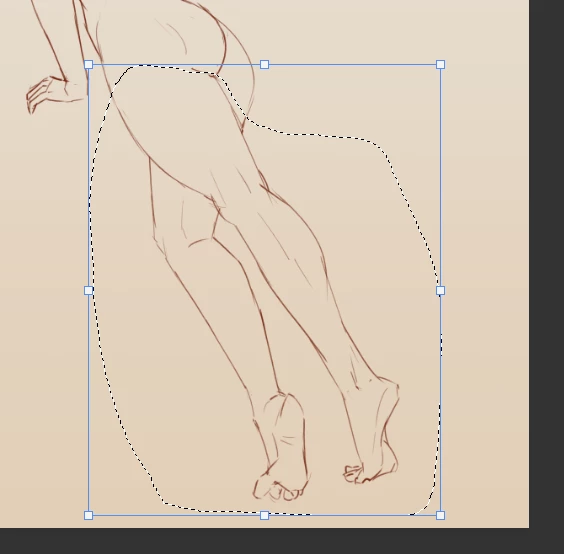
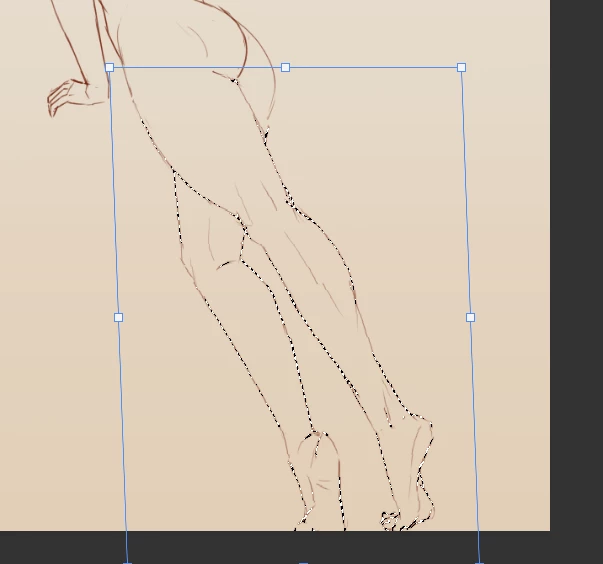
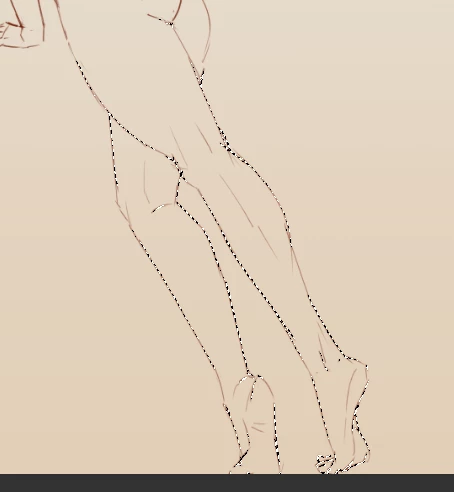
my problem is actually quite simple, when you transform an image + put it partically out of the canvas + unselect it, what's out of the canvas is cropped and pixels are deleted.
So :
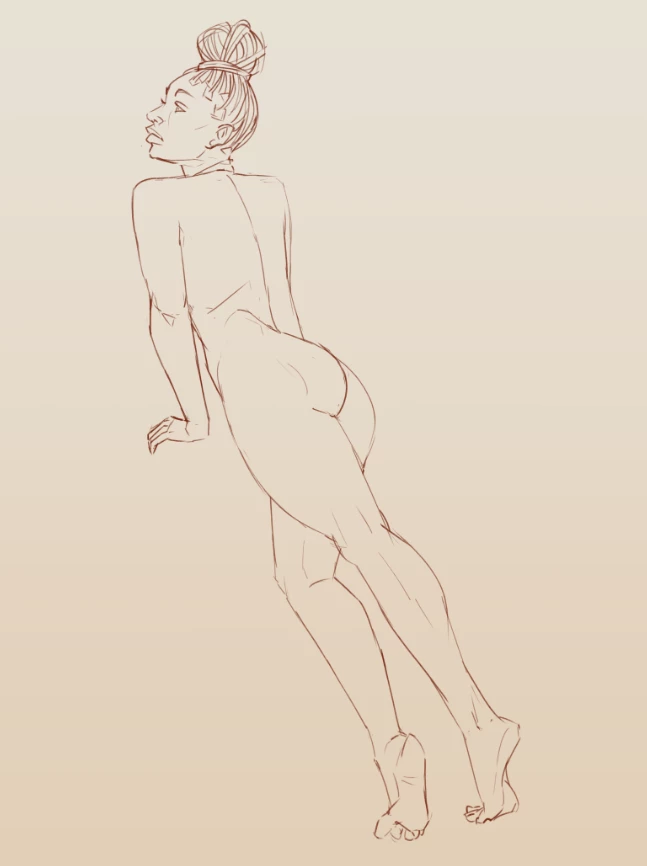
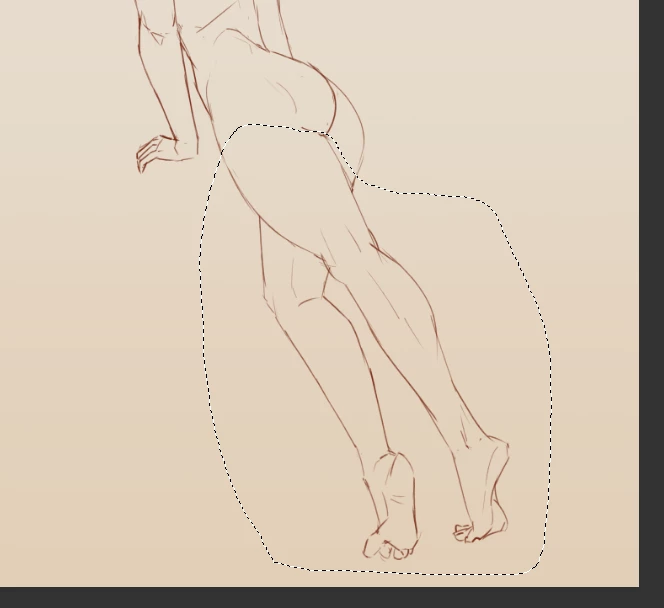
Until this point the image still exist (see), I moved it and it's still there : 
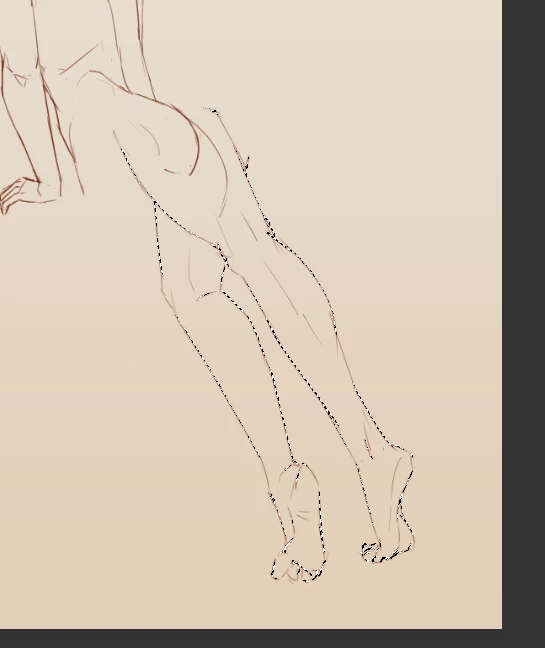
BUT.. when I unselect it, the pixels out of the canvas are croped..
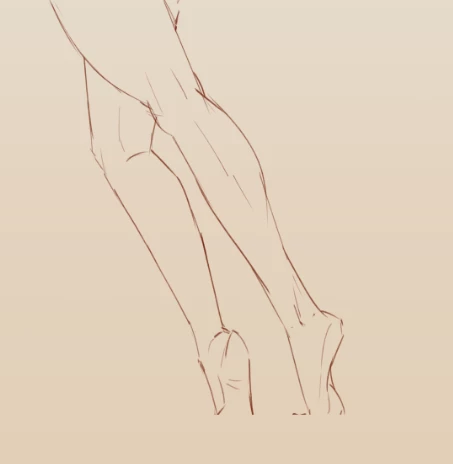

What I want to know is HOW to make it stop cropping my images.
I know that the cropping tool have an option that if you select it makes all your pixel out of your canvas being cropped, but I already have it unselected.. (in french there)
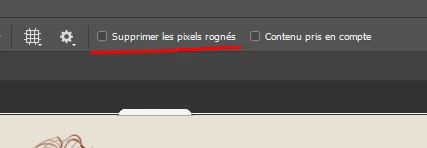
 

Can someone know how to change this ?
I don't seems to find solution online, and as someone drawing as a job and using the trasnform tool all the time, it is quite time consuming to move each image before so it would not be cropped..

3 답변

Mark.Dahm
Community Manager
Community Manager
November 14, 2024

The Photoshop compositor does clip off-canvas pixels when de-selected, but that can be avoided, as some have pointed out, by converting the desired layer into a smart object first (that will not get clipped, but you also must edit its contents isolated from the composition, so not a great solution), or just pre-emptively working on a larger canvas to give yourself enough room to slide stuff out of the way while you need to.


It is possible that this changed 3 or so years ago; we modernized our compositor back then and while most functionality was seamlessly preserved, this one feature may have been dropped.

BrettN
Community Manager
Community Manager
October 17, 2024

I was able to reproduce the behavior and I don't think we're doing this on purpose. I found that it is tied to selecting/deselecting and not transforming. I've moved this thread to our bugs and have informed the team to look into fixing it.

JJMack
Community Expert
Community Expert
November 20, 2020

I would suggest  you work in a non destructive work flow. Use Photoshop layer  create a  layer of the selected area you want to transform ( Ctrl+J) then  transform the new  layer  that way you have the image unaltered and the selected area transform in a higher image layer in the stack  nothing has been cropped or lost. Some of the transformed image  area may be clipped  be clipped the the document canvas size. However, the content is still the clipped layer's content. So it can move in or the canvas can be expanded to recover the clipped content.

JJMack
Julie5FAB작성자
Participant
November 20, 2020

Thank you a lot !
This indeed works, I would still love to know if there is anyway to do it without having to change layer 😕😕

JJMack
Community Expert
Community Expert
November 20, 2020

You could add canvas first then transform work with a destructive work flow.   You will have fewer start overs if you work in a non destructive manners. Layer is where Photoshop Power is the save you  work.

JJMack