

Imaginerie
Community Expert
Community Expert
July 30, 2026

No delete option in the vector shpe gradient editor

  • July 30, 2026
  • 4 replies
  • 21 views

Not sure it's a bug, but there seems to be no way of deleting a stop in the vector shape gradient editor.
(see screenshot)
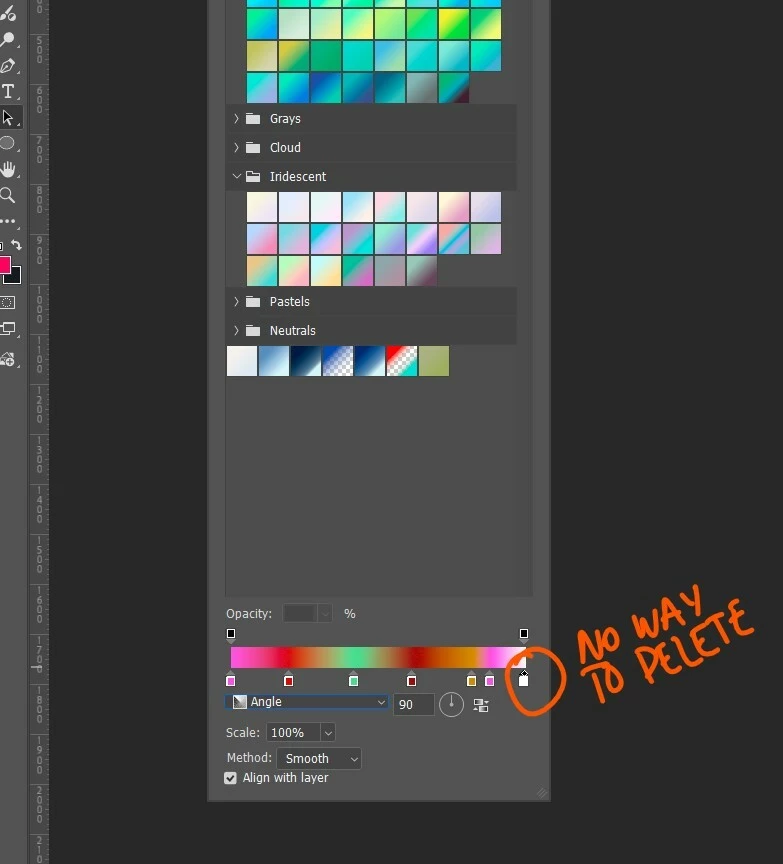
It’s also the same in the property panel
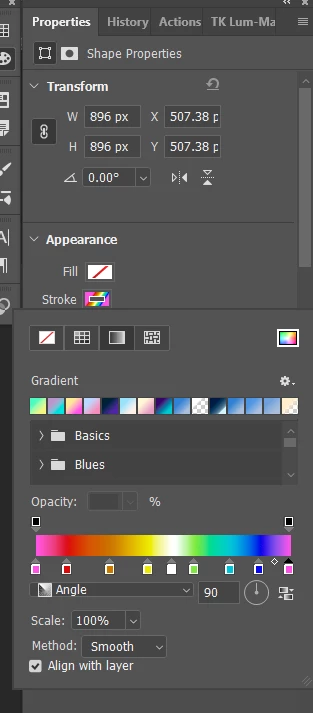
 

The available actions are: click to highlight the stop or double click to open the colour picker, but the DEL key doesn’t delete the stop after being highlighted, and there’s nothing showing when right clicking on the stop.
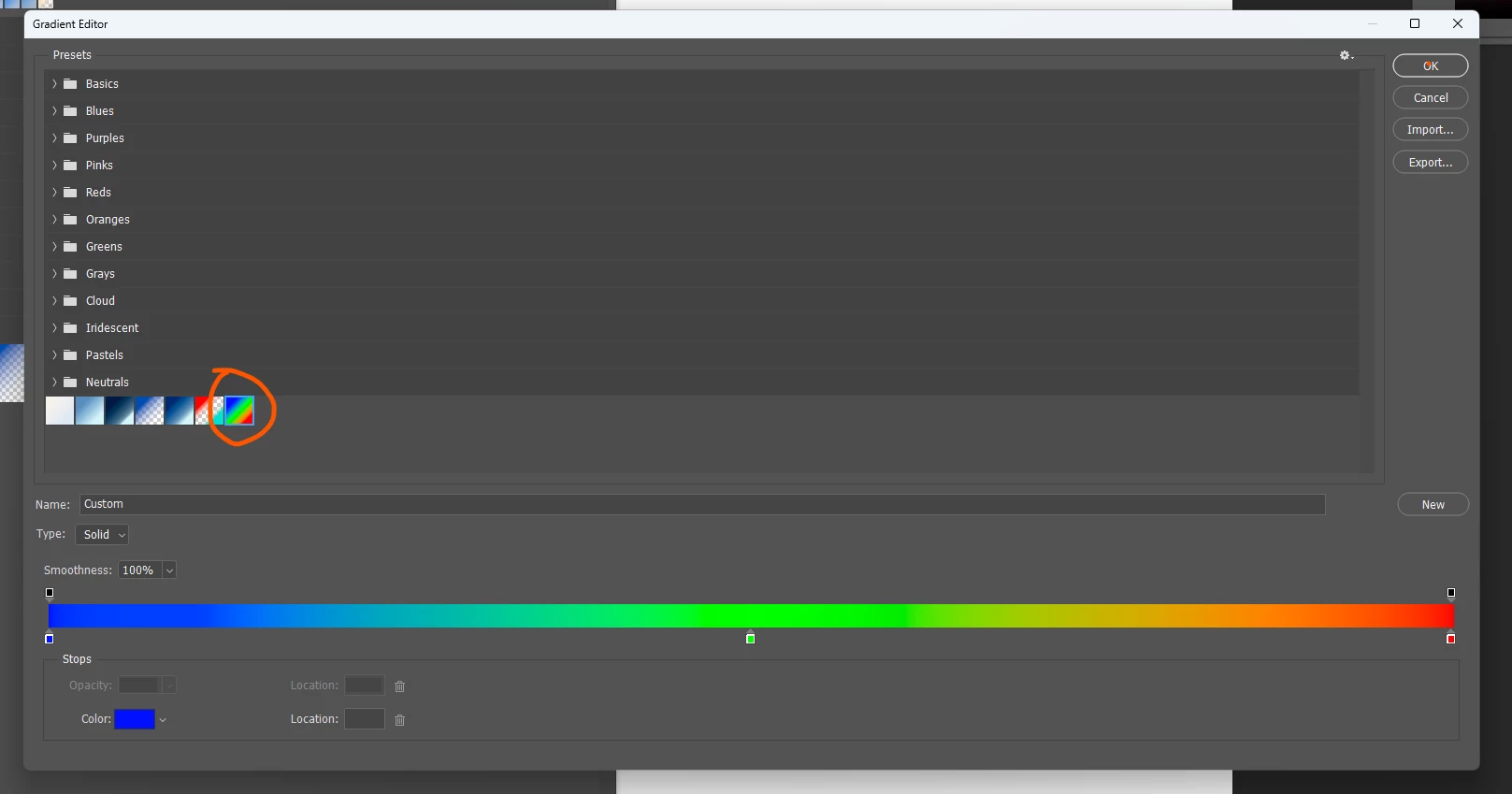
In fact, there’s no extra settings for position and delete like there is in the standard gradient editor. It lacks consistency



I resorted to create my gradient in the standard gradient editor, save it so I can use it in the fill and stroke settings.


Photoshop version 27.8.0 on Windows 11

4 replies

Sameer K
Community Manager
Community Manager
July 30, 2026

Hey, @Imaginerie. Thanks for bringing this up. Has this worked differently before?


I ask this because this may be by design. Deleting a gradient preset isn't contextually relevant here because you're editing the shape's gradient instance, not managing presets. The Properties Panel Gradient Editor is scoped to editing the active gradient, not managing the preset library.


For now, you'd go to the Gradient Panel or open the Gradient Editor from the Gradient Tool or the gradient picker.


Thanks!
Sameer K
(Type '@' and type my name to mention me when you reply)

Imaginerie
Community Expert
Community Expert
July 30, 2026

Honestly I was unsure because that’s typically not the kind of stuff I would do in Photoshop, but I was helping someone over on the Discord server, and thought it was odd.
I was able to trigger the gradient edit by clicking on the strip, (I done it by accident) so now I can access it from there. Also seeing ​@Ged_Traynor ‘s answer below, I can see there are other “gestures” available. I was genuinely not aware it could be done. I’m more used to stuff having icons to indicate what can be done instead of guesswork...

I should have read the help files 😉

Ged_Traynor
Community Expert
Community Expert
July 30, 2026

@Imaginerie delete is working for me with Photoshop version 27.8, have you tried dragging the stops to remove them

Imaginerie
Community Expert
Community Expert
July 30, 2026

Thanks!
I see it works. See my answer above about the fact that I am more used to icons in an interface instead of “gestures”. I wasn’t aware it was possible. I probably missed a lot of that kind of possibilities!