


P: Bevel & Emboss Effect Causing Corruption On Shape Layers With A Feather Effect
I've been having an issue in Photoshop, Bridge, and Illustrator for years and have finally found the solution to a bug that has been plaguing me across different version of Creative Cloud, different computers, and even different operation systems.
I have found that the Bevel & Emboss effect in Photoshop corrupts some of my files when viewed in Bridge.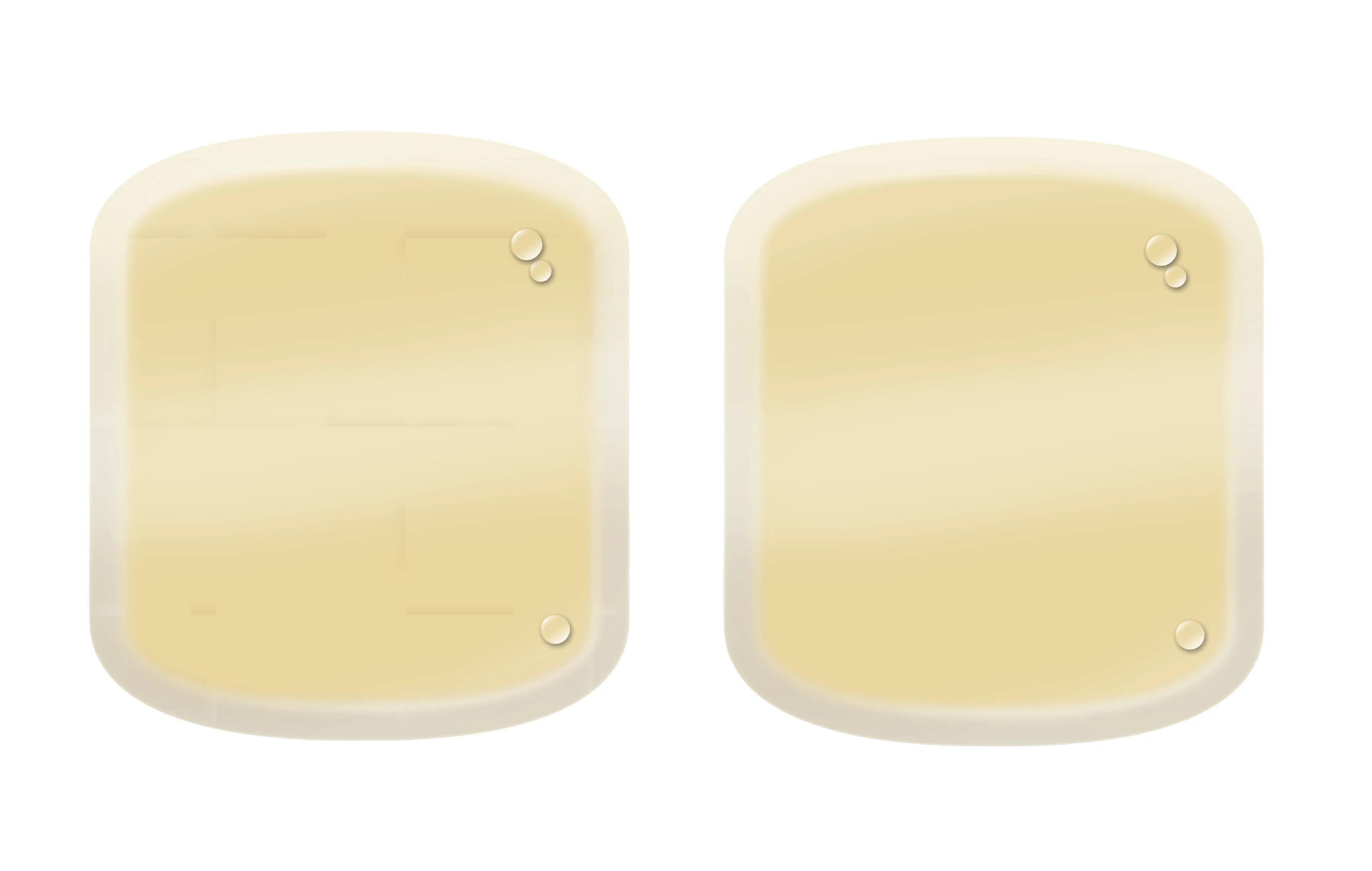
In the above illustration, the image on the left has a Bevel & Emboss effect and the image on the right is how the image should look . When I save the file and view it in Bridge I see the weird lines across the image. When I place the image into Illustrator the corruption is present. If I save a JPG the corruption is present. When I open the file in Photoshop the corruption is not present, and if I turn off the Bevel & Emboss the corruption is no longer visible in any of the ways I listed above. As you can imagine, this has been very frustrating and annoying.
After really playing with it and taking a deep dive to try to fix the issue, I've concluded that if you have a Bevel & Emboss effect on a shape layer, and then you feather the shape in the Properties window, it creates the corrutption on the file. The solution I've found is that if I take the feathered shape with the Bevel & Emboss and turn it into a Smart Object, everything appears as it should when I save out the file.
I don't know what causes this to happen and I don't know why. Statistically I can't be the only person to ever have this issue so at worst this post can serve to help anyone else who has this issue in the future, and at best maybe Adobe can look into this and fix this.
Thanks for coming to my TED talk.
 AdChoices