

WizWorldLIVE
Inspiring
November 17, 2021

P: Can't open Cloud Documents - "because the file is not compatible with this version or Photoshop"

  • November 17, 2021
  • 4 replies
  • 633 views

v23 has brought a lot of problems so far on my Surface; first the touchscreen crashes, and now the difficulty accessing my own body of work. Why am I getting this error, and why only on my Surface?
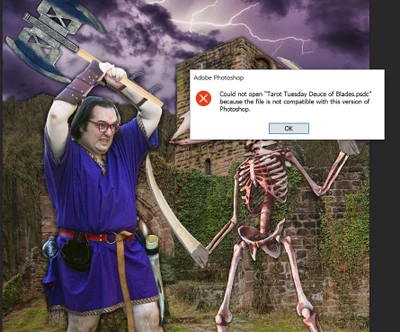


I can download the file through the web interface as a PSD, and then open it and save it as a new Cloud Document, but that's obviouly not an ideal situation.

The Cloud Docs all open on my Windows desktop without any problems. Both devices are running Windows 10 21H1, both are running Photoshop 23.0.1.

Does anyone know what might cause this?

4 replies

WizWorldLIVE
Inspiring
November 19, 2021

Yes, it's every file. Didn't realize I could select multiples for that! Perfect, thank you so much!

Community Manager
November 18, 2021

@WizWorldLIVE , Good to hear that issue has been resolved with this. Are you facing this issue with all your files? If yes, how many approximate in numbers? One way is, you can select multiple files at once and then click those 'Make Available' options.

WizWorldLIVE
Inspiring
November 18, 2021

Thank you so much, Neeraj!

Do you know if there's any way to do this in bulk, for multiple files at once? Would uninstalling & reinstalling PS cause all the caches to be dumped, forcing re-downloads of every file, thus avoiding the error message?

Community Manager
November 17, 2021

Hello @WizWorldLIVE , This error mostly occur when we try to open corrupt document on a device. With this logic, you will get this error on your surface with any version of installed photoshop. We can try deleting local copy of your document from your surface device & then try to sync same cloud document again. Please follow below steps to make the document online-only:

1. Ensure you have proper Internet Connectivity.
2. Select your problematic cloud document & click 'Make Available offline Always' option.
3. Again select the same document & this time click 'Make Available online-only' option.
4. Now, with cloud icon visible on thumbnail of your document, click it to open/download the document.

Please let us know if this resolves your issue.

If not, then please confirm if this issue is happening with particular cloud document or with all documents on your surface device?
Please share the Help->SysInfo and log collector logs https://helpx.adobe.com/creative-cloud/kb/cc-log-collector.html