
Inspiring
September 12, 2012

P: CS6 Type Layers Changing to Odd Sizes / Not Maintaining Rounded Sizes

  • September 12, 2012
  • 19 replies
  • 538 views

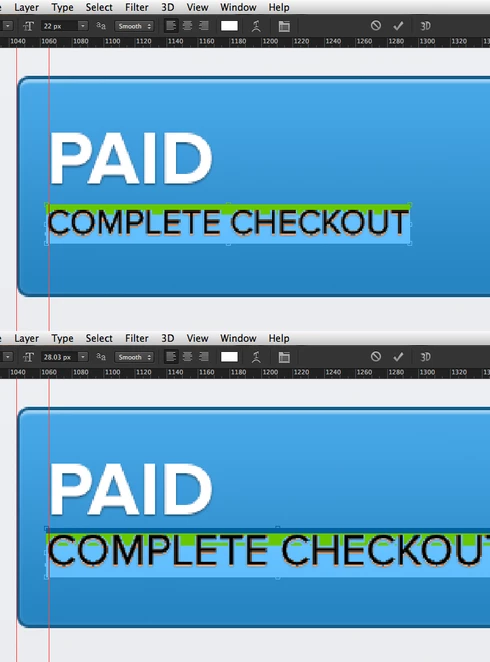
I've been having a problem lately with type layers where they no longer increment/decrement in size in a logical manner. For example, if I select a 22px text object and change the size using the CMD+SHIFT+[PERIOD] shortcut, the text will change size not from 24px > 26px > 28px like it should, but increments in odd steps like 22px > 24.01px > 26.02px > 28.03px > 30.04px.

Also, if I select that 22px text layer and reposition it to a nearby rounded pixel-perfect XY postion, the text size of the text layer itself will change itself to something arbitrary like 23.71px.

Another reproducible bug is if I select two type layers like the ones in my example shots where one is 48px and one is 22px and I change the text size in the toolbar with them both selected to, say, 30px, both objects end up changing to 30.13px, which is not acceptable or normal behaviour.

This is extremely frustrating, as my layers are changing on me constantly and I have to constantly change them back to the intended, rounded pixel size.
This topic has been closed for replies.

19 replies

Inspiring
December 12, 2014
HI! i found this forum by googling--i am having this same problem along with a few other designers at my office, but we use creative cloud and definitely have the most recent version of photoshop. Is there anything I am missing? Thank you!
David Mohr
Participating Frequently
April 8, 2014
Howdy folks,

Just so you know, this issue is fixed in the latest versions of Photoshop CS6 and Creative Cloud.

To make sure your Photoshop is up-to-date, check out http://adobe.ly/PS-Up-To-Date

Thanks,
David
David Mohr
Participating Frequently
April 7, 2014
Anna,

The problem was resolved with a patch made more than a year ago. I would suggest that you update your installed version of Photoshop CS6.

David
Participating Frequently
April 7, 2014
This seems to be a problem for a lot of people, perhaps the expected behavior should be reconsidered. It's a major hassle for anyone in the web design industry, as we use Photoshop because it's the only design application that allows us to get pixel-perfect comps. This kind of rounding behavior makes that extremely difficult.
Inspiring
February 2, 2013
Just uninstall 13.1. and download CS6 again, it will install 13.0.... after in install DO NOT update until the issue has been fixed
Inspiring
October 4, 2012
I'm glad I'm not alone with this issue. Driving me bananas too.
October 2, 2012
Thank you for your explanations ... at least I know this is expected behavior, and can be confident that this is not an issue with my software, hardware, or a combination of the two.
PDFerguson
Adobe Employee
Adobe Employee
October 2, 2012
Photoshop CS3 did not perform the pixel alignment of type layers (there may be other factors as well; I don't know offhand when we began using the effective font size I described rather than just displaying the base size.)

We are aware this results in some rather funky numbers, as this thread highlights, and we continue to look for ways to make it more natural and consistent with what people expect to see. As with all things, the devil is in the details...
October 2, 2012
While the explanation makes sense, I never had this issue in my last version of Photoshop (cs3).
PDFerguson
Adobe Employee
Adobe Employee
October 2, 2012
This is the expected behavior, modulo some rounding errors, which is what you are seeing.

When you free transform a text layer, and all the text in that layer has the same font size, the effective font size (which is displayed in the character panel) is computed based on the type's font size multiplied by whatever vertical resizing has occurred as a result of the transform. While just changing the location of a text block shouldn't "seem" to be able to change the vertical size of the transform, Photoshop will attempt to align to pixel boundaries so that the text remains crisp, and this can often change the vertical and/or horizontal dimensions ever so slightly. That's why you see what you've shown in the screenshots.