
Inspiring
September 12, 2012

P: CS6 Type Layers Changing to Odd Sizes / Not Maintaining Rounded Sizes

  • September 12, 2012
  • 19 replies
  • 538 views

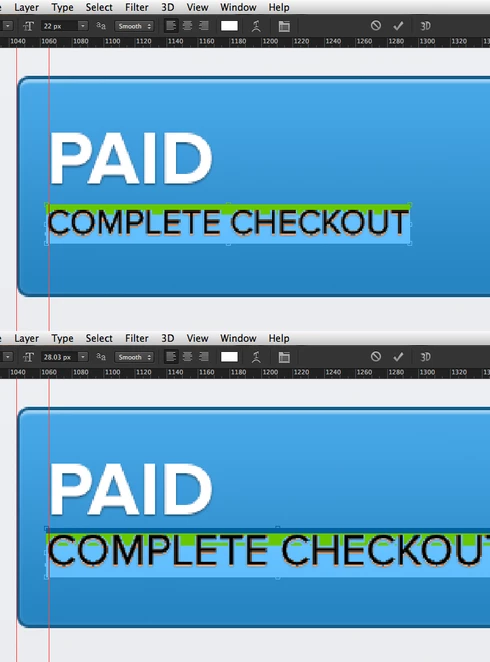
I've been having a problem lately with type layers where they no longer increment/decrement in size in a logical manner. For example, if I select a 22px text object and change the size using the CMD+SHIFT+[PERIOD] shortcut, the text will change size not from 24px > 26px > 28px like it should, but increments in odd steps like 22px > 24.01px > 26.02px > 28.03px > 30.04px.

Also, if I select that 22px text layer and reposition it to a nearby rounded pixel-perfect XY postion, the text size of the text layer itself will change itself to something arbitrary like 23.71px.

Another reproducible bug is if I select two type layers like the ones in my example shots where one is 48px and one is 22px and I change the text size in the toolbar with them both selected to, say, 30px, both objects end up changing to 30.13px, which is not acceptable or normal behaviour.

This is extremely frustrating, as my layers are changing on me constantly and I have to constantly change them back to the intended, rounded pixel size.
This topic has been closed for replies.

19 replies

October 2, 2012
Thanks, David ... looking forward to the solution!

Greg ... I'm so glad I found your post ... had trouble finding a thread describing this issue.
David Mohr
Participating Frequently
October 2, 2012
Thanks Greg and Janene!

I see and understand the problem. We'll look into this.

David
October 2, 2012
If you prefer I do this through some kind of web conference, I will try to do that.
October 2, 2012
David:

I will post my steps here, and see if that is helpful.

1. Set Text


2. Select Free Transform (I usually do this by key-command)


3. Free Transform with Bounding Box


4. Move text block while in Free Transform mode.
Please note that the H&V percentages change, as well as the point size.
I make sure I'm moving the text from within the bounding box, not from any
of its edges.


5. Apply the move/deselect bounding box.
David Mohr
Participating Frequently
October 2, 2012
Howdy Janene,

If you could demo this problem for me, that would be great. I'd like to get to the bottom of this issue for you. I'll follow up with an email.

Thanks,
David
David Mohr
Participating Frequently
October 2, 2012
Howdy Greg,

Okay, not what I was hoping for, but let's see what we can do. Can you reproduce this problem reliably? If so, can you demonstrate it for me via a web-hosted connect session? I'll follow up with an email.

Thanks,
David
Inspiring
October 2, 2012
Hi David.
Sorry for the delayed reply.

This document was created in Photoshop CS6 and never used outside of it
No transforms on the text layers have been applied and disabling Snap doesn't help.

This problem also seems to be cropping up at the very point of creation for some text objects. Occasionally, but for no discernible or reproducible reason, when I create a new text layer, it will start off at an odd size like 23.89px instead of 24px.

Jeanne, I'm glad I'm not alone here. Here's hoping we cam get this sorted.
October 2, 2012
I have the same problem with type sizes changing when I use the "free transform" command and drag my type to a new position on the page.

For example, 24 pt changes to 23.89 pt.

Please note, however, that I don't actually scale the box while I'm moving it.

This is a new problem I'm having ever since switching to cs6 - I'm using the same technique for repositioning text that I've used forever (kind of on auto-pilot, I guess).

I tried turning my snap settings off, but it doesn't change the problem.

Any help is appreciated!
David Mohr
Participating Frequently
September 15, 2012
Howdy Greg,

A couple of quick questions:

First, was this document created in an earlier version of Photoshop, like CS4 or even a prerelease version?

Second, have you done any transforms on any of the text layers in question?

Finally, would you humor me and (assuming the previous two questions are "no") try turning off Snap under the View menu and see if that doesn't clear up your problem?

This info should help with a good starting point to figure out what's going on.

Thanks and have a nice weekend,
David