


Inspiring
January 16, 2012

P: EPS or PDF Smart objects render badly (with jags) when being scaled or transformed.

  • January 16, 2012
  • 70 replies
  • 1148 views

Like the title says.
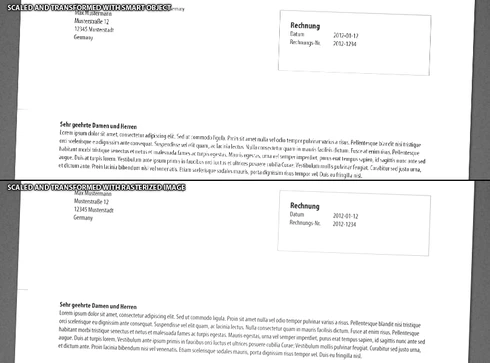
Smart objects render badly (with jags) when being scaled or transformed.
There are stair-like jags on the edges and text looks like crackled.
This topic has been closed for replies.

70 replies

January 17, 2013
I had lengthy discussions and exchanged tests with Brian Chau in early December about this bug. He confirmed he could replicate it. He was unable to identify a workaround - although he suggested many options, all of which failed, if the artwork arrives in Photoshop as a Smart Object.

Default interpolation settings are for document resizing (last time I checked). Regardless, my preferences are set to Bicubic Automatic.

I promise - other people ARE having this problem - but are likely not noticing because it is very obvious if you scale dramatically away from the Smart Object's native size.

But your are correct, the resulting image is (likely) using nearest neighbor (or in other words, no smoothing). But why?!
Inspiring
January 17, 2013
Nobody else is having such problems.

My only guess is that your default interpolation is set to Nearest Neighbor by mistake.
January 17, 2013
Eight months on, issue raised again with Adobe staff, still no resolution. Seems to be related to PDF sourced smart objects or elements copied into Photoshop from Illustrator documents with raster elements (as Smart Objects). It does not happen with all PDFs, mind you. Is most obvious when scaling dramatically down.

This is a serious bug with Smart Object support.
Is anyone working on this?

The attached image shows the full-sized source PDF (flattened raster PDF) in the background. I scaled down a raster layer (green box) and also a Smart Object version (dark shading with white boxes highlighting the difference). It's bad. And the further away you scale from the source PDF document size, the worse it gets.

The very small versions (Smart Object vs Raster Transform) show this the most starkly.

Is an update coming for this? I can't use Smart Objects! Is anyone watching this space?

May 30, 2012
FYI, if you use CTRL-T to transform your Smart Layer and scale it, you see a live preview of the layer scaling. Traditionally (CS5) when the transforming is completed and you 'tick' or hit 'Enter' to apply the Transform, there is a monir delay whilst Photoshop calculates and renders the anti-aliased version.

This rendering of the "scaling preview" DOES NOT happen in CS6.
You are left with the preview.
No wonder it looks like crap!

I'm guessing Adobe will want to fix this pretty quickly.

Smart Objects are dead until it is rectified.
May 30, 2012
I also have this problem (Photoshop CS6).
The moire and jaggy effect make Smart Objects MUCH less useful.
If I take Raster artwork (copied from Illustrator) and paste into Photoshop as a smart object, scale down, the results are terrible. I'm mean - unusable.

To get a usable result I have to rasterise the full-sized smart object and then scale it down to get acceptable results. Goodbye smart object.
I'm using CTRL-T to transform (not perspective or other transform).

Photoshop CS6, Win 7, 64bit.

Inspiring
January 16, 2012
It seems to be more visible when I transform the smart object from a high resolution to a much smaller (to 30% of size for example - but still like 500px wide) and transform in perspective.
Inspiring
January 16, 2012
I always install the updates.
I did use the perspective transformation on this one.
I just played around in photoshop just now, but couln't get it that way again...
I have noticed this problem since about 3 years already - this is no new problem to me.
I don't know what kind of transformation brings up this...

edit: I am not sure if I really used the perspective transformation in this screenshot already, because I did the screenshot in the middle of buidling up the composition/image...
Inspiring
January 16, 2012
Something is off - are you sure you didn't use the warp transform mode by mistake?

Which version of Photoshop are you using? Are you sure all updates have been installed?
Inspiring
January 16, 2012
My Photoshop is 12.1 x64

The white background you see there is actually a letterhead. I was designing one for a customer and placed it over a grey background with some noise on it. So the white thing is one rasterized layer. It cannot be seen on that example, but very often the outer edges/boundaries of a layer get very strong stairways-like - especially when rotating the layer i think.
--> The smart object is a pixel image.

Interpolation is set to bicubic in my settings - I didn't change this anytime, it should be the standard setting.
c.pfaffenbichler
Community Expert
Community Expert
January 16, 2012
I seem to be getting identical results for SO- and pixel Layer-transformations.

What version are you working on?
Is the white background part of the SO?
What are your Preferences > General > Image Interpolation-settings?

Edit: Is the SO a Vector SO?