


Inspiring
May 11, 2012

P: PDF import show edge artifacts on tiled PDF images (bug in PDF creation)

  • May 11, 2012
  • 262 replies
  • 4156 views

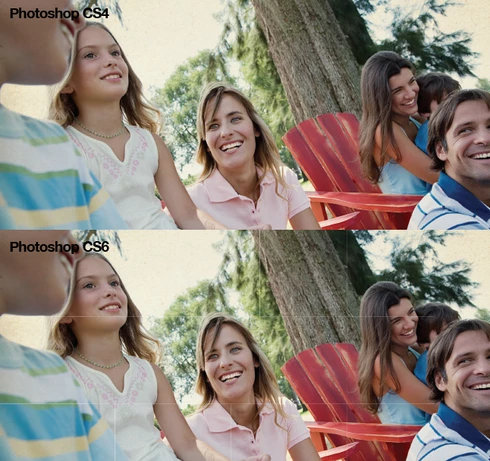
When importing a PDF with images, Photoshop CS6 adds faint outlines to the PDF image segments in the file. Prior versions of Photoshop render the PDF correctly. See the attached image for an example.
This topic has been closed for replies.

262 replies

Participant
December 4, 2013
Chris,

I have been following this thread for a while, checking in from time to time to see if there are any new developments. It is frustrating to see so many people being defiant to what you have to say.

I work with AutoCAD and print to PDF so i can import into photoshop for rendering. (I know there are rendering programs available through Autodesk, but still prefer to render with photshop.) Because of printing purely black & white line drawings from AutoCAD, the artifacts I experience appear as more of a halo or offset image as opposed to a white line.

I have been using CS5 as a workaround to this problem until I hear of a fix to the software. The artifacts that appear in the detailed areas of my line drawings are unbearable...HOWEVER, I do also experience the artifacts in CS5. They are something I have always noticed, but I have been able to remedy the problems with far less hassle in CS5 than in CS6. I just wanted to throw this out there, since so many people don't believe the artifacts were always there or even noticable. I will email you some example files in the form of original pdf, psd from CS5 & CS6, as well as corresponding jpgs.
Participant
December 4, 2013
Chris,

I have been following this thread for a while, checking in from time to time to see if there are any new developments. It is frustrating to see so many people being defiant to what you have to say.

I work with AutoCAD and print to PDF so i can import into photoshop for rendering. (I know there are rendering programs available through Autodesk, but still prefer to render with photshop.) Because of printing purely black & white line drawings from AutoCAD, the artifacts I experience appear as more of a halo or offset image as opposed to a white line.

I have been using CS5 as a workaround to this problem until I hear of a fix to the software. The artifacts that appear in the detailed areas of my line drawings are unbearable...HOWEVER, I do also experience the artifacts in CS5. They are something I have always noticed, but I have been able to remedy the problems with far less hassle in CS5 than in CS6. I just wanted to throw this out there, since so many people don't believe the artifacts were always there or even noticable. I will email you some example files in the form of original pdf, psd from CS5 & CS6, as well as corresponding jpgs.
Participating Frequently
November 11, 2013
Chris Cox,

Please re-assign this thread to someone else at Adobe customer support who can look at this topic with fresh eyes and an open mind. After proving to you time and time again that this is a Photoshop rendering issue, you just build a brick wall around you with your ears plugged and your eyes closed which isn't going to help make Photoshop better. I'm sure your sick and tired of listening to us, so for your benefit and ours, seriously, have *someone else* take a look at this topic please.
Neomania
Known Participant
November 10, 2013
These white lines also occur in 1.7 PDF files between two images with NO GAP between them.
And even Adobe Acrobat PRO cannot save useable image files (no antialiasing for text for example.).
The only way is to export it from Illustrator as an .jpg and NOT as a .psd
It is a pity that Adobe as the inventor of PDF is not able to give us a proper way to convert PDF to image files.
Inspiring
November 10, 2013
The problem is in the way the PDF files are written, with the images divided into tiles. They can't be rendered correctly except at the original resolution of the images. Please see the previous responses in this topic.
Inspiring
November 10, 2013


There is a rendering-bug with PDF-files since photoshop CS 6 (Win 32 and 64 bit and Mac) ist launched: Opening and rendering a typical X3-PDF-file with transparency-reduced graphics, photoshop CS6 renders empty one-pixel-lines along the stitches of the sliced graphics. No bugfix and no update fixed the problem!
Inspiring
October 7, 2013


Hola, cuando intento rasterizar (convertir un pdf a imagen), y el pdf esta acoplado las transparencias, la imagen resultante presenta rayas en los lugares donde se ha acoplado transparencia en el pdf.
Neomania
Known Participant
September 27, 2013
I produced two PDF versions from one InDesign Document, PDF 1.3 and 1.7 with CMYK transparency mode. And there is absolute no gap between those frames. Zero is zero or what else?
In the bottom row there is the same picture of the stars just in a new frame. And there is a red frame underneath all of them. The third frame in this row is just 100 k and set to overprint.

Honestly - which rendering is the best result?

A good solution must solve the problems of given circumstances.
Inspiring
September 26, 2013
No, unfortunately it is not. The PDF tiles actually overlap by a single pixel. But that is still not enough to render them correctly at different resolutions (due to scaling and resampling).

And without checking the PDF contents to look at the exact coordinates specified, you cannot guarantee that abutting shapes or images should (or should not) render without a gap. What looks side by side might have a small gap or overlap.
Also, they may still have a gap in CS5 and earlier, but be blurred to show less obviously (due to the way that the old, slow antialiasing worked).
Participating Frequently
September 26, 2013
Actually, it is directly on topic. When two images are placed exactly next to each other with no gap, Photoshop CS6 and CC should not leave a single pixel gap between them when rasterized. Fine -- this is a *new bug* in Photoshop CS6 and CC unrelated to tiling!

And it *is* absolutely the same exact thing as two flattened tiles touching each other in a flattened PDF.