Participant
October 14, 2026
Investigating

P: Remove Tool in Auto mode fills masked-out transparent areas on new layers Ps 27.x

For starters this has been reproduced using both PS 27.1 and 27.11. I’m using a PC Windows 11. 64-bit operating system, x64-based processor. Processor is 12th Gen Intel(R) Core(TM) i7-12700H. 32GB RAM.

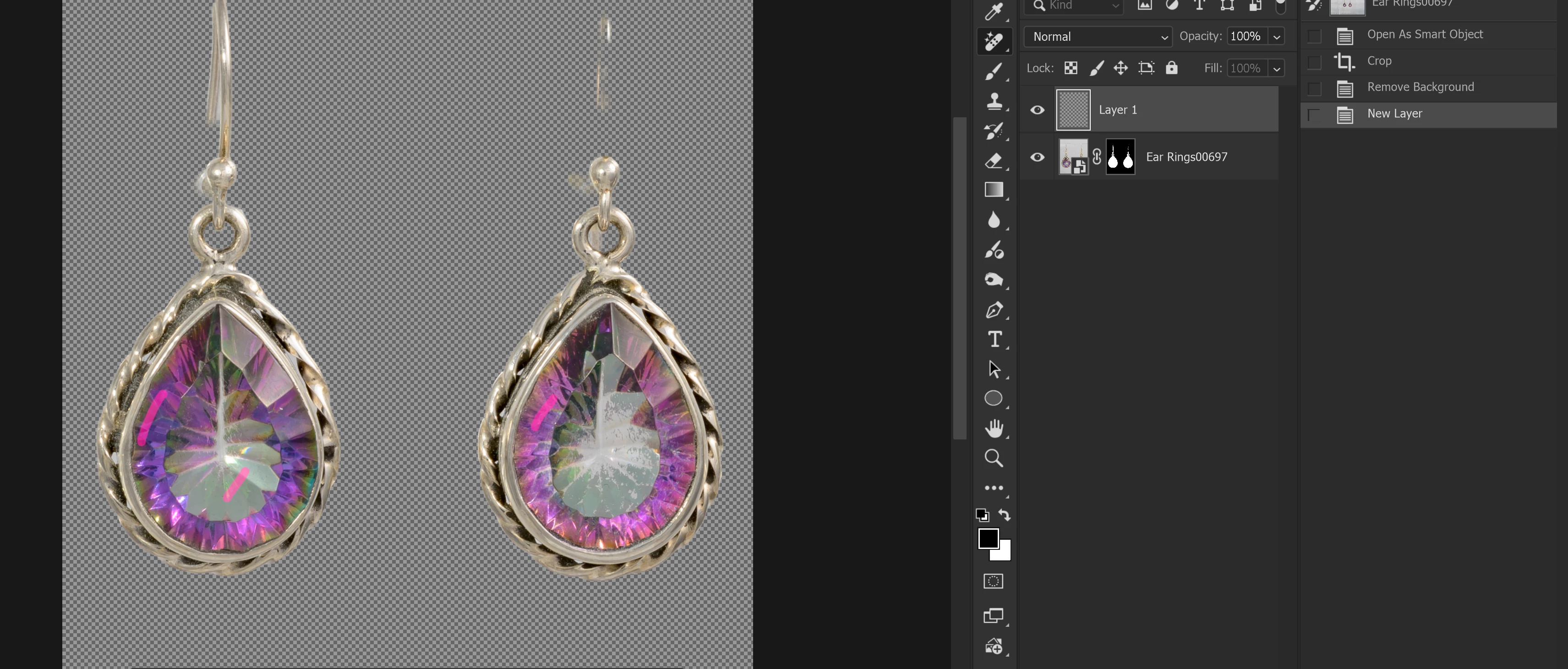
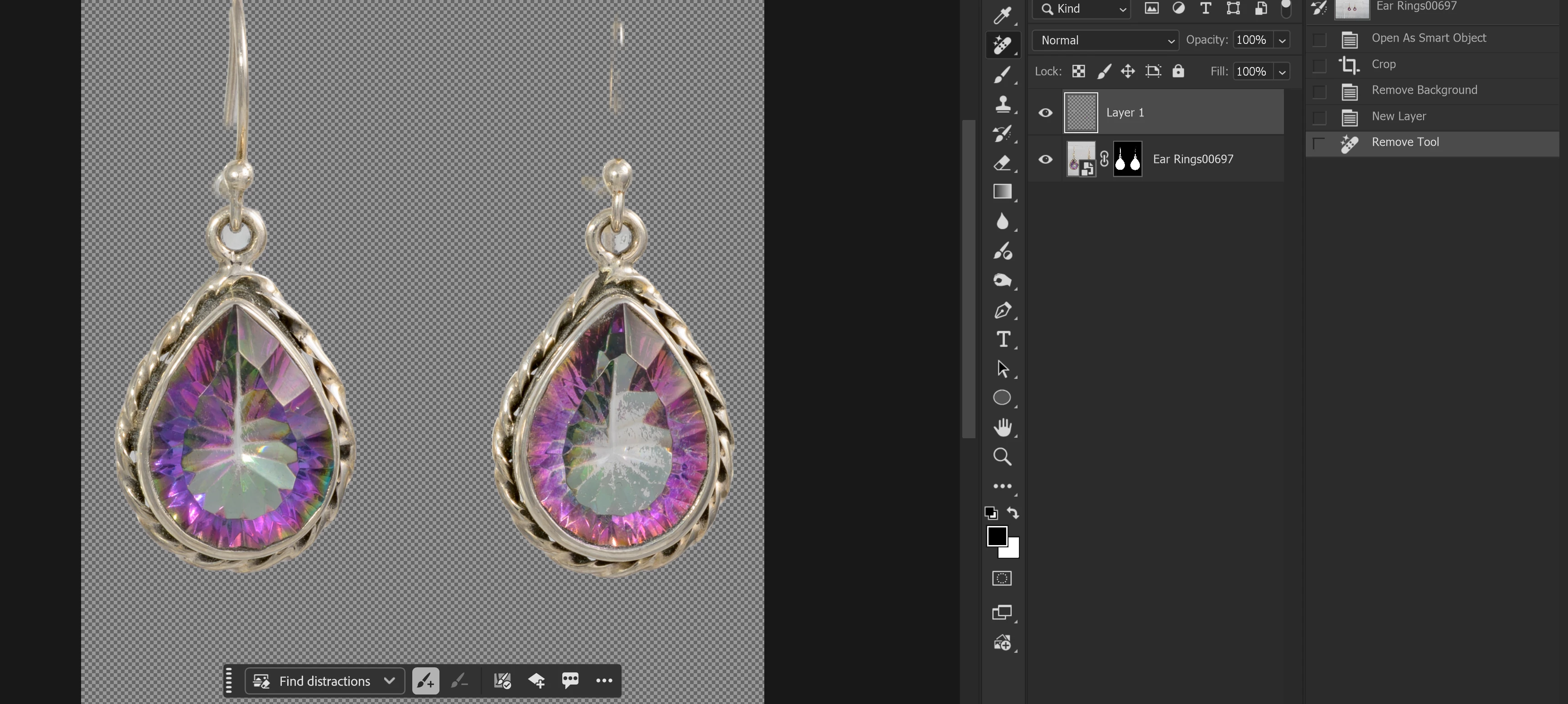
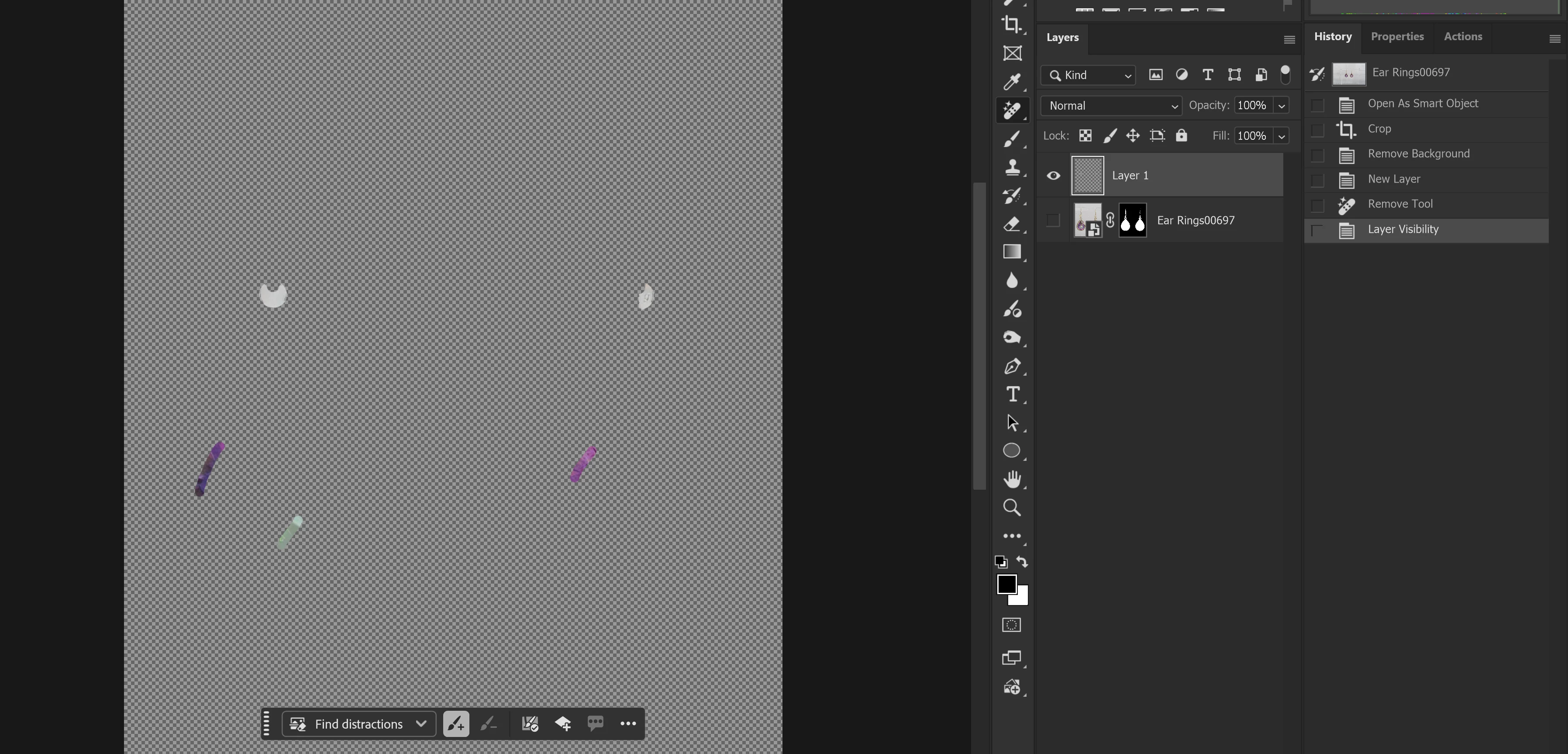
I noticed this yesterday when I started working on some retouching projects. If I use Remove Background to create a mask removing the background, create a new layer and use Remove Tool, there are areas that were masked out that show up in the new retouching layer. Erasing those artifacts and using the Remove Tool again will cause those same artifacts to reappear in the same spot.

I’m including screen shots. Setting for Remove tool is last image.
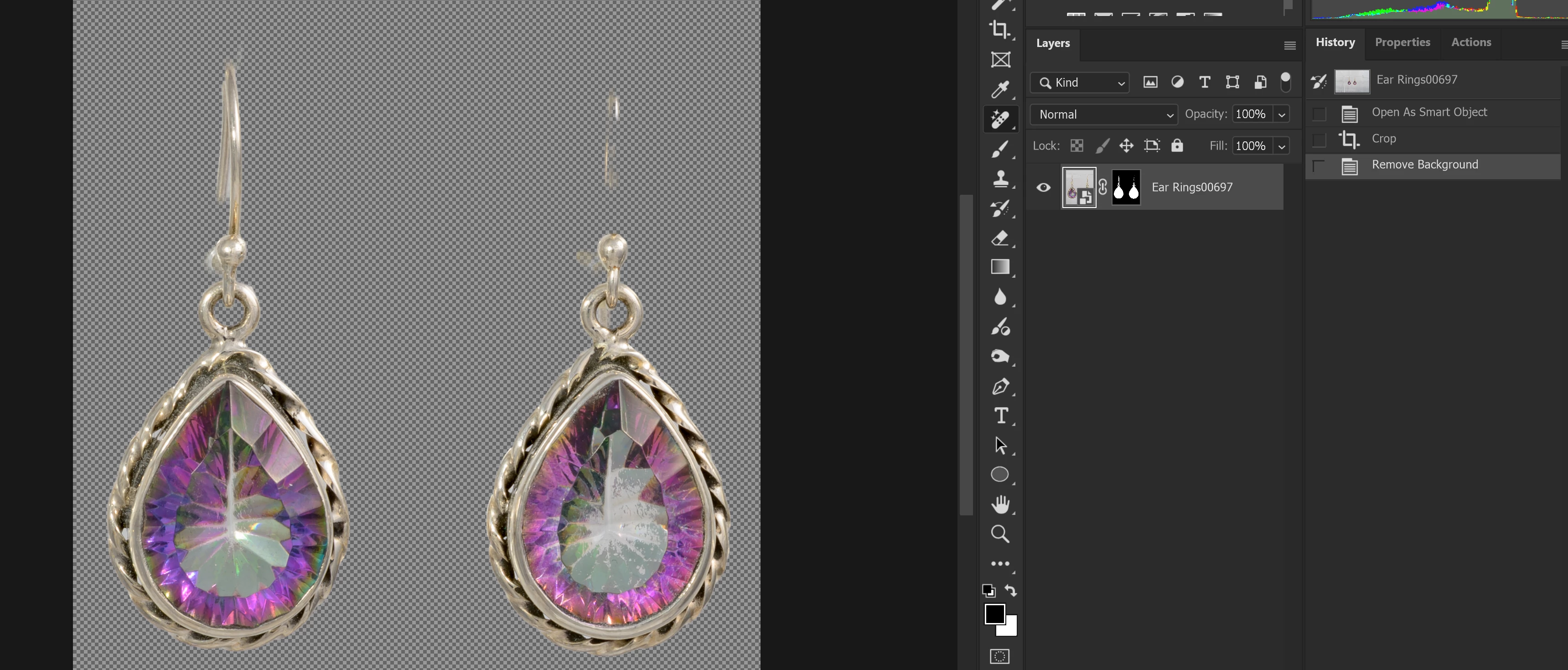

This happens consistently when using Remove Tool if Remove Background was used to make the mask. I have not tried it using Remove Tool after manually creating a mask. This also only happens with Remove Tool and not the Spot Healing or Healing Brush tools. 

    5 replies

    Srishti Bali
    Community Manager
    Community Manager
    October 14, 2026

    Hi ​@mceldowneyphoto 


    Thanks for sharing the system information. It appears that the GPU drivers on your machine are outdated, NVIDIA is approximately four months old, while the Intel is around four years old.

    I strongly recommend updating the graphics drivers to the latest available versions directly from the NVIDIA and Intel websites and let us know how it goes. 

    Translate
    Thanks, Srishti Bali | Community & Engagement Strategist, Digital Imaging | Adobe
    Participant
    October 14, 2026

    Hi ​@Srishti Bali,

    Thank you. I have fallen behind on updating my drivers. I just went thru updates for both NVIDIA and Intel. I’m going to re-share my system info.

    After restarting my computer. I performed the same tasks as described in my last response and got the exact same result. 

    Thanks,
    Andrew

    Translate
    Claire H.
    Community Manager
    Community Manager
    October 14, 2026

    Hi ​@mceldowneyphoto , Thanks for the update! This is a known issue with the Remove Tool when set to Auto mode. Transparent/masked-out areas are incorrectly filled during the removal process. Our engineering team is aware and actively tracking a fix. If we have any other questions or updates, we will respond here. I appreciate your patience! ^CH

    Translate
    Sameer K
    Community Manager
    Community Manager
    October 14, 2026

    Hey, @mceldowneyphoto. Welcome to the Photoshop Community. I’ll help you figure this out. Please share the system info from Photoshop Help > System Info. Copy & paste it into a text document, then upload & attach it here.


    1. Try resetting the Remove tool from the toolbar menu to begin troubleshooting this.

    2. In Photoshop, go to Edit > Preferences > Image Processing > Select "More Stable" mode for the Remove Tool save & relaunch Photoshop and check if that helps.

    3. If this does not help, please make sure there are no stale preferences in your Photoshop. Go to the location of the preference folder below and rename it to backup. This method is more effective compared to the in-app Reset Preferences at Quit method.


    Windows 10/11: Users/[user name]/AppData/Roaming/Adobe/Adobe Photoshop [version]/Adobe Photoshop [version] Settings

    1. You can press Press the Windows key > Enter 'Run' > Enter %APPDATA%\Adobe

    2. Rename the Adobe Photoshop folder by adding a .old at the end. (Adobe Photoshop 2024 > Rename > Adobe Photoshop 2024. old), you can later restore these preferences if needed.(https://adobe.ly/4860qM9)

    3. Restart the computer.


    Thanks!
    Sameer K
    (Type '@' and type my name to mention me when you reply)

    Translate
    Participant
    October 14, 2026

    Hi ​@Sameer K,

    System info is attached as an .txt

    1. I’ve Reset All Tools
    2. Image Processing was already set to “More Stable” so no change was made:


    I tried the process again. Originally it seem to work but when I changed Remove Tool mode from ‘Generative AI off’ to ‘Auto’ Mode it happened again. Just to be certain I switched to Photography workspace and was able to reproduce the error. Changing the mode back to ‘Generative AI off’ prevents this error.


    It wasn’t clear if I should also rename folders containing this year and beyond so I renamed all folders that are not ending in 2026 and 2027 to have the .old at the end and reset my computer. The results are the same as above. Screen shot from after the reset.


    Thanks,

    Andrew M

    Translate