


Participant
January 29, 2019

P: Text tool Problem: A bunch of small text is all over my screen

  • January 29, 2019
  • 38 replies
  • 9223 views

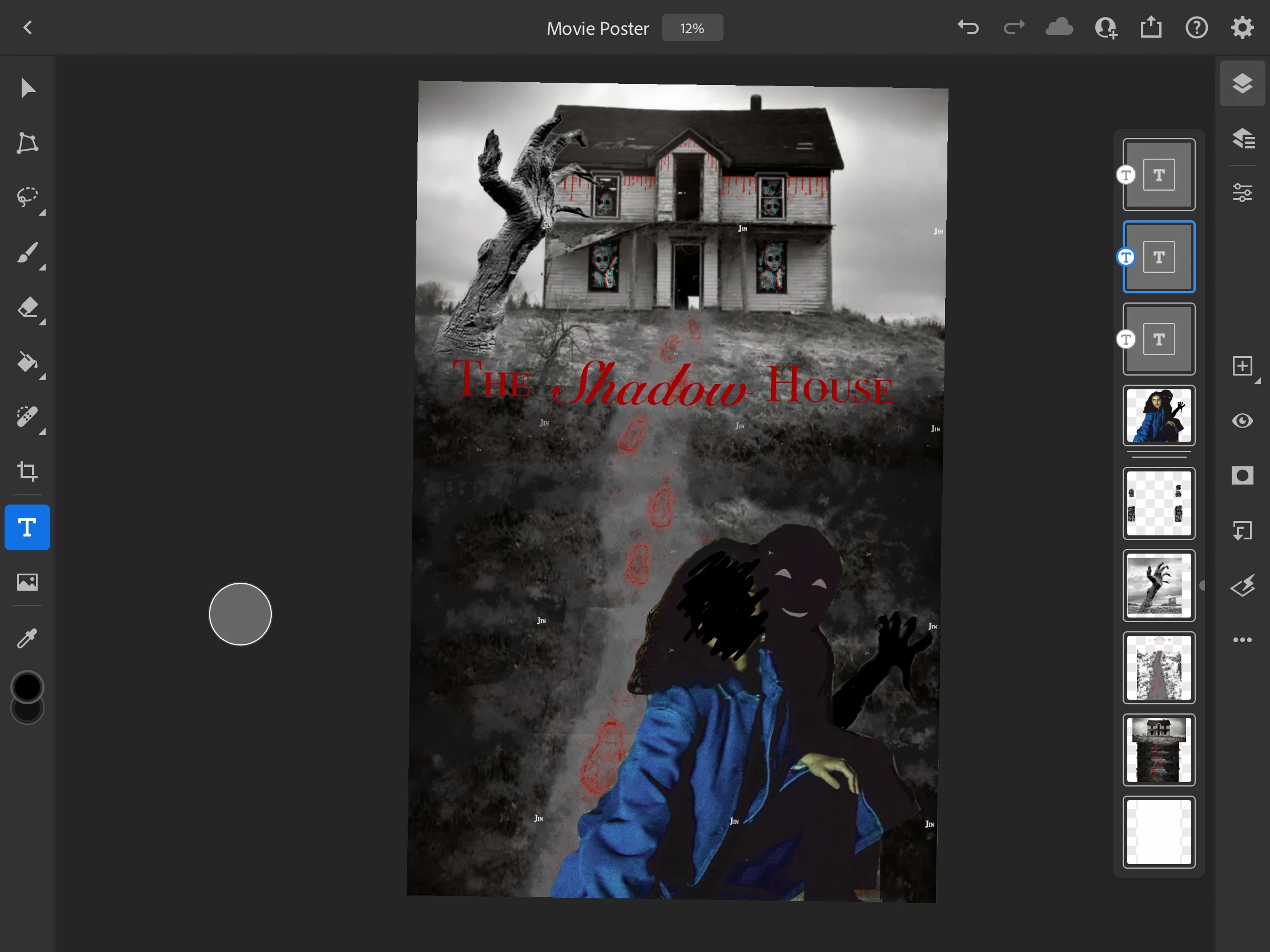
So like usual, I made a text box to start typing but I don't know what happened because now there is the same word in various small fonts all over my work. I have no idea where it came from. If you look at the photo, there is the word "Jin" in white everywhere and I can't seem to remove it.
38 replies

Participating Frequently
May 6, 2022

Participating Frequently
May 6, 2022

The "ghost" text is actually the last line of text I had on the document, on the same text layer. I 86'd that last line and the ghost text remained. I re-typed in. The ghost test remained. So ultimately, I just deleted the text, shifted that text layer down a few levels which covered up the ghost text and adjusted the sizes of the other layers to cover up the remaining floating text. 

Participating Frequently
May 6, 2022

Benjamin, thank you for the response. I'm trying to build this out for work so when this happens every couple of days, it's infuriating. Something's when I reposition the text layer, it hides it, but it still remains. Here's the photo. 

Community Manager
May 6, 2022

Hi J Lo 06 - can you share the document? I'd like to examine it and see what is going on.

Participating Frequently
May 6, 2022

I am having the same problem with Photoshop on my iPad Pro. Unfortunately, turning the visibilty on and off doesn't work. Moving the text layer above or below background layers doesnt help. Exiting out of the program and loading it agagin doen't help. Hitting the undo button doesn't help. Needing a viable solution here. Trying to find a workout for this floating/multiplying ghost text driving me mad. 

Michael J. Hoffman
Community Expert
Community Expert
May 17, 2021

Have you tried turning off the visibility of the three text layers a the top of the layer stack?


It almost looks like a watermark, except it is in front of everything, so must be in one of the top three layers.


jane-e
Community Expert
Community Expert
May 17, 2021

Try Michael's idea first. If it does not work, turn off the visibility for all the layers, then turn them on one at a time in case the text was rasterized and is now pixels on another layer.


~ Jane

Participant
May 17, 2021

Hi Jane, I ended up resolving the problem by pressing the undo button until it somehow disappeared. But now that I think about it, your advice would have been an easier way to fix the problem. Thank you and I'll keep that in mind if this happens again!

Participant
June 19, 2020

I'm experiencing a strange bug after updating to 21.2


1) I create a new canvas

2) I select the type tool and type some text.

3) When i drag / resample etc the text on the same canvas, it creates a duplicate ghost appearance of that text, on the screen.

4) Even when I hide the visibility of the text layer, the ghost/duplicate text still appears on the screen.


There doesnt appear to be any compatiability warnings etc with the PC or outdated display drivers.


Any ideas? Thanks!


EuanWilliamson
Community Expert
Community Expert
June 19, 2020
Best regards, Euan.
Known Participant
January 29, 2019

I recently had this bug appear in a Photoshop.  A portion of one of my text entries created a repeating pattern of one and a half of the letters, and started appearing on multiple layers.  Even appearing on new text created.  It has now spread to a seperate Photoshop file, even though I never dragged anything from the corrupted file to the new file.  Here's an image of the issue.


It's currently appearing on a Smart Layer, though it isn't present inside the Smart Layer itself.


Has anyone seen this issue before and figured out how to address it?  I can't find anyone else describing this issue in other posts.

Chuck Uebele
Community Expert
Community Expert
January 29, 2019

If you're using PS 2019, make sure you have Legacy Compositing checked in the preferences under performance.

Known Participant
January 29, 2019

I just updated so I'm using Photoshop CC 2019 v 20.0.2. 

I tried checking it and resetting my Photoshop.  The text error is still there on that layer.  We'll see if it doesn't happen anymore at least.