


Participating Frequently
May 19, 2020

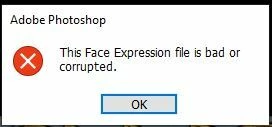
P: This Face Expression File is bad or corrupted

I keep gettting the following error when I launch Photoshop 2020 on a Windows 10 64bit machine


This Face Expression File is bad or corrupted


I assume it relates to the Default Face Expression Presets.p3f file, which a scan reveals to be OK. The application launches after I click OK but how can I get rid of the error?


I have reinstalled, tried the clean up tool and there has even been an update since it started but still it persists. Is there anywhere I can find a replacement file?


Thanks in advance


Steve


返信数 93

infinityphotorob
Known Participant
September 28, 2020

I am seeing this too.  Started about 2 weeks ago on my desktop.  Not on my laptop.  I love you Adobe!!!  Bugs on bugs with bugs on top!! Pros want stability above incramental updates!! Get your #@# right please!! Not just PS but whole suite.  


Participant
July 3, 2022

Amazing that Adobe has not fixed tis two years on...  I guess they don't care, too busy adding more bugs...  None of the fixes here works for me just keeps showing up 

PECourtejoie
Community Expert
Community Expert
July 31, 2020

Hi, is it a new error or did you have it for a long time?

Is it using Ps 21.2.1?

JunFender
Participant
August 2, 2020

Hi, I have it a couple of days, 

Photoshop 21.2.1 recently updated.

davescm
Community Expert
Community Expert
May 19, 2020

Have you tried resetting your preferences (these are not overwritten on install)? Hold down Alt+Ctrl+Shift when starting Photoshop (or on Mac Opt+Cmd+Shift) and choose the option to delete current settings


Dave

Participating Frequently
May 19, 2020

Thanks for your reply Dave


I tried what you suggested but only saw information about scratch discs, no option to delte current settings


Steve

jane-e
Community Expert
Community Expert
May 19, 2020

Hi,

It's a bit tricky to get the timing right. On a Mac, you can hold down the keys first, then launch Photoshop. If you are on Windows:

  1. Hover over the Ctrl + Alt + Shift keys with your left hand
  2. Launch PS with your right hand
  3. Immediately press down on the three keys and hold them down. 


If the dialog asking to reset Preferences does not appear, quit PS and try again. You have a fraction of a second between steps 2 & 3.

https://helpx.adobe.com/photoshop/using/preferences.html#restore_preferences


~ Jane