


Mathias17
Inspiring
December 20, 2018

P: Transformed text has wrong scaling according to Character Panel and can't be reset.

  • December 20, 2018
  • 15 replies
  • 1652 views

Windows 10
Photoshop v20.0.1
___


Why is nobody talking about this???


After you've non-proportionally scaled a text layer, be it by accident or intentionally, that text layer is permanently ruined and you must copy the text out, convert it to plain text, then paste it back into Photoshop.

The Character Panel is unaware of a text layer having been scaled, as is the toolbar in the top left where transform settings can be input during the transform process.

There is no way I'm aware of to undo transform scaling to a text layer, or reset it back to normal.


See my tests below:
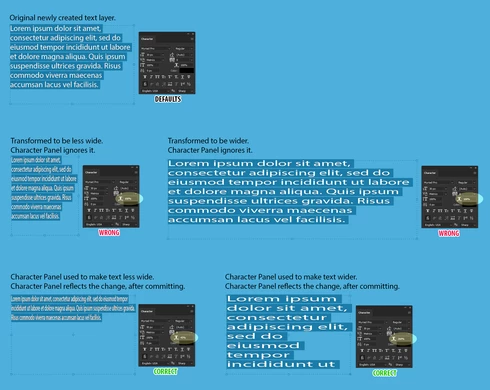

Top Row:
Original, unedited/non-transformed text layer.

Middle Row:
Copied my original text layer twice. Transformed one and squashed it to be much narrower. Transformed the other one to be really long/wide.
After doing this, when I select said text and view my Character Panel, I'm mislead to believe the text hasn't been scaled when I know it has. I'm told the horizontal scales are "100%" when in fact they are not.

Bottom Row:
Copied my original text layer twice again. Used Character Panel settings to squash one narrower. Used Character Panel settings on the other one to be really long/wide.
After committing these edits done via the Character Panel and then checking the text's scaling in the Character Panel I can see that the scales have been remembered and that they are correct. I can easily set the horizontal scale values back to 100% to undo the ugly scaling.


I also tested what "Reset Character" would do for me in this case. Found in the Character Panel's flyout menu.
As expected, it ignores all previous transforming done to a text layer.
See below:


In the middle row, despite being reset to 12pt size, you can see the ugly scaling has survived and those text layers still need to be "fixed" via my tedious text copying method.


Photoshop's text layers have historically been plagued by issues like this over the years.
Here we are in version 20, and Illustrator still puts Photoshop's text layers to shame.
Illustrator doesn't, and to my knowledge never has, have any issues with text scaling - it's always possible to audit your text objects and make sure there's no funky scaling going on.
Photoshop Team - please see Illustrator for a good working example of how text scaling ought to work. I know Illy is a different beast, but managing text objects in it is pretty great.


I hope I've described the problem sufficiently. If not, please let me know at once. I can provide more information no problem.


---


and now
After wasting an hour creating this unfortunate post, I now have the lovely job of going through my current 1,000+ layer web design PSD and manually "fixing" any accidentally scaled and copied text layers so I can make sure I'm specifying the correct font properties in my condocs. RIP

15 replies

Participant
October 23, 2019
Just discovered this issue, and I blows my mind it still exists. Fixing the issues caused by this has cost me thousands of dollars. PLEASE FIX.
Inspiring
October 23, 2019
Just discovered this issue, and I blows my mind it still exists. Fixing the issues caused by this has cost me thousands of dollars. 
Earth Oliver
Legend
April 1, 2019
Yes, this is exactly the issue which i'm betting thousands of designers are dealing with every day.
Inspiring
April 1, 2019
I just had the misfortune of encountering this bug. I build 17 web banners of varying sizes and once finished, I noticed that the text didn't quite look right on some of them. I had been transforming text layers on each banner, and it turns out, I had inadvertently scaled some non-proportionately. This happened because the powers that be decided that the Shift key would no longer cause proportionate scaling but the exact opposite, but this is a different issue. Anyways, I checked each text layer's vertical and horizontal scaling in the Character panel and according to it, they were all at 100%, clearly some were not. But how to tell which were fine and which were not? There is no way to tell. I had to rebuilt each and every text layer on each banner from scratch to make sure the type was actually scaled proportionately. Please fix the Character panel, if text has been scaled horizontally or vertically, display that, don't say it's at 100%. If I scale a layer that contained 10pt type to 200%, the Character panel says the type is now 20pt. If it can do that, why can't it tell me if that type was scaled non-proportionately? 
DaveChap
Known Participant
March 30, 2019
The workaround you are doing (pasting into Notes and back) is way too much effort. Just copy the text from the text layer and paste it into another text layer—problem solved.
Mathias17
Mathias17Author
Inspiring
March 29, 2019
Hey, David. Thanks for getting back to us.

I'm having a really hard time understanding how the issue at hand isn't already crystal clear. But that's just me - I'm one of those power user nerds. I use A LOT of text layers in my Photoshop projects so I get to see firsthand these issues.
Used PS since v5. Text layers have been a pain point for as long as I can remember.

This thread alone contains hard evidence that Photoshop doesn't handle non-proportionally scaled text as well as it could, and should. While parts of this discussion may be subjective, I think we can all agree Photoshop's fellow cloud apps - Illustrator and InDesign handle text layers/objects much better. At the least - they're different. They handle this issue differently. But why?


Why, when I use the Character Panel's  "Reset Character" feature on a text layer, would it remain non-proportionally scaled and not actually get "reset"?
My guess - it's an oversight. It's an old problem that never got needed attention.

In 2019, what is a user of the world's most powerful image editing application supposed to do to a non-proportionally scaled text layer in order to merely get rid of unwanted non-proportional scaling?
At the moment - Nothing. There's nothing we can do.
We must:
  1. Copy the text characters in the affected text layer.
  2. Paste that text into a plain text program (Notepad, browser URL field, etc).
  3. Copy the text again, from Notepad, now that it's been washed of all formatting.
  4. Paste the washed characters into a new text layer in Photoshop.
  5. Re-do your formatting and placement.
  6. Delete the bad text layer which you were using as a guide to format/place your new clean text layer.
Your messed up text layer had a special layer mask you customized? Better remember to copy it to the new text layer.
Your messed up text layer was area type inside a vector path you drew, because your layout needed it (simulating CSS shape-inside perhaps)? Can't delete it, or you'll have to draw that path again. Be sure to try to replace the bad text with the new text and hope the old formatting doesn't remain.


I believe the way Photoshop handles type is fundamentally flawed and possibly always has been.
But because the problem is so old, it's ignored and accepted by many users.
I think this explains why you don't hear about it too much.
Also, it's rather ambiguous and hard to fully describe.

And to be honest, the reason I've never reported it before is because I assumed nothing would change and I'd be wasting my time and sanity here in this forum.
But now, having been doing a lot more web mockups and stuff in the recent years my patience has ran out waiting for the solution to be implemented.

David, a few months ago you said, "This is a known limitation of the current transformation implementation with regard to Type."
So, myself and anyone in agreement here, are officially requesting the Photoshop guys take a serious look. Hopefully, it's not ancient mangled code they'll need to edit in order to fix this, but . . . it probably is, hehe.
David Mohr
Community Manager
Community Manager
March 29, 2019
Howdy Mathias and company,

For what it's worth, I see your point and have logged a feature request for this issue.  At this point, the most helpful thing would be for a diverse group of users to share how this change would improve their workflow or how the current implementation impinges their workflow.  Including the screenshots and comparisons with AI and ID, for instance, are great arguments for a convergent evolution of this feature.  More welcome; please just post below -- I always include the link to reference user-reported bugs and requests.

Thanks,
David
Mathias17
Mathias17Author
Inspiring
March 29, 2019
Correct.
Never said it was a new issue.
No, this problem doesn't "feel" new .
I immediately reverted my copy's default proportional scaling behavior when that change was pushed through. It's unrelated.
Mathias17
Mathias17Author
Inspiring
March 29, 2019
Yep.
DaveChap
Known Participant
March 29, 2019
This is how Photoshop has worked forever. The problem that "feels" new now is that transform proportionally scales by default, which probably led some to hold shift and accidentally skew the text. This is easy to fix with undoing the transform, but yes if someone skews this way and sends the file to someone else, there's no easy way to revert it (nor has there ever been).