



dylan_beattie
Participant
February 3, 2022

P: Windows 11 icons and menus "flicker" after copying a selection in Photoshop

  • February 3, 2022
  • 13 replies
  • 5214 views

Since upgrading to Windows 11, if I select an area in Photoshop and then copy it, it causes parts of the Windows UI to "flicker" - see the attached video. The flickering starts as soon as I copy something, and persists until I sign out or restart Windows. It only affects certain parts of the Windows UI - the notification area (system tray), the Windows Task Manager, various applications' drop-down menus and dialogs, but not (for example) the Start menu or the Taskbar: 


This happens on both Photoshop 2021 and 2022. I was previously running Photoshop on Windows 10, on exactly the same hardware, with no problems at all.


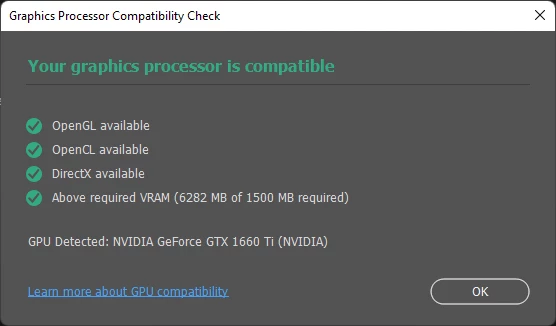
GPU compatibility check looks fine: 
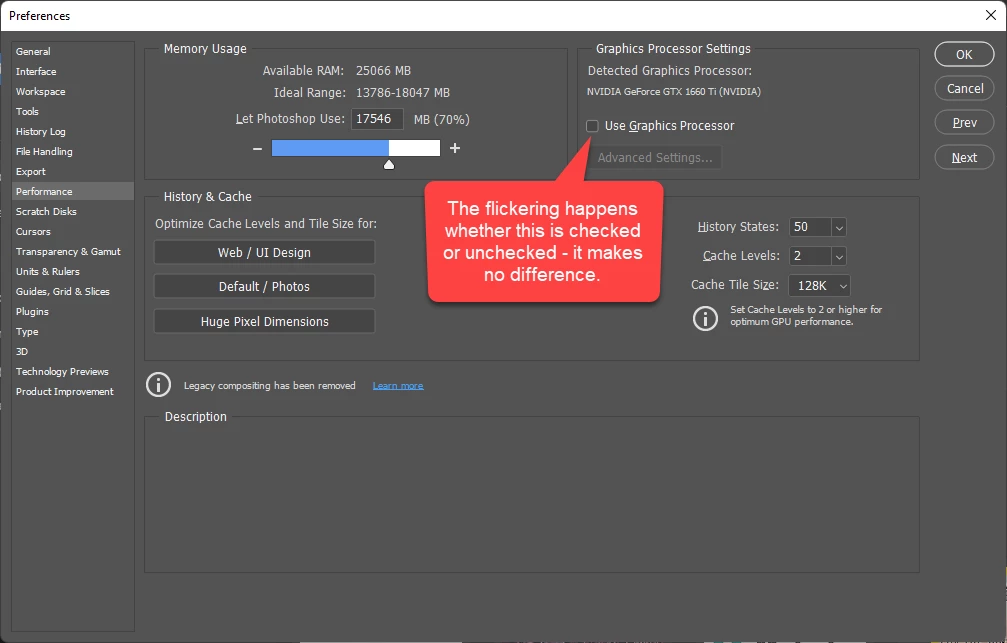
but the flickering still happens even if I've unchecked "Use graphics processor":
I'm absolutely at my wits' end trying to work out what's causing this. Has anybody encountered anything similar, or got any ideas what might be causing it? I can't really think of anything else to try other than downgrading back to Windows 10.


13 replies

Participant
May 22, 2022

I can confirm that issue, but it's a Windows 11 problem. Some other tools also cause this issue, when copying an Image to the clipboard. To stop the flickering you have to overwrite the clipboard with something else. Not found any solution so far.

Participant
April 26, 2022

I have the same issue with Windows 11 and Photoshop. When something is copied from Photoshop the Task Manager and other popup windows start to flicker. If you copy any plain text into the clipboard the flickering stops immediately. Also, verified disabling Export Clipboard in Photoshop -> Preferences -> General works as well. 


Thanks for posting and investigating! The flickering was driving me crazy!!!

Inspiring
April 24, 2022

... and disabling Export to Clipboard worked for me as well.

Inspiring
April 22, 2022

I have the exact same issue which I've submitted to Microsoft. I'm also none the wiser. I've only noticed it recently though. 

WhiteNervosa
Participant
April 2, 2022

Sadly I cannot reply on Microsoft's site but to fix this uncheck "Export Clipboard" in Preferences.

dylan_beattie
Participant
February 7, 2022

There's another report of the same issue here:

https://techcommunity.microsoft.com/t5/report-an-issue/windows-11-window-manager-gets-unstable-after-pasting-a-large/m-p/2992429/highlight/true#M5309

The link to the thread saying Serif Affinity Photo is causing the same problem is interesting, because it suggests it's a Windows 11 clipboard problem, not a problem in Photoshop. Guess I should go and hassle Microsoft instead... 😉

ivank11134774
Inspiring
February 7, 2022

I've found a similar thread on the Affinity forum.

https://forum.affinity.serif.com/index.php?/topic/152835-windows-11-clipboard-issue/

You may want to check the suggestion of ashf from last week:

"This may happen when the Copy as SVG option is disabled.
I saw a user complaining flashing taskbar problem.
They say it does not happen when the Copy as SVG option is enabled."

Good luck.

dylan_beattie
Participant
February 7, 2022

Hey,

It's not related to settings. I've moved the settings folder as advised, but get the same behaviour with fresh settings, in both Photoshop 2021 and in Photoshop 2022.

Anything else I can try to figure out what's causing it?

Legend
February 4, 2022

Only other thing would be to make sure we're back at a known state in case there's a bad setting somewhere:

Restore your preferences using this manual method:
https://helpx.adobe.com/photoshop/using/preferences.html#Manually
Does it work correctly?
If that doesn't solve it, you can quit Photoshop and put the Settings folder back.
If it does solve the problem, I would like to get the folder of settings to try and figure out what is bad with them.

dylan_beattie
Participant
February 4, 2022

Thanks for following up.

I do not have GSync enabled (my NVidia Control Panel doesn't even offer the option), and I do not have Overhide high DPI scaling behaviour enabled.

Any other ideas?