


Panels in Photoshop won't stay the way I set them
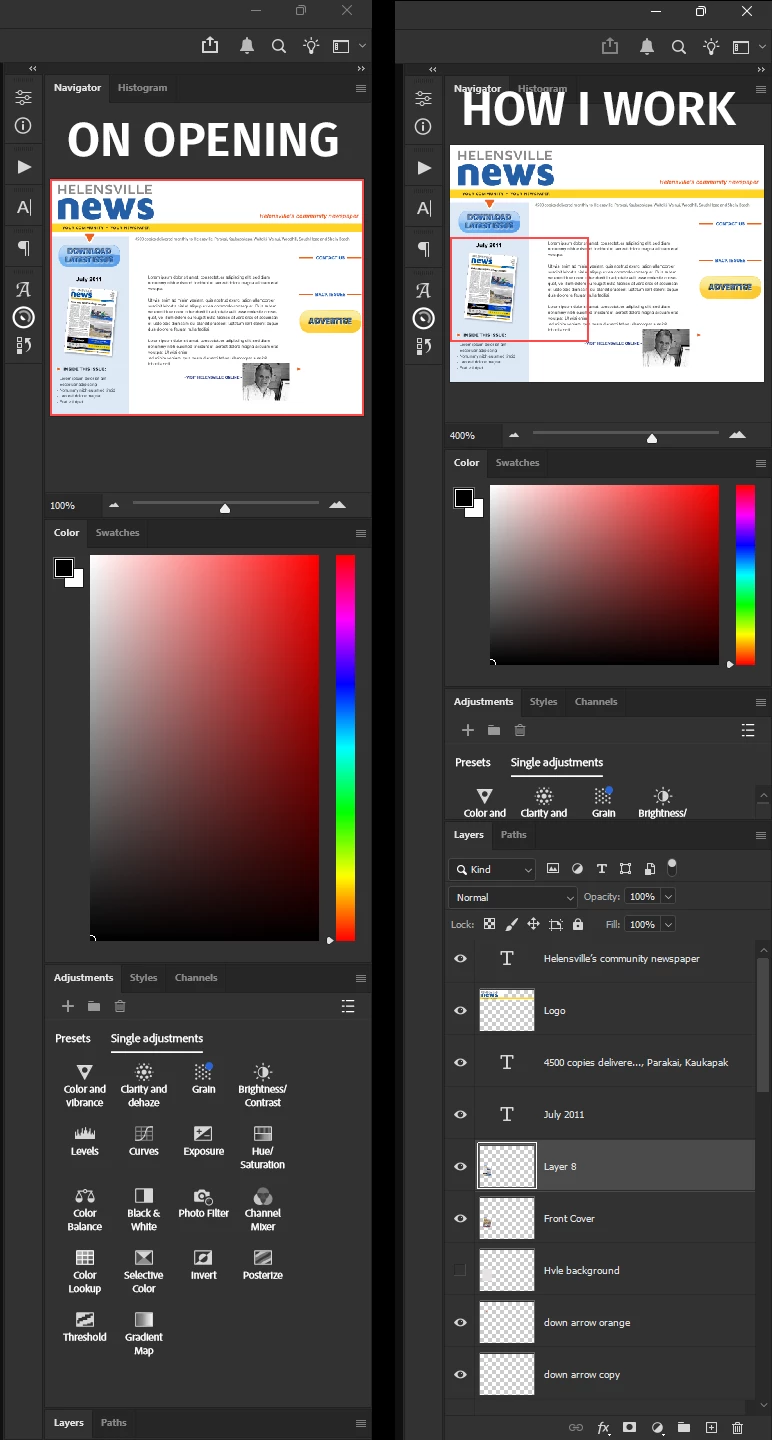
I have a series of panels docked to the right side of my screen. Since updating to the latest version of PS these won’t stay the way I set them to work. Each time I open Photoshop, the top three panel groups (Navigator, Color and Adjustments panels) are fully expanded height-wise, while the Layers panel is collapsed at the very bottom of the screen.
Before I can work, I have to double click the Layers tab to expand it, then resize the other panels to how I want them. It’s a rather annoying inconvenience. I do have my workspace Locked (Window>Workspace>Lock Workspace).
I’ve attached pix showing how they look when PS opens, and how I set them to work.
Running Photoshop V 23.3.1, Windows 11 Pro build version 10.0.26200.
PC - Core i7-10700k, 16gb ram, 8gb GeForce RTX3070
 AdChoices