
Photos opened in photoshop appear washed out and low contrast in the workspace
After updating to the most recent version (v 27.9) image coloring appears incorrectly in the editing workspace. When opening a .jpg using photoshop, the photo appears in the workspace washed out and with no contrast. In the navigator window and Camera Raw, the photo appears with the correct coloring. I’ve included a photo for reference. The photo coloring returns to normal once saved and exported out of Photoshop.
Step 1- Open the .jpg by right clicking the image and selecting open with Photoshop
Step 2- The photo appears in the workspace with incorrect coloring.
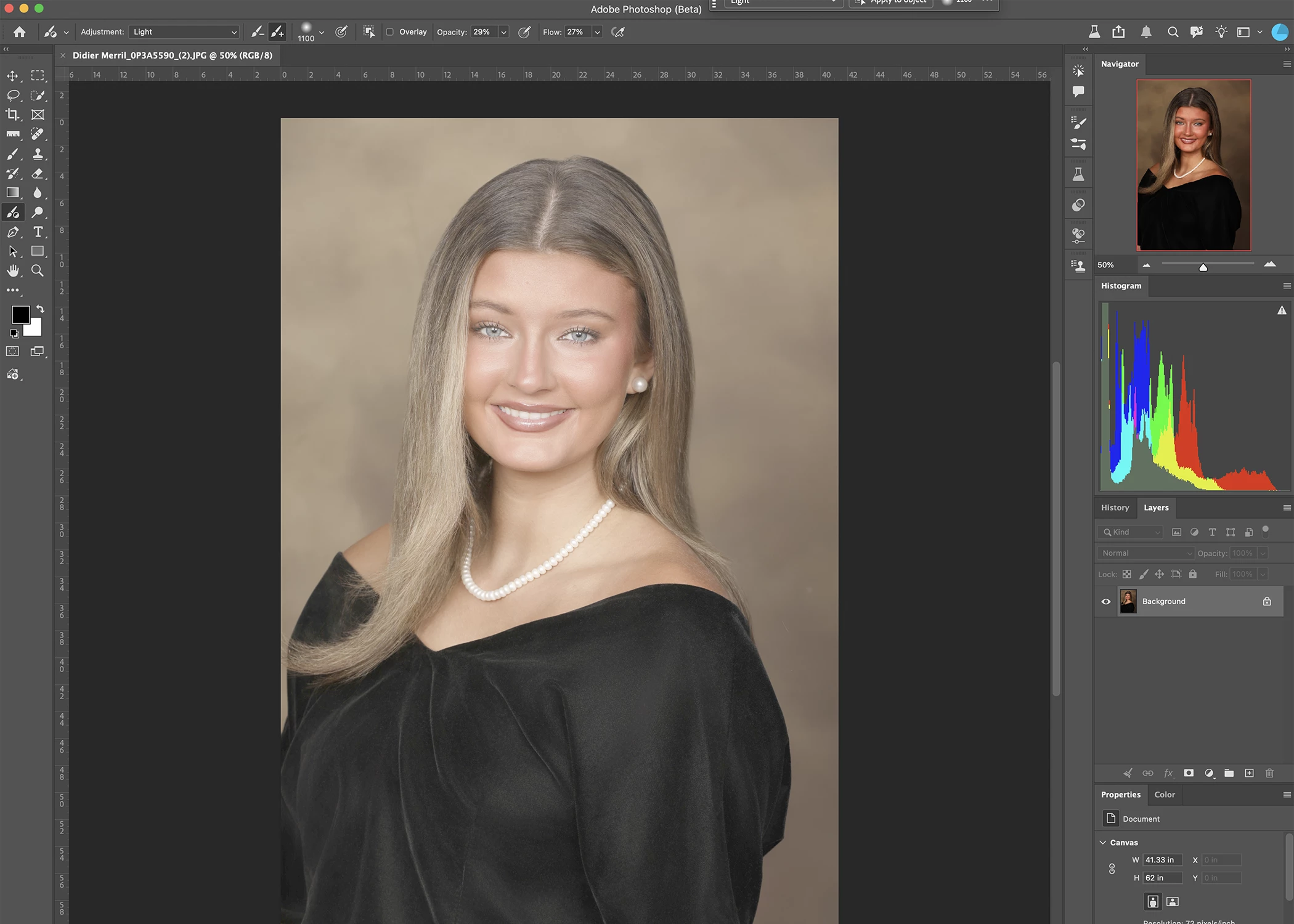
In navigator window- correct coloring


 AdChoices