


Participant
Nov 4, 2026 1:21 PM UTC
Open for Voting

WebP disappears when customizing Save Dialog File Formats

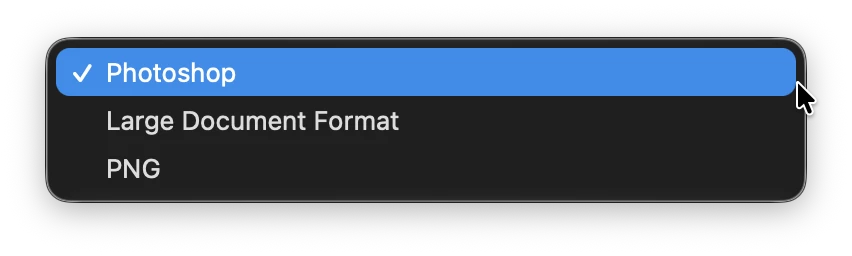
Photoshop does not display WebP in the Save As or Save a Copy format dropdown, even though WebP is enabled in Customize Save Dialog File Formats.

Steps to reproduce:
1. Open Customize Save Dialog File Formats.
2. Enable Photoshop, Large Document Format, PNG and WebP.
3. Save the customized settings.
4. Open Save As or Save a Copy.
5. WebP is missing from the available formats.
6. Return to the customization dialog and click Restore Defaults.
7. WebP becomes available again.

Expected result: WebP should remain available when enabled in the customized format list.

Actual result: WebP disappears with customized settings and reappears after restoring defaults.

Environment:
- MacBook Pro M4 Pro
- RGB Color, 8 Bits/Channel
- Document dimensions: 1200 x 900 px

Workaround: Restore Defaults restores WebP availability.
 

    2 replies

    Ged_Traynor
    Community Expert
    Community Expert
    Nov 4, 2026 1:30 PM UTC

    ​@pablop49256054 seems to be a MacOS related issue, as I cannot replicate it on Windows 11 with Photoshop version 27.11

    Translate
    Sameer K
    Community Manager
    Community Manager
    Nov 4, 2026 3:30 PM UTC

    Hey, @pablop49256054. Welcome to the Photoshop Community. I'll help you figure this out.


    In my attempts, I could see that the customization was retained on repeated attempts. Please ensure there are no stale preferences in your Photoshop. You can go to the location of the preference folder below and rename it to back it up. (https://adobe.ly/3u7u84j)


    This method is more effective compared to the in-app Reset Preferences at Quit method. 


    macOS: Hold down the Option key in the Finder when using the Go menu. The Library will appear below the current user's home directory.

    Library > Preferences > Adobe Photoshop [version] Settings

    Rename the Adobe Photoshop folder by adding a .old at the end. (Adobe Photoshop 2026 > Rename > Adobe Photoshop 2026.old)


    This will give Photoshop a fresh start as a new installation.

    Let me know if it helps. Thanks!
    Sameer K

    (Type '@' and type my name to mention me when you reply)

    Translate