
Participant
August 4, 2026

Adding a pen mask to an effect tool, such as opacity and lumetri color, causing the clip to become cropped.

  • August 4, 2026
  • 7 replies
  • 62 views

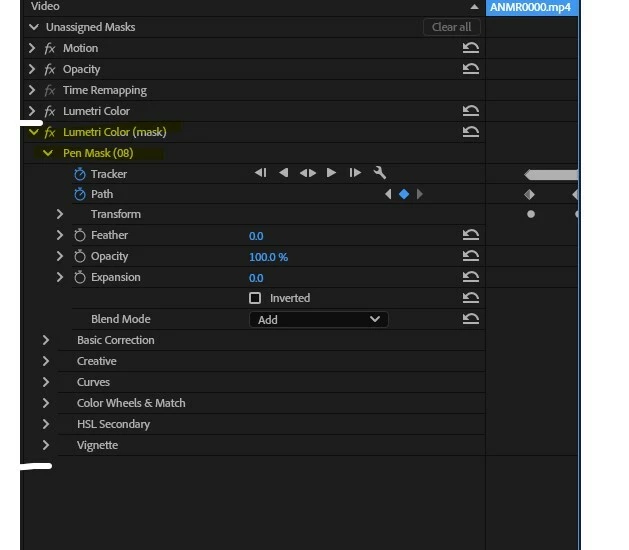
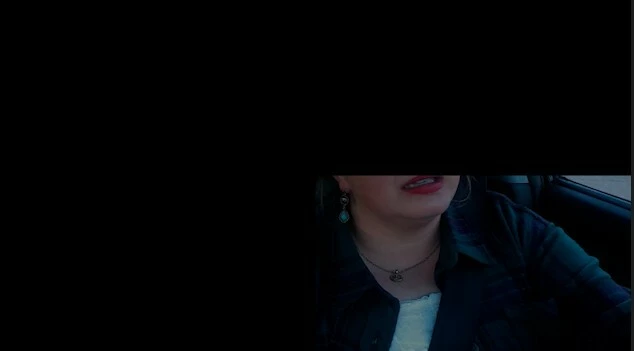
I created a mask around a small section of a clip using the pen mask tool found in the object mask menu. I then moved the unassigned mask into the Lumetri Color tool for the purposes of coloring the masked section. Upon moving the unassigned masked into Lumetri Color, Premiere crops the entire top section of the clip, as well as the lower left section. See attached screenshots.

The first shot shows how I added the pen mask to the Lumetri Color tool. The second shows the immediate result.
 

    7 replies

    Participant
    August 11, 2026

    Sorry for the long delay. The resolution of the clip was the problem. When I originally looked at it, I saw 3840 x 2160. Going over it again, I noticed I somehow had two entirely different clips with the same label that were shot with different resolutions. So, my mix up. Using the clip that matches the sequence resolution fixed the problem.

    Community Manager
    August 11, 2026

    Hi ​@jeff29558882ao7l,

    Thank you for the follow up and letting us know of the resolution.

    Best,

    Jonathan

    Participant
    August 4, 2026

    Hi Johnathan,

    I am using Premiere version 26.3.0 build 93, on Windows 11. My NVIDIA GPU studio driver is v610.88.

    This problem first occurred for me about a month ago, on what I am assuming was the same 26.3.0.
    I have also experimented with lower resolutions, and nesting. 

    Community Manager
    August 4, 2026

    Hi ​@jeff29558882ao7l,

    Thanks for the additional details! The team is attempting to try and reproduce this occurrence:

    • Could you tell us the specs of the footage you’re working with?
      • Source 
        • What camera was the footage shot on?
      • Resolution and codec
    • Where and how is that media being stored? (For example, is media on an external drive, or is locally stored?)
    • Are there any clips stacked over the clip in the timeline panel?
    • Can you list your exact steps to when this issue happened?
      • If possible, send a screen recording of your Premiere and the actions taken.
        • (This gives the team a better context to your specific project.)
    • Does the error occur in a brand new empty project?

    Best,

    Jonathan

    Participant
    August 5, 2026

    The footage shown in my screenshot was filmed on the GoPro.
    Clip and sequence resolution: 3840 x 2160, video codec: H.264

    There are no clips stacked. It is a single clip on track V1.
    Yes, this error does occur in a brand new empty project.

    See attached video. I created a simple mask with the pen mask tool, and dropped it on lumetri color. The clip in this video is from the same GoPro footage as shown in my original screenshot.

    Community Manager
    August 4, 2026

    Hi ​@jeff29558882ao7l,

    Welcome back to the Premiere forums. Thank you for reporting this occurrence and providing screenshots. For the team to try to better assist you, we’ll need more information:

    • What is the exact version of Premiere you are using?
    • Please specify if your system is Windows or macOS, along with the version.
      • GPU Driver (Windows only): Please let us know your video card driver version. We recommend updating to the most recent version; for NVIDIA users, we strongly recommend the Studio version of the driver.
    • Is this the first time you’re experiencing this issue?
      • If not when did it begin, and on what version of Premiere?

    Things to try:

    • Check the resolution playback on the Program Monitor panel? If the resolution is set to ½, ¼, or lower, then try switching to have the playback at Full resolution.
    • Nest the clip, which has the effect applied.
      • Is there a change?
    • Nest the clip with no effect applied. Apply the effect to the nest and work as normal.

    Sorry for the frustration. I hope we can help you soon!

    Best,

    Jonathan