
Coincident
Inspiring
February 8, 2022

Black artifact when rendering (tint-mask-bug)

  • February 8, 2022
  • 4 replies
  • 2471 views

Hello.


I've created a project with a text element saying "Goal 2:00" which acts as a mask to a grain background texture of white-grey color. I want the "2:00" part of the text to be red, so I apply a Tint effect to transform white into red, and apply a mask to the effect to cover only the "2:00" part of the text. All of this is done using Essential Graphics.

Then, on the main sequence, I add the text on top of a blue background, and add a reversed slide transition that makes the text appear from right to left. When I do this, the final render creates a black artifact moving across the screen, which corresponds *almost exactly* to the mask of the tint effect:
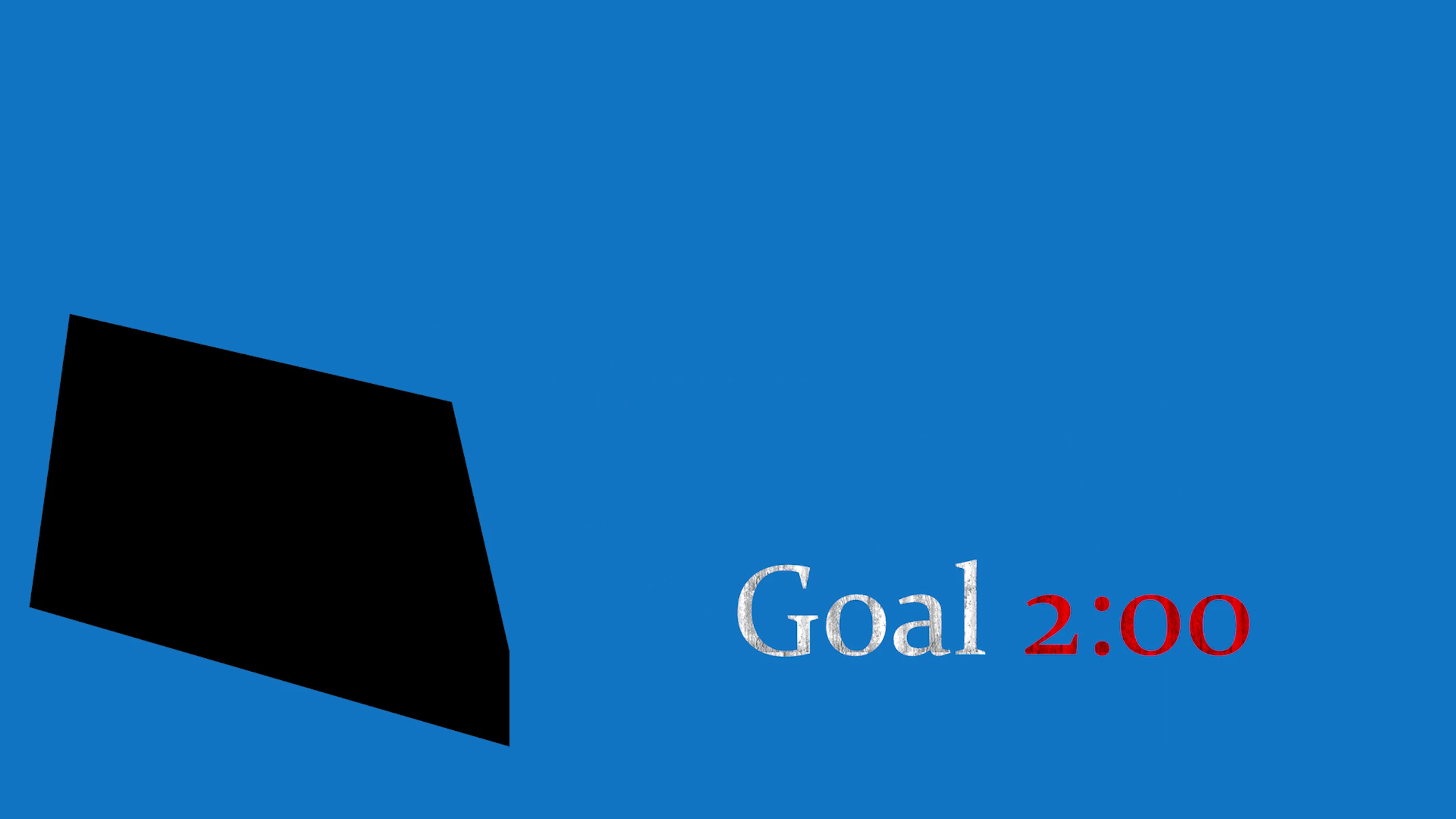
This black artifact is visible in the Premiere preview window *only sometimes*. It seems to flicker in and out of view once first I scroll across the slide transition, and after a while it doesn't show anymore.


I also tried not using Essential Graphics at all, and instead create a nested sequence with the text, the grain texture image, and a Track Matte effect on the text to get the same visual result. Then I added the nested sequence to the main sequence with a slide transition, and the bug happened in exactly the same way.


There is a sample project file attached to this post and the grain texture image used to reproduce this bug.

Here are some of my specs:

- Adobe Premiere 22.1.2 (Build 1)

- GTX 1080ti with the latest drivers from nvidia (v511.65, but also happened with v511.23)
- Windows 10 with latest updates


This looks like something that needs to be submitted as a bug report to Adobe - but since I'm new to the software, I decided to post here first.


Am I doing something wrong?

Is this a know issue?

Are there any fixes known among the community?


Thanks in advance.

- Coincident

4 replies

Ann Bens
Community Expert
Community Expert
August 7, 2025

Its the slide transition that is causing issues.

jamieclarke
Community Manager
Community Manager
August 7, 2025

Updating Status to Acknowledged

R Neil Haugen
Legend
February 13, 2022

I don't understand using the Tint effect on the red text ... you could simply select that, and set the text color to red to begin with in the EGP.  One less effect used, fewer steps.


Neil

Everyone's mileage always varies ...
Coincident
Inspiring
February 13, 2022

As I wrote in the OP, the text is being used as mask to have a texture effect, so the text's color does not matter.
The red tint effect is applied on the texture.

R Neil Haugen
Legend
February 13, 2022

Obviously the particular color doesn't matter, I was simply commenting on how to get the color with it seemed fewer steps. But getting the texture through probably does take something like the tint effect.


Neil

Everyone's mileage always varies ...
Inspiring
February 8, 2022

This bug has been bugging me for years!

Premiere Pro does not handle masked layers that have transitions applied very well.

Often, as you've seen, the outline of a mask will be rendered for the duration of the transition.

The 'Push' transition in your case.

I tested your project and see the issue. Tried a 'slide' transition as well - same problem.

(this is a problem on dissolves too)


Simple solution is to - first delete the push transition, then nest the 'Goal' layer. Now use the 'position' adjustment under 'Motion' in the 'Effects Controls'.

First set a keyframe for the end position of the nested layer i.e. where you want it to finish up.

Then go to the begining of the nested layer and use 'position' to move the layer off to the right of frame (off screen). A keyframe will be automatically created. 

Now you'll have the same effect as with the push transition but without the masking error.

Nice touch (if you want) would be to add an 'ease' to the end position keyframe to make the graphic slow down as it hits the end position. Select the last keyframe (end position) and right click and select 'Temporal Interplolation' then select 'ease in'

Coincident
Inspiring
February 9, 2022

Hello Steve. It's good to know I'm not the only one with the problem!


Thank you for the quick reply and for the work-around: it does indeed work to setup a manual transition effect with position-changing keyframes, instead of using the default transitions of Premiere.

However, that is a lot more work and time spent for something as simple as a slide.


It worries me that this bug has been around for years.

Has this not yet been reported as a bug to the Adobe team?

Do they know about the issue?

Any chance that it will be fixed in a future version, and Premiere's default transitions can be used again?

Coincident
Inspiring
February 13, 2022