

FrancoJulia
Participant
February 3, 2026

Clicking "ignore this filler" causes part of transcription to disappear

  • February 3, 2026
  • 1 reply
  • 44 views

I'm using the automatic transcription tool available in Premiere Pro to edit my videos, but I've noticed that when I right-click on a filler in the transcript and select the "ignore this filler" option, the rest of the sentence in that transcribed block disappears – causing the rest of the transcript to be out of sync.

Transcriptions are in Portuguese (BR), I´m using Premiere Pro 26.0.0 (Build 72)

As an example, you have a quick screen recording I’ve done of the issue. As you can see, the whole sentence present on the 10:27:11 - 10:46:56 mark disappears after ignoring the filler. Closing the project and reopening it doesn’t fix it, nor does changing my workspace.
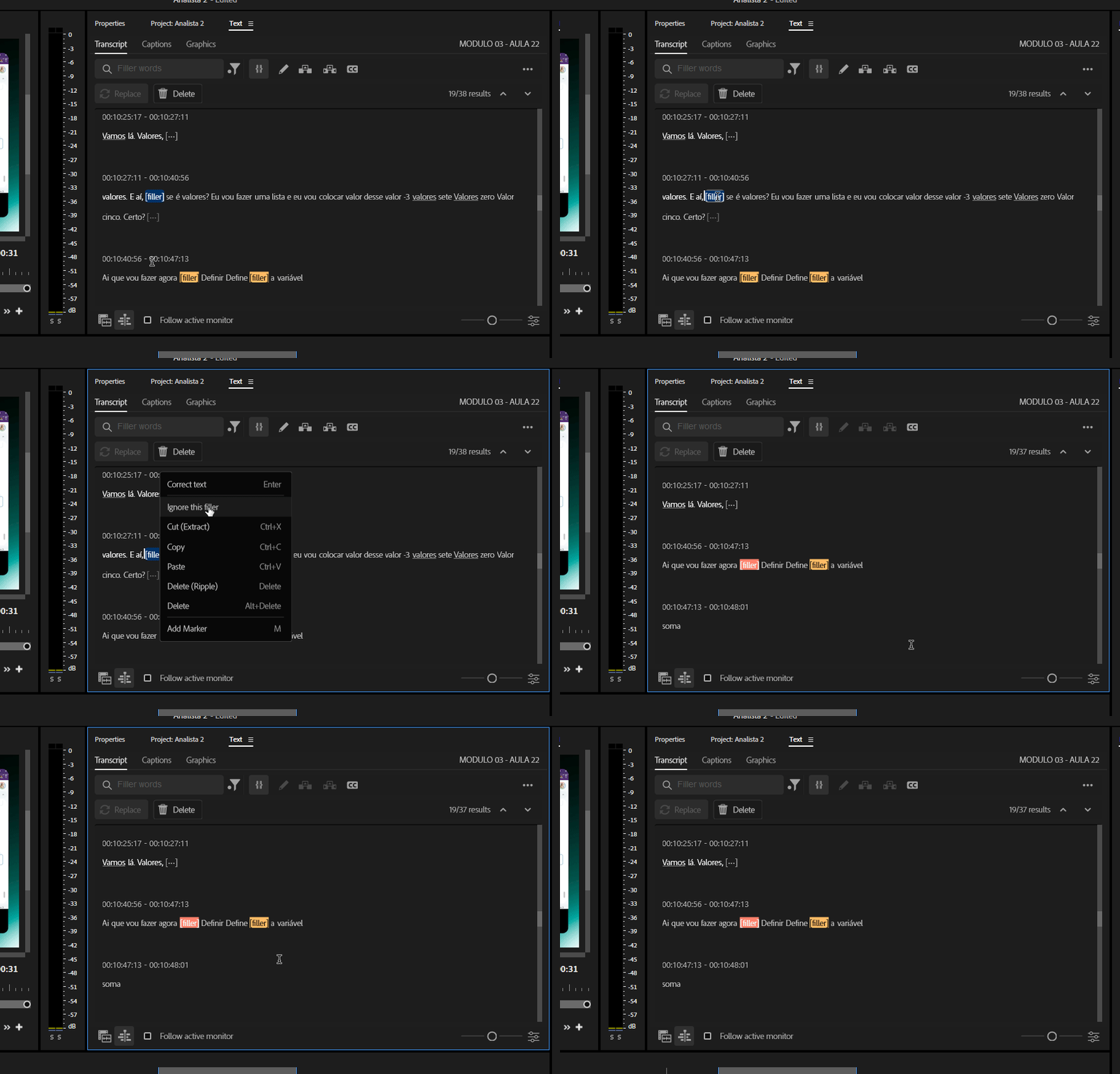
 

I’m happy to provide any additional info if needed


Thanks in advance.

    1 reply

    IanB_360
    Community Manager
    Community Manager
    February 3, 2026

    Hi ​@FrancoJulia 
    Welcome to the new Adobe Premiere forum community. Thank you for taking the time to report a problem. It would help us if you could use the link " How to Report a Problem," which provides steps to provide more information that can help us identify the issue. 

    Here to help.  

    Ian

    FrancoJulia
    Participant
    February 3, 2026

    Hi ​@IanB_360


    • Issue – A short description of the problem. 

    When I right-click a filler word in the transcript and choose “Ignore this filler,” the remaining text in that transcript segment is removed. As a result, subsequent transcript segments become out of sync.

    • Steps to reproduce – A numbered list of the exact steps needed to reproduce the problem. 

    1- Start a new project

    2- Import a video (i’ve tried with .mov and .mp4)

    → The only switch that should be on before importing is media analysis


    3- Drag imported clip to create a sequence

    4- In the text panel, click to transcribe source clip

    5- Using the filter, locate any fillers mapped by the transcription tool

    6- Right-click on the [filler] and click on “Ignore this filler”

    • Expected result – What should happen after completing the last step.

    After ignoring a filler word, only the selected filler should be removed while the rest of the sentence and transcript remain unchanged and properly synchronized.

    • Actual result – What actually occurred after the previous step 

    When the filler is ignored, the remainder of the sentence within the same transcript block is removed, causing the rest of the transcript to become out of sync.

     Premiere Pro 26.0.0 (Build 72)

    • Operating system – Specify Windows or macOS, along with the version

    Windows 10 Home 22H2
    Build SO    19045.6466

    • GPU driver version (Windows only) – If you're on Windows, please let us know what version of the video card (GPU) driver you are using. 

    NVIDIA GeForce RTX 3050 6GB Laptop GPU (6 GB), Intel(R) UHD Graphics (128 MB)
     

    • Comparative information helps us understand more about when the issue occurs: 
      • Does it affect all projects or only some projects? 

    All my projects

      • Does it affect new projects? 

    Yes

      • When did the problem begin? 

    I’m a fairly new user to premiere pro, so I can only say it goes as far as end of December, 2025, which is when I started using it.


    Lmk if there’s anything else. Ty