

Control K doesn't cut on audio units
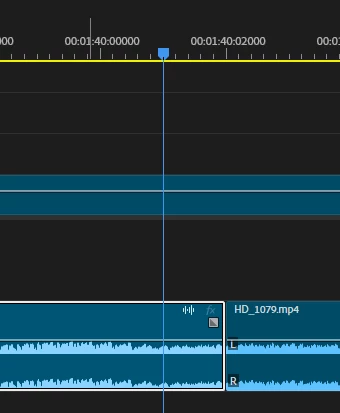
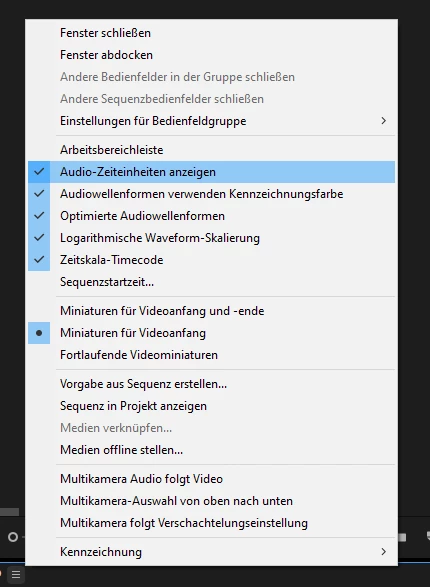
When "Show Audio Time Units" is enabled in the timeline, the Control+K shortcut does not cut at the sample level. Instead, the cut snaps to frame boundaries. However, using the Razor (Blade) Tool allows accurate sample-level cuts as expected.
Steps to Reproduce:
1. Open a sequence in Premiere Pro.
2. Enable Show Audio Time Units in the timeline.
3. Zoom into the waveform to confirm sample-level visibility.
4. Place the playhead between frames (not on a frame boundary).
5. Press Control+K to add an edit.
Expected Result:
Control+K should create a cut exactly at the playhead position on the sample level when audio time units are enabled.
Actual Result:
The cut snaps to the nearest frame instead of cutting at the precise sample location.
Additional Notes:
The Razor (Blade) Tool cuts correctly at the sample level under the same conditions.
Audio and video tracks are unlinked.
Snapping is disabled.
Attachments:



 AdChoices