

default1ma3jpiyanal
July 3, 2026

Cuda issue in Premiere's console

  • July 3, 2026
  • 2 replies
  • 39 views

Premiere Pro version: 26.2.2
OS: Windows 10 Pro
GPU: RTX 5080
CPU: Ryzen 9 5950X
RAM: 32GB DDR4 4000MHz
NVIDIA Studio Driver: 610.62
Third-party plug-in: Sapphire 2026.5

I am reporting what appears to be a CUDA/rendering issue in Premiere Pro when Sapphire Host GPU Integration is enabled.

This is not limited to one damaged project. I can reproduce it in a completely new Premiere project with a normal CFR H.264 clip that was exported from Premiere itself.


Steps to reproduce

  1. Create a new Premiere Pro project.

  2. Import a known-good constant-frame-rate H.264 clip.

  3. Enable Sapphire Host GPU Integration in Sapphire’s s_config.text file.

  4. Apply default S_Shake.Normal.

  5. Press Space to begin playback, press Ctrl + S to save, or allow Premiere to refresh the sequence.

Expected result

The clip should continue to display and play normally with Sapphire GPU acceleration enabled.

Actual result

The Program Monitor turns black. Sapphire displays:

GPU render failed for S_Shake.Normal. Falling back to CPU.

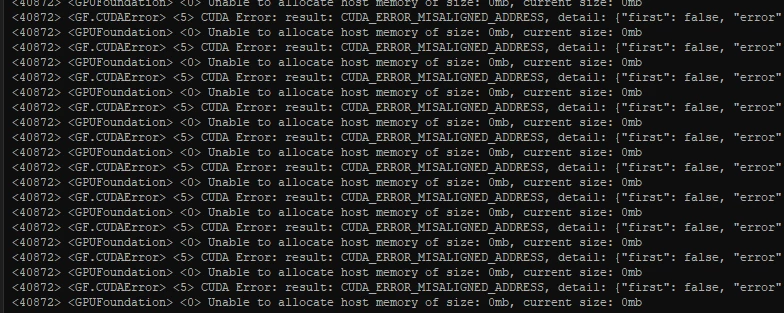
Premiere’s Console repeatedly logs:

CUDA_ERROR_MISALIGNED_ADDRESS
cuMemHostAlloc
Unable to allocate host memory of size: 1mb, current size: 0mb
Unable to produce frame for render request

I can sometimes scrub through the timeline normally frame by frame, but pressing Space for normal playback or Ctrl + S can trigger the black output and error.

When Sapphire Host GPU Integration is disabled, the black screen/CUDA error does not happen, but Sapphire playback becomes extremely laggy, Sapphire sections often show red render bars, and export performance becomes dramatically worse.

This also affects full exports. A 21 to 22-minute 1440p project, sometimes upscaled to 4K, may begin exporting normally and then slow down around 10 to 20% progress to roughly one frame every 20 seconds.

During the slowdown:

  • CPU can sit around 10 to 30%

  • GPU can sit around 2 to 8%

  • Video Encode only spikes briefly

  • RAM is around 40%

  • Storage is not saturated

H.264/HEVC exports takes over 23+ hours. The same project exports as ProRes 422 in under 30 minutes.

I understand that hardware encoding only accelerates the final encode stage and that my 4K 30fps 10-bit 4:2:2 HEVC webcam footage can increase decode load. However, the blank-project S_Shake repro, black Program Monitor, and repeated CUDA errors occur even with a normal exported CFR H.264 clip.

I did not experience this behavior in Premiere Pro 2023 or 2024. It started after moving to Premiere Pro 2025 and continues in Premiere Pro 2026.


Troubleshooting already attempted

  • Reinstalled Premiere Pro, Media Encoder, Sapphire, and NVIDIA drivers

  • Tried NVIDIA Studio and Game Ready drivers

  • Rolled back drivers

  • Cleared media cache

  • Reset Premiere preferences and plug-in cache

  • Tested Hardware Encoding on/off

  • Tested Hardware Decoding on/off

  • Tested VBR 1-pass

  • Disabled Render at Maximum Depth

  • Disabled Use Maximum Render Quality

  • Tested Premiere and Adobe Media Encoder

  • Tested blank projects and known-good CFR H.264 footage

  • Tested Sapphire Host GPU Integration enabled and disabled

I have screenshots of the Sapphire fallback popup, black Program Monitor, and Premiere Console errors. I have also opened a Boris FX support ticket because Sapphire is involved, but the issue only appears when Sapphire uses Premiere’s Host GPU Integration path.


2 replies

Amy the Stuv
Community Manager
Community Manager
July 3, 2026

Hello ​@default1ma3jpiyanal 


Welcome back to the Premiere forums and thank you for the extensive bug report. We do recommend Studio Drivers for Premiere, so it will be best to revert back to that if you haven’t already. 


We are looking into the issue. I see your NVIDIA GPU appears to be compatible according to Boris FX but I did read “If no supported GPU is detected, Sapphire automatically falls back to CPU rendering,” and this appears to be happening when The Program Monitor turns black. “Sapphire displays: GPU render failed for S_Shake.Normal. Falling back to CPU.”


If your computer uses an AMD CPU but does not include a supported AMD GPU, try using the standard Adobe Sapphire installer instead.


If you use the Mercury Playback Engine for export, does everything render out properly? As a temporary workaround, you may want to change it for exports, and if you try it for playback in the timeline, you can set up a hot key for Render Selection or Render Effects in Work Area from the Sequence drop down menu to playback the Sapphire effects.

Search Results for Render in the Keyboard Shortcuts Window


We will investigate this issue with the team but it may take some time.


Best,

Amy

default1ma3jpiyanal
July 3, 2026

Thank you so much for these helpful details! The issue goes away when turning off the “Host GPU Integration” option and the render bar goes back to being red. I’ve contacted the plugin developer with more questions after they gotten back to me the first time but they haven’t responded yet. Everything renders just fine but it just takes an insane amount of time as previously mentioned like 23.5 hours in Media Encoder. I'm assuming you meant to change it to software encoding in the very last paragraph and that you mean the very first option in the picture below right? Again thank you so much for your help! This has been so stressful for me for the past few days 😭

I’m assuming that you mean the very first one?


Amy the Stuv
Community Manager
Community Manager
July 3, 2026

@default1ma3jpiyanal 

I meant for you to use the Premiere integration with the Graphics Card via Mercury Playback Engine for Rendering and Playback instead of the Sapphire integration.


You should be able to use the Hardware encoding which should save time. CPU encoding (or Software Only) will always take a longer time than using a dedicated GPU.


I’m wondering if the Sapphire option is trying to use your CPU’s integrated GPU (which doesn’t exist) instead of using your NVIDIA RTX 5080, but I can’t say for certain. CUDA should be directly compatible with your GPU, and hopefully that’s what it will use to speed up the export process.


Mercury Playback Engine GPU Acceleration CUDA option


As for the 2nd question, yes, we mean that first download that just says “Adobe.” Your AMD CPU has no built in GPU so I’m wondering if that could cause any issues when that installer is used, but I’m not certain. Just something to try.


Troubleshooting these things is always so stressful and I wish you luck. Hopefully Boris FX will also have some insight into this matter.


Best,

Amy

Ann Bens
Community Expert
Community Expert
July 3, 2026

As this is a 3rd party software you will have to sort this out with the vendor first.

Have you tried the 26.3 Premiere version?

default1ma3jpiyanal
July 3, 2026

I’ve contacted them and got a reply but I asked some more questions regarding “host gpu integration” and they haven’t gotten back to me yet. After doing some more digging and speaking with other people that use the same plugin, they told me that the layers which have this specific effect should have a red render bar above it, and during the export it shouldn't use the GPU, instead only using it for a smoother playback experience during editing. I’m going to ask the BorisFX team this question as well to try and get a definitive answer. As for Premiere Pro 2026.3 I haven’t tried that out yet but when I do I’ll come back here and give an update.