Welcome to the Premiere Forums! It always helps to have a little more information about your system. If you could let us know the following.
Premiere Version: How to find the exact version of Premiere you're using.
Operating System: Specify Windows or macOS, along with the version.
Chip (Mac Only): Specify which M-series Chip or CPU/GPU combo.
GPU and Driver (Windows only): Please let us know your video card and driver version. We recommend updating to the most recent version; for NVIDIA users, we strongly recommend the Studio version of the driver.
To help address your issue, please try these steps:
Clear Premiere Pro’s Media Cache on launch. Quit Premiere Pro, then relaunch it while holding Ctrl (Windows) or Command (macOS). In the Reset options dialog, select Clear media cache files. See Clear media cache on launch in Premiere.
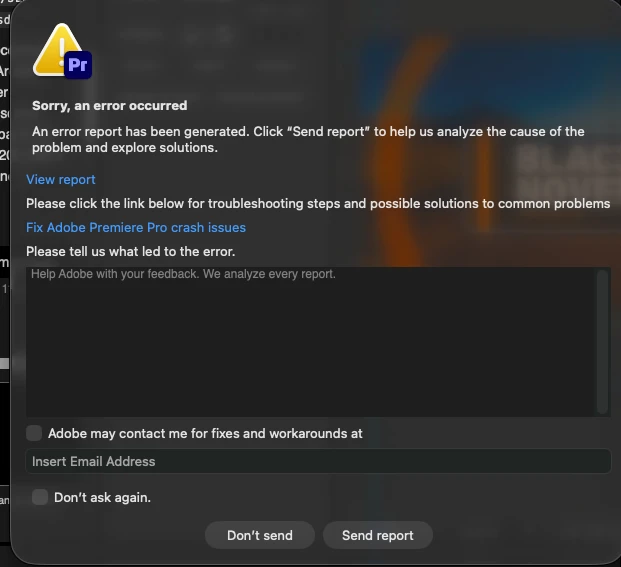
Send a crash report with your email address included. The next time the crash reporter appears, please enter the email address you use in the report before selecting Send. Please also privately message me that same email address so I can look for the report in our system. Adobe’s guide is How to submit crash reports for Digital Video applications.
Send us the diagnostic logs. Please run Adobe’s Log Collector tool. Once it finishes uploading, reply with the reference number. I can privately message you with an upload link if you generate the local log bundle.
If the issue continues after these steps, we can consider a clean uninstall and reinstall using the Creative Cloud Cleaner Tool as a last resort. Before running it, please follow Adobe’s preparation guide: back up important files and preferences, confirm your Creative Cloud files have synced, and collect the logs first. Then follow the Cleaner Tool instructions, including the restart and reinstall steps.


 AdChoices