

BeratGL
Known Participant
August 17, 2026

Effect Controls Panel: Scrollbar's always visible even when not needed.

  • August 17, 2026
  • 6 replies
  • 83 views

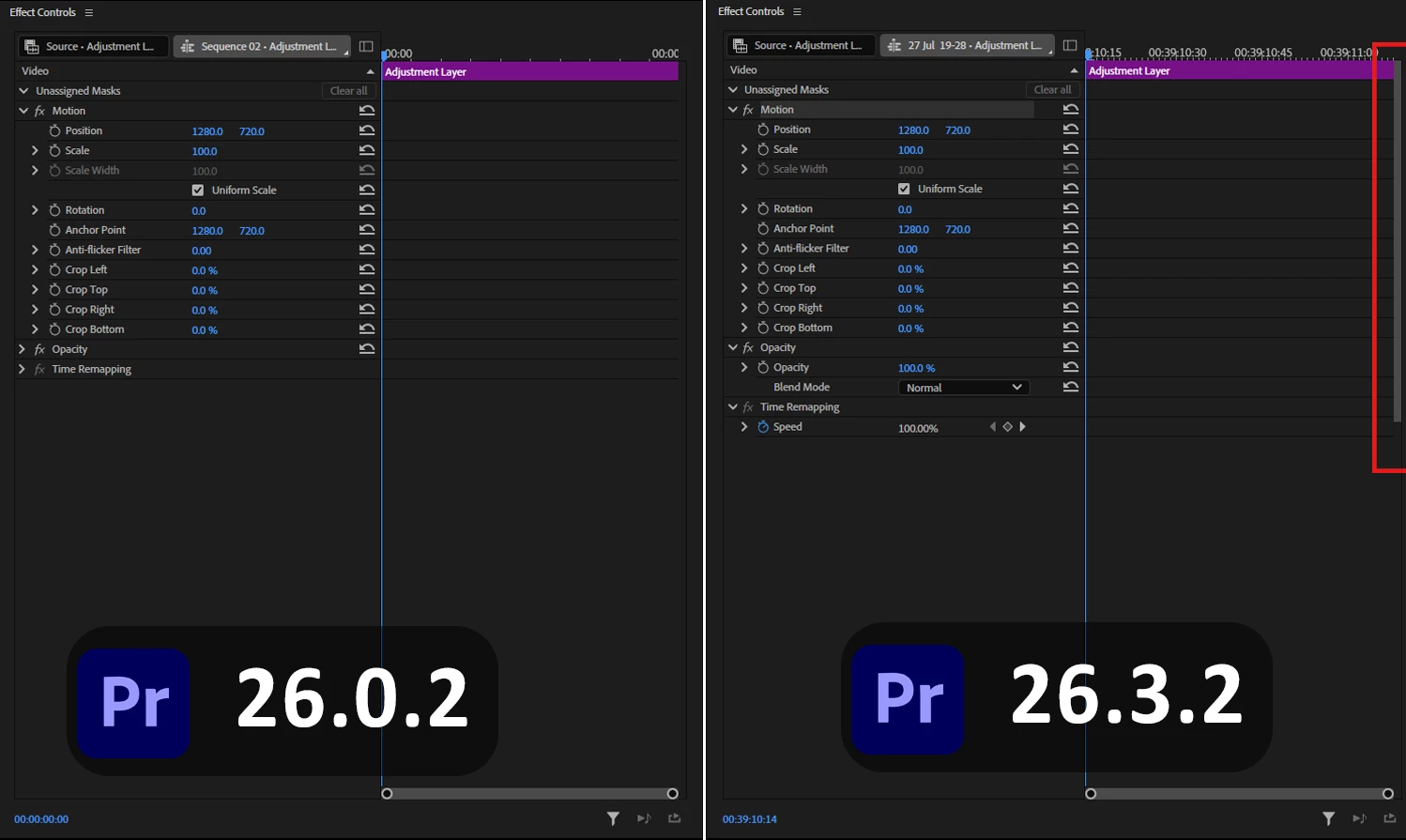
Once you select an element that has enough parameters to scroll, scrollbar stays always in the same position and is always visible even when there is nothing to scroll. The behaviour also exists even if nothing is selected.
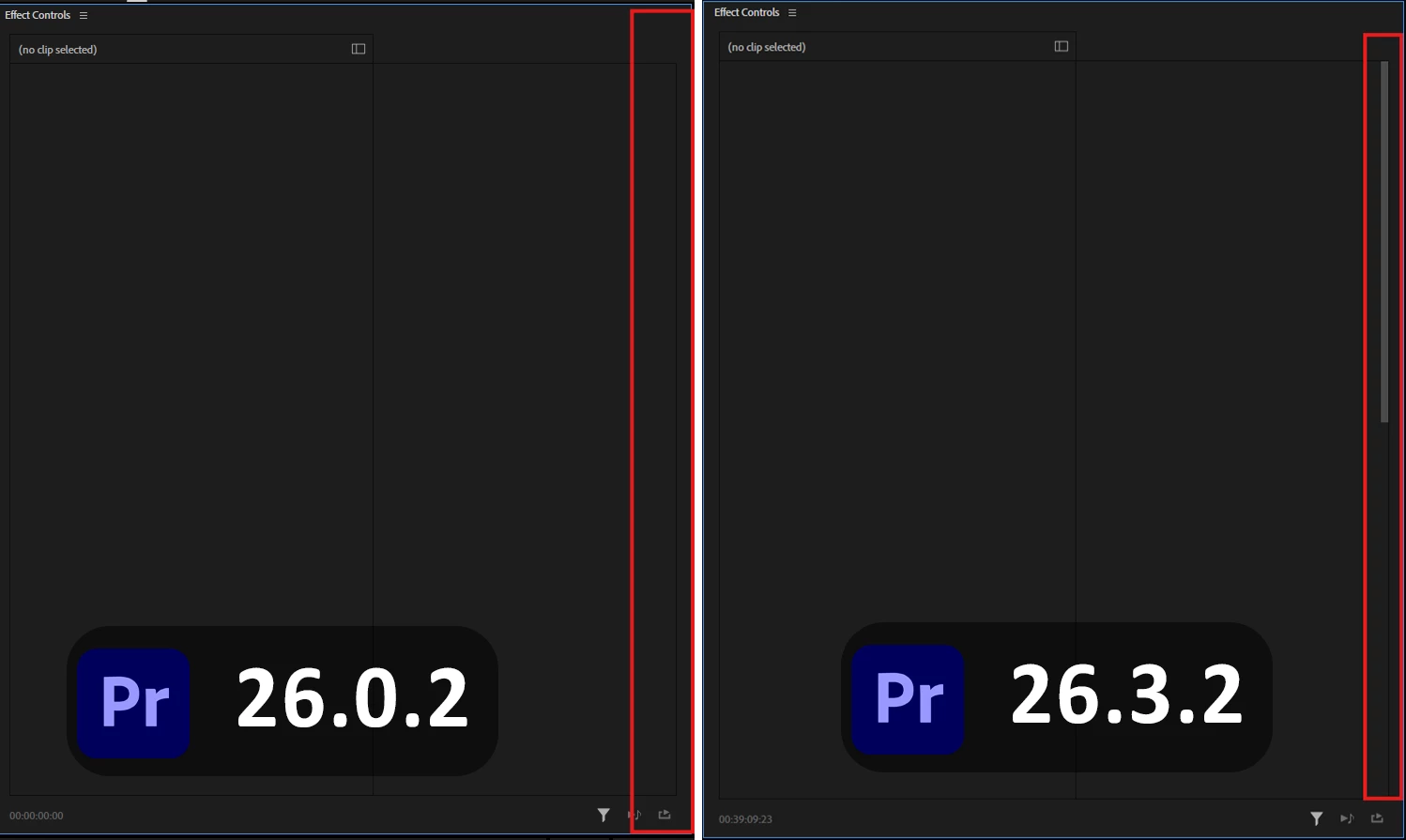
 

When nothing’s selected.


When an adjustment layes’s selected and it doesn’t have enough parameters to scroll.

Scrollbar is always visible but it starts small and not that noticable if you don’t select a layer that has enough parameters to scroll down. But once that layer is selected, it’s more noticable.


Also this is not a simple visual bug, it block last keyframe’s curve handle to dissappear because of that extra space. (Even though it shouldn’t happen with scrollbar anyways but i guess that’s an another bug.)
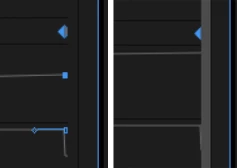
26.0.2 & 26.3.2 side by side.

System info
    Application: Premiere Pro v26.3.2
    OS: Windows v10.0.26200, RAM: 31.82 GB GB, CPUs (logical): 24 
    GPU: Rtx 3060 Ti  Nvidia Studio Driver ver. 610.88

    6 replies

    BeratGL
    BeratGLAuthor
    Known Participant
    August 20, 2026

    Seems to be fixed in latest 27.0 Beta (build 22). Scrollbar now hides when not needed, Thank you!

    Ann Bens
    Community Expert
    Community Expert
    August 17, 2026

    Not seeing a scroll bar when no clip is selected.

    As for the last keyframe if you expand the panel horizontal the entire keyframe becomes visible

    .

    KatieToo
    Community Manager
    Community Manager
    August 17, 2026

    @Ann Bens Thank you for the screenshots and info. Are you also on Premiere v26.3.2 and may we get your Windows or Mac setup details, so I can add this on the report?

    I did notice that expanding the ECP panel itself, even by dragging down more on panel boundary and/or closing up any expanded arrows on each effect could help clear the scrollbar showing up/without clip selected, though not consistently it seems. 


    When I made the ECP full screen (tilde) for the keyframe part of this issue, I saw something identical to what Berat’s screenshot displayed but that might be too because I tend to manually drag the first/last keyframe as far left and right as they’ll allow me (force of habit). 

    On Win11, even when I don’t do anything manually and just plunk down start/end keyframes, the keyframe is still covered on the very right edge whether full screen or smaller. Feels like something the engineers might want to take a look at, in either case, since we can move them there and should be able to see them fully and consistently.

    Appreciate your post and effort checking on this!
    Katie
     

    Ann Bens
    Community Expert
    Community Expert
    August 17, 2026

    26.3.2
    Intel(R) Core(TM) i7-7820X CPU @ 3.60GHz (3.60 GHz)
    64,0 GB (63,7 GB usable)
    Nvidia RTX 5060 / 610.88
    Windows 11 Pro
    26200.9168
    Windows Feature Experience Pack 1000.26100.344.0

    I dont drag a keyframe right to the end: that would mean keyframe is not on the visible part of the clip.
    I go arrow down > arrow left

    EDIT: i do see this issue on the beta 26.5
    No really using the beta at present as I need to finish a project in 26.3

    KatieToo
    Community Manager
    Community Manager
    August 17, 2026

    Hi there ​@BeratGL!

    Thanks for stopping by again and documenting your issue so well with everything needed. I was able to recreate this issue in both v26.3.2 and the latest Beta v27.0 (just to see if it behaved any differently). It also affects Mac (currently tried an M3)

    You’re correct, the scroll bar does stay showing without a clip selected after selecting ones that do have scroll bar come up, and it does do that kind of halfway covering as you showed in screenshot for the keyframes. 

    I’ll be filing a bug report on this and we’ll be sure to return with any updates once that becomes available.

    Appreciate your time and effort spent finding and alerting us to these issues, as always!
    Katie