


Inspiring
Nov 5, 2026 2:41 PM UTC
Needs More Info

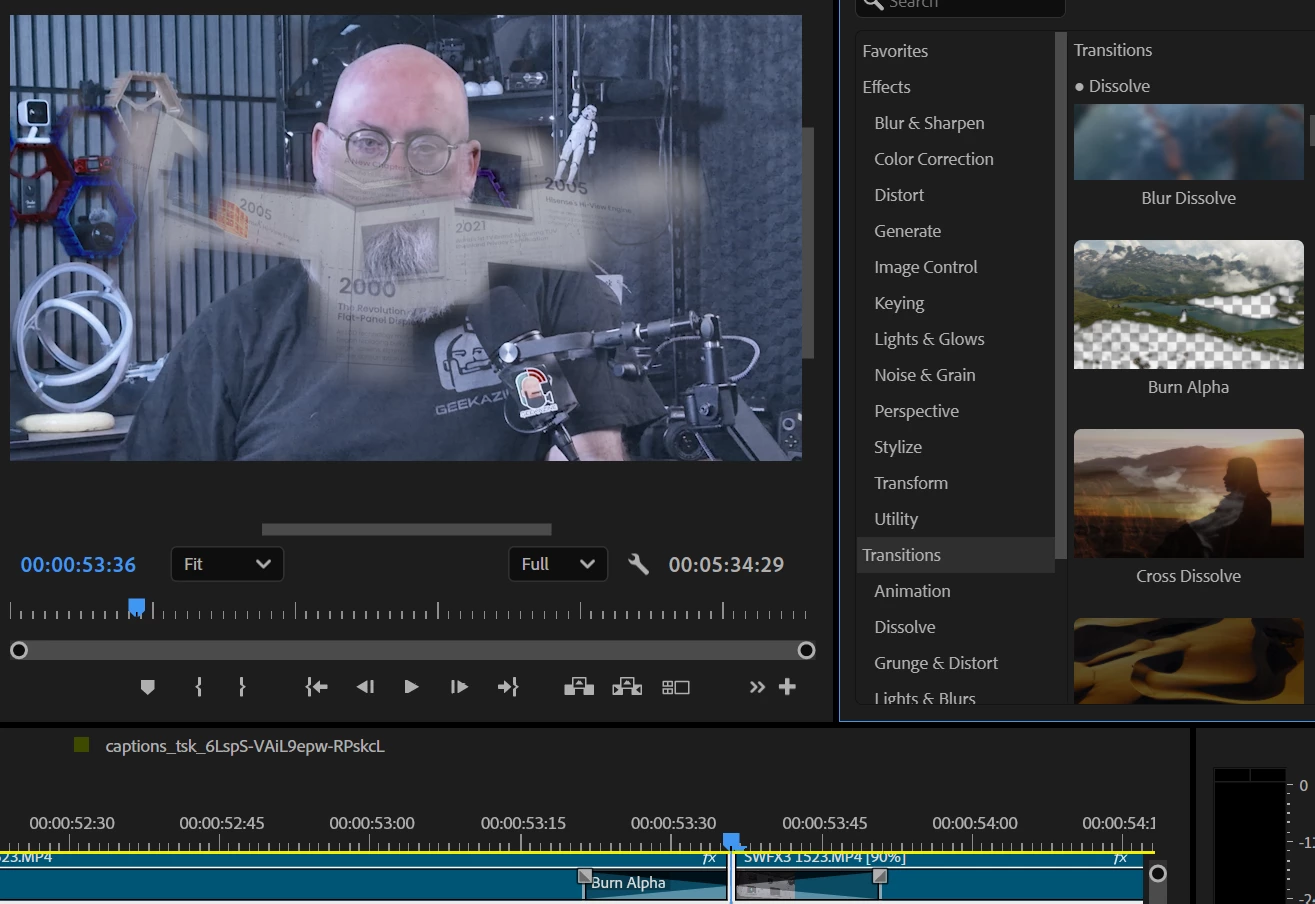
film impact dashboard showing lower layer

I’ve been using Film Impact Dashboard for a while and really enjoying some of the transitions, but one thing always concerns me. Why am I seeing the lower layer between transitions? This looks ugly and I always have to put a back plate to it. 

I only noticed the lower layer if I used the top 8 transitions (Block motion, flip motion, travel motion, etc.), but more recent, I noticed in the lower transitions like Blur Dissolve, Burn Alpha, and more, doing the same thing. I don’t want it to show my lower video layer when transitioning. One of the reasons I use b-roll is to cover jump cuts. This just makes it look messy. 

Would love a setting somewhere that allows me to fill the background with a color, a logo or other image, or anything other than the lower layer. 


    3 replies

    KatieToo
    Community Manager
    Community Manager
    Nov 5, 2026 3:29 PM UTC

    Hi ​@geekazine 

    Thanks for stopping by the Premiere forums and giving us some details about those Film Impact effects like Burn Alpha or Blur Dissolves, and also including a screenshot. We can’t tell what’s beneath Burn Alpha since it only shows a small portion of the sequence timeline. Is there another video track below that? It looks like Burn Alpha is applied across a cut, and Program Monitor shows the shots blending during the transition.

    We wondered if you are asking for an option overall to choose a color or image as the transition’s backdrop instead of revealing the underlying video? If so, that sounds like a feature request.


    If the lower video is appearing unexpectedly, could you share a fuller timeline screenshot showing all video tracks and the transition placement or better yet, a screen recording with Premiere in full and show us the effect controls and involved tracks so we can better understand what’s happening?

    Hope to help!
    Katie

    Translate
    geekazineAuthor
    Inspiring
    Nov 5, 2026 4:45 PM UTC

    That’s my point. It’s bleeding the lower layer into the transition. At one point it was a harmonizing blend - clip 1 to clip 2. Now it’s Clip 1 to Clip 2 with the lower layer. 

    If I did a simple blend, it would not show the lower layer (which is a talking head). But now If I use the Transitions from FID, the 2 clips don’t blend without showing what’s underneath. 

    Translate
    KatieToo
    Community Manager
    Community Manager
    Nov 5, 2026 9:21 PM UTC

    ​@geekazine Thanks for clarifying. In a quick test, yeah I’m seeing Burn Alpha reveal the composite beneath, so black when the lower track is disabled, and the lower clip when it’s enabled, which is consistent with alpha based behavior. But I understand you’re also reporting that the result used to be different, so let’s try to narrow that down then as to when it behaved differently or what else might be missing here.

    Could you share the Premiere version/build where you last saw Film Impact effects working the way you described with those two clips only blending on say, Burn Alpha, without the lower track showing through? And which version/build where you first noticed this change (maybe it’s the same as your current, just let us know)?

    Might be good if we go ahead and grab your specs alongside.

    • Premiere Version: What is the exact Premiere version and build you’re currently now using? Help > About Premiere or Premiere > About Premiere.
    • Setup/OS: Please specify Windows 11/10 or Mac, plus what macOS, along with driver version/build.
      • GPU Driver version/build(Windows only): We recommend updating to the most recent version; for NVIDIA users, we strongly recommend the Studio version of the driver.
      • Mac Chip (Mac Only): what M-series chip? If Intel, please include GPU.
    • Media Files: video, images, etc. and what types (can check under Media Properties)
    • Project Size: About how big is your project file? Is it in a Production? Approximately how many clips are involved in a rough estimate
    • Media Storage: Are your Scratch Disks set to your Documents folder or the same as project, and is this the same as the Media drive?


    Also, if you could please let us know the following context, as it’s helpful to know:

    • Does it affect all projects or only some? What about new projects with a few sample clips?
    • Do you recall which Premiere this was last working in, when It started, and what might have changed? Any plugins, OS update, drivers, etc.
       

    Let us know and then we can do a more pointed test/troubleshoot.

    Appreciate it,
    Katie

    Translate