

In Premiere 2026, I can't turn off "dual-screen Dual-Screen Preview"
In PR 2026, when creating a karaoke video by syncing lyrics to a video track, the Program Monitor displays a split-screen view as shown in the image, and I can’t turn it off.
I need the video to be displayed in the center of the screen in single-screen mode, without the multi-screen comparison shown in the image.
- Premiere Version: PR 2026.0.0
- Operating System: WIN11 25H2
I’m currently working on a music video that already has lyrics, and I’m adding Japanese kana pronunciation guides to the kanji. Therefore, I cannot work in split-screen mode.
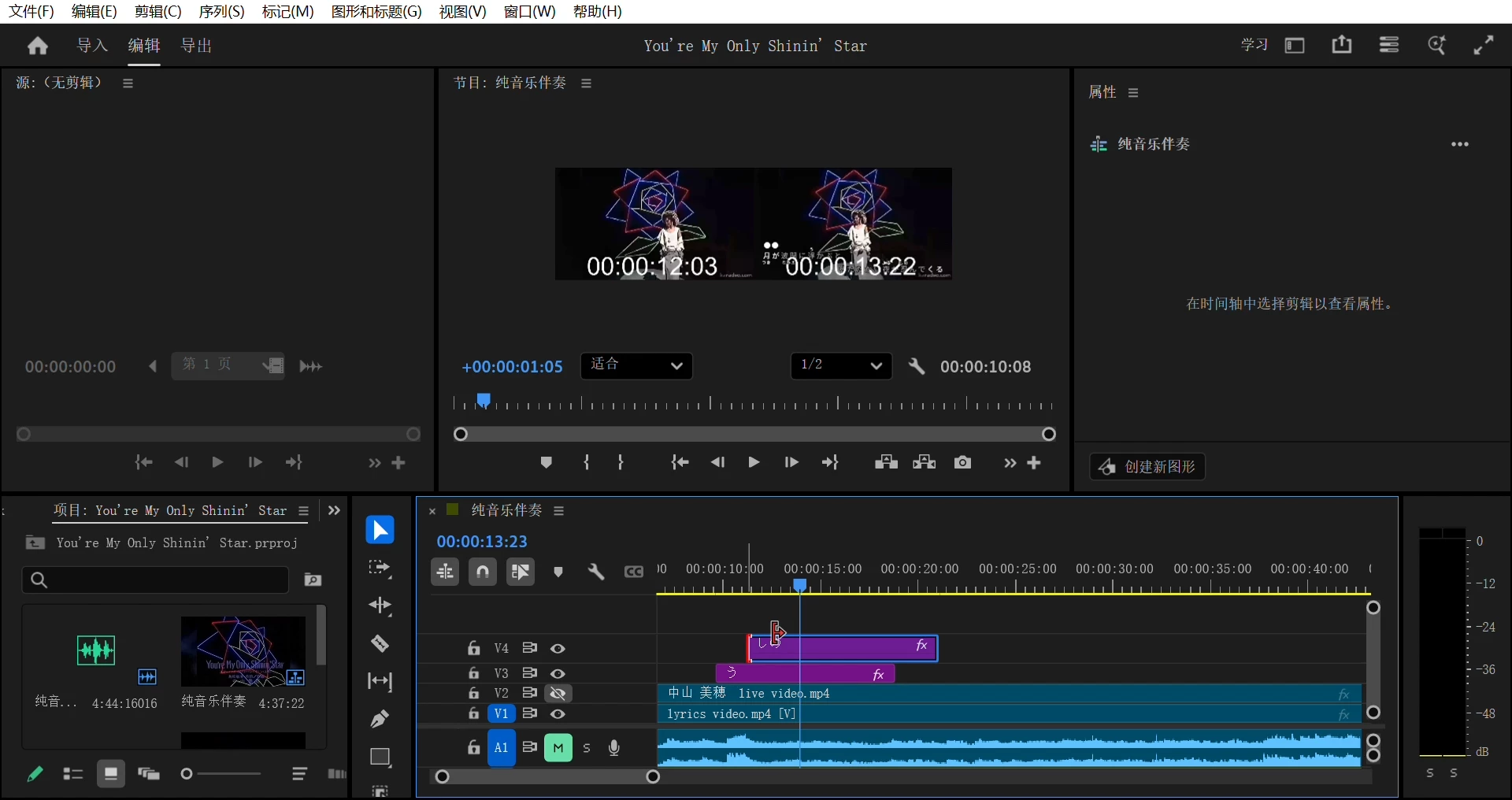
Previously, dragging any track on the timeline would cause the Program Monitor to display normally in single-screen mode. I’m not sure what I did to cause it to switch to the split-screen effect shown in the image. Then, to disable the split screen, I followed an online tutorial and turned off “Composite Preview During Trimming,” but this resulted in a black screen. I spent nearly two hours searching online for tutorials, but none of them worked. I have no idea how to turn this feature off.
I even asked Gemini and received this information: “In newer versions of PR, simply dragging the edge of a clip with the mouse will almost always force this split-screen preview.” If that’s the case, which version (“PR+year” format) do I need to revert to at the very least to avoid this feature?


 AdChoices