Nov 22, 2026 10:28 PM UTC
Needs More Info

New auto-generate frames feature for ducking has caused the entire project to lag or prevent saving/exporting

Ducking has been a staple part of my workflow. At the end of editing, I tag all the clips relevant to their place in the project, then duck audio to my dialogue. A very quick and simple process, which has now turned into a show stopper.  

This auto-generate frame feature added has caused my projects to be corrupt, impossible to work in, cant save or export.  Even when I toggle it off, it has already corrupted the project.  You can click things and move around, but nothing will update. 
It takes multiple times closing/opening the effected file for things to update. 

Whatever this feature is, does NOT work for projects that are of a longer length. It clearly overloads the system (I’ve checked, and it maxes out my ram usage, trying to process whatever its doing).  This NEEDS to be OFF by DEFAULT.   Why adding this feature with it defaulted on is beyond me.  

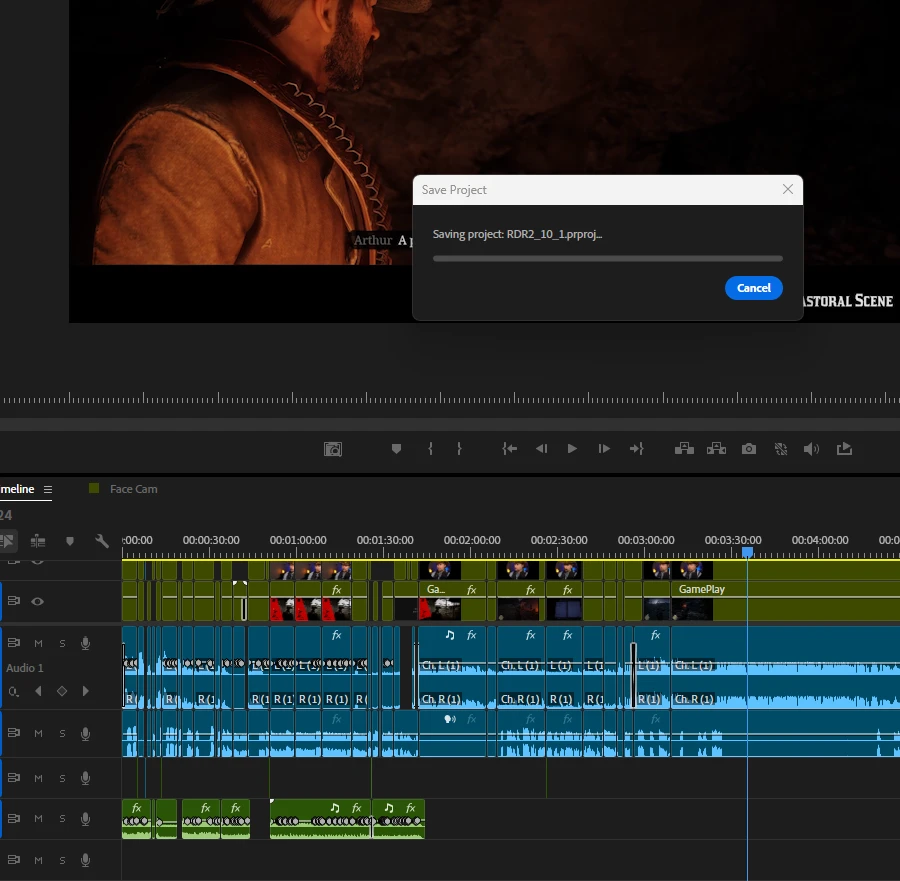
Please, please please!!! Turn this off, or remove it.   As soon as I need to duck, there’s no way around this, none. I am sitting here right now, waiting to see if my project will finish saving before handing off to encoder to export. So far, no dice. 


    2 replies

    Nov 27, 2026 7:55 PM UTC

    Apologies for my late reply, I got not notifications of your reply. 

    Version: 27.0.0
    OS: Windows 11 - 10.0.26300 Build 26300
    Gpu: RTX 4080 - Game ready driver - 610.88 (have updated driver to 612.40 with same issue)
    Video Format: Mp4
    Project Size: If you mean the file, is 1.2kb.  The video files are about 30GB above or below. Usually one video file that I cut up.  Episode length being in the 1h 30m range on completion.

    The feature Im speaking of is the Essential Sound audio ducking one, with the newly added auto frame generation. Which is toggled on by default. So as soon as you turn on ducking, the program has to calculate everything immediately.  This is no bueno.  

    No need for screenshots, yours is adequate! 

    If I remove the music tagged tracks, no, the issue remains. Even when I close premiere, restart, reopen. The issue persists. 

    Workaround: I tag the music before I tag dialogue. This still nets a lag for the project to calculate, but much faster. However, the project is STILL corrupt and unusable once I use ducking.  Everything I do will not update until I move something in the UI.  Like zooming/scrolling the timeline.  So if I scrub the timeline, it wont update the preview until I move the zoom slider or something.  Essentially ‘corrupting’ the file. Deleting all essential sound tags does not undo this problem, it persists.  

    So thankfully, my workflow being: add ducking at the end as the final step, was a good call on my end. Since I don’t need to do much else. However, I still cannot save correctly because of the UI update problem. So I cant send to media encoder at all. I have to hit save, wait a bit, cancel - hope it did save - close premiere, open encoder and load that timeline. 

    So yes, I have a way around things, but the problem still stands that ducking now wrecks your projects. 

    Translate
    Amy the Stuv
    Community Manager
    Community Manager
    Nov 23, 2026 3:31 PM UTC

    Hello ​@Joshmorley_Photography 

    Welcome back to the Premiere Community Forums. We need a little more information to help us attempt to recreate this issue. 

    • Premiere Version: How to find the exact version of Premiere you're using.
    • Operating System: Specify Windows or macOS, along with the version.
    • Chip (Mac Only): Specify which M-series Chip or CPU/GPU combo.
    • GPU and Driver (Windows only): Please let us know your video card and driver version. We recommend updating to the most recent version; for NVIDIA users, we strongly recommend the Studio version of the driver.
    • Video Format: If the issue relates to playback or export, please specify the format (and ideally share a sample video).
    • Project Size: About how big is your project file? Is it in a Production? Approximately how many clips are involved in a rough estimate?

    Since you believe length of project may be a factor, about how long is your sequence when this failure occurs? Also, please confirm if you mean the “Auto Update Keyframes” option in Essential Audio when referring to Auto Generate Frames or is there another feature you’re referring to? Screenshots like below will help clarify.

    If you remove the music tracks that have this feature toggled on, does the issue go away? If it does, could you test if any audio keyframes create this issue by manually creating some on the music tracks? What is the format of those music tracks if you could share a screenshot of the Media file properties. 

    Hoping to help,

    Amy

    Translate