
November 23, 2025

Pain in the a** how custom LUTs are imported in Premiere

  • November 23, 2025
  • 3 replies
  • 204 views

So I went through the long and difficult process of importing LUTs "definietly" in Premiere. Thank you to all your contribution, it helped me a lot.


Here's the necessary information

Computer : MacBookPro M1 Pro

OS: Tahoe 26.1

Premiere Version : 25.6.2

The problem is : if you plan to put a LUT to a video, everything works fine. But I work so : I put LUTs on effect Layers to avoid editing each video and putting a LUT of each (maybe I should do so, but when I don't have time, I skip what I can) So i tried to apply a LUT from the ones I imported on an effect layer, but it just doesn't work, it takes the ones from the technical list and replaces them with the position of the original.


Here's where my LUTs are : 
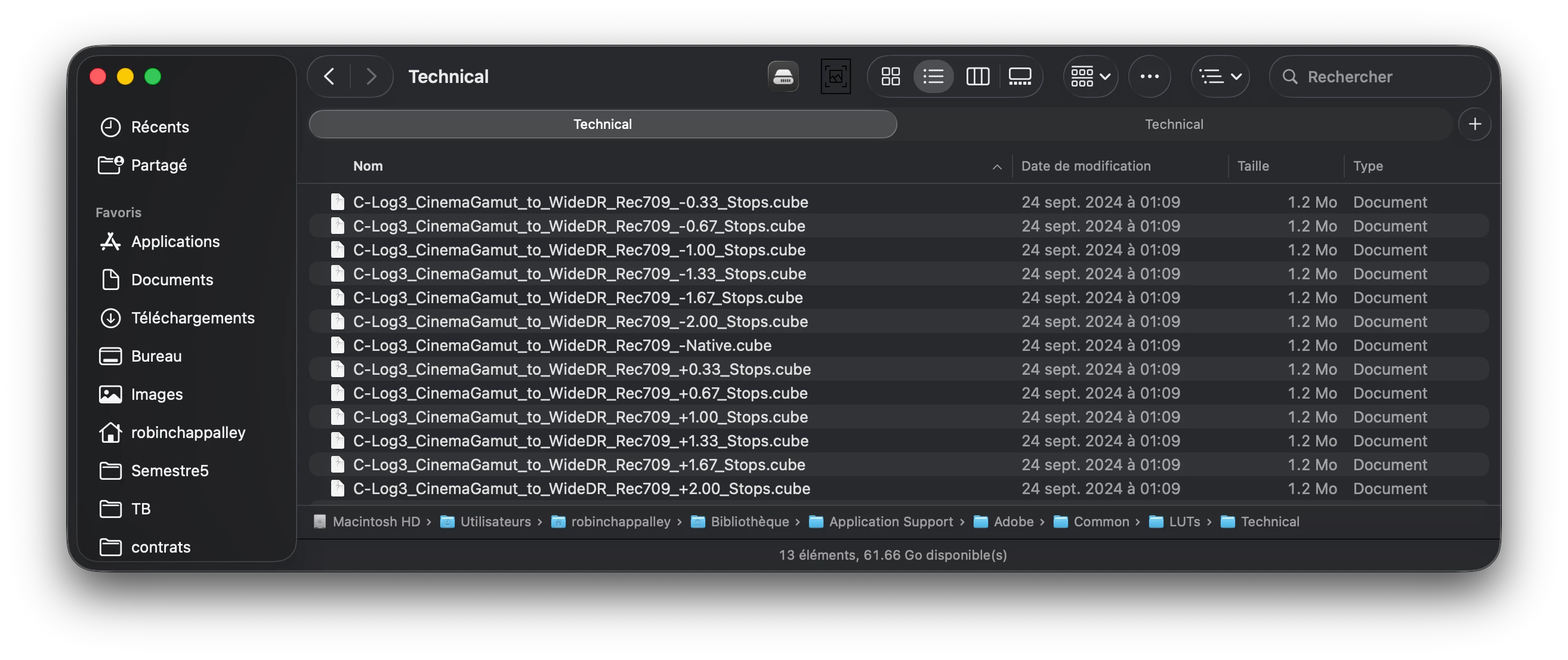
and the proof that my LUTs folder in the premiere app is empty:
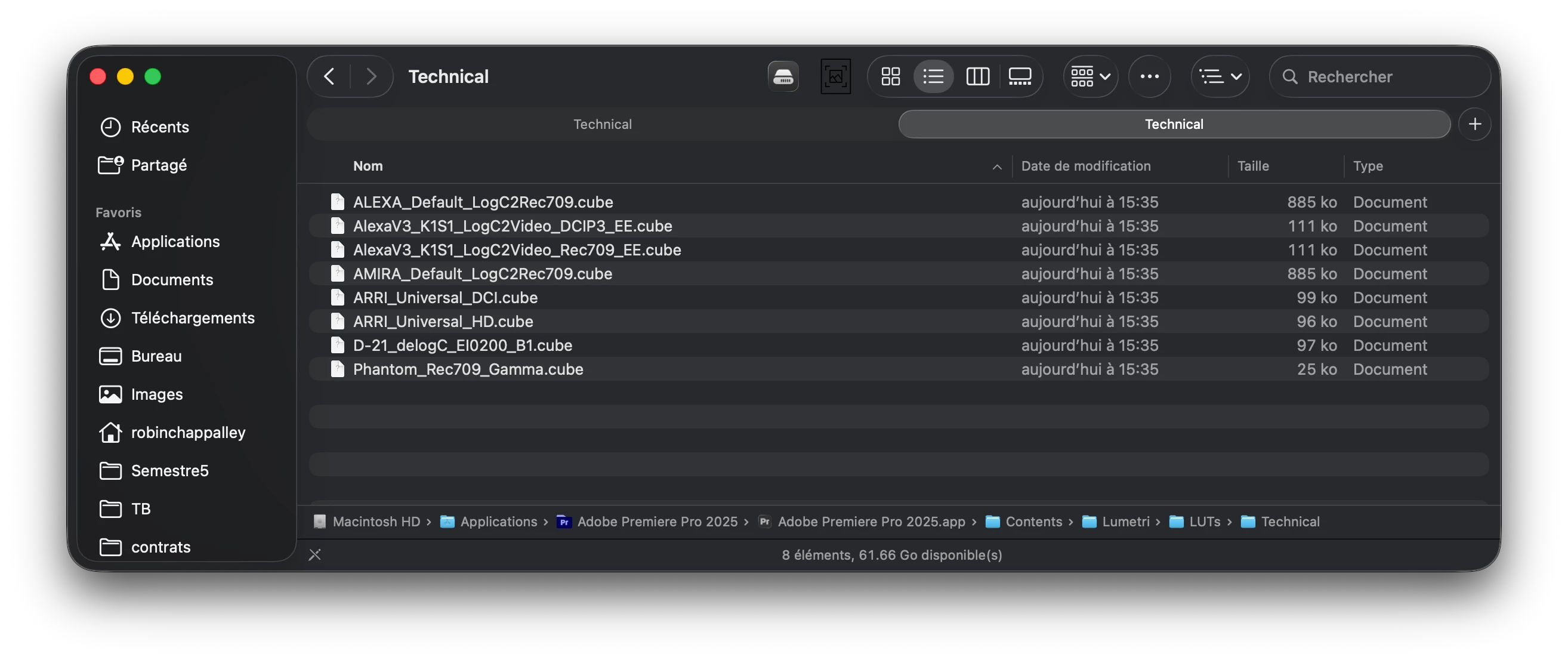
 

Here's an example:


  1. I try to select a LUT to put on an effect layer

  2. Premiere selects the eighth of the list (the last one from the originally provided LUTs)
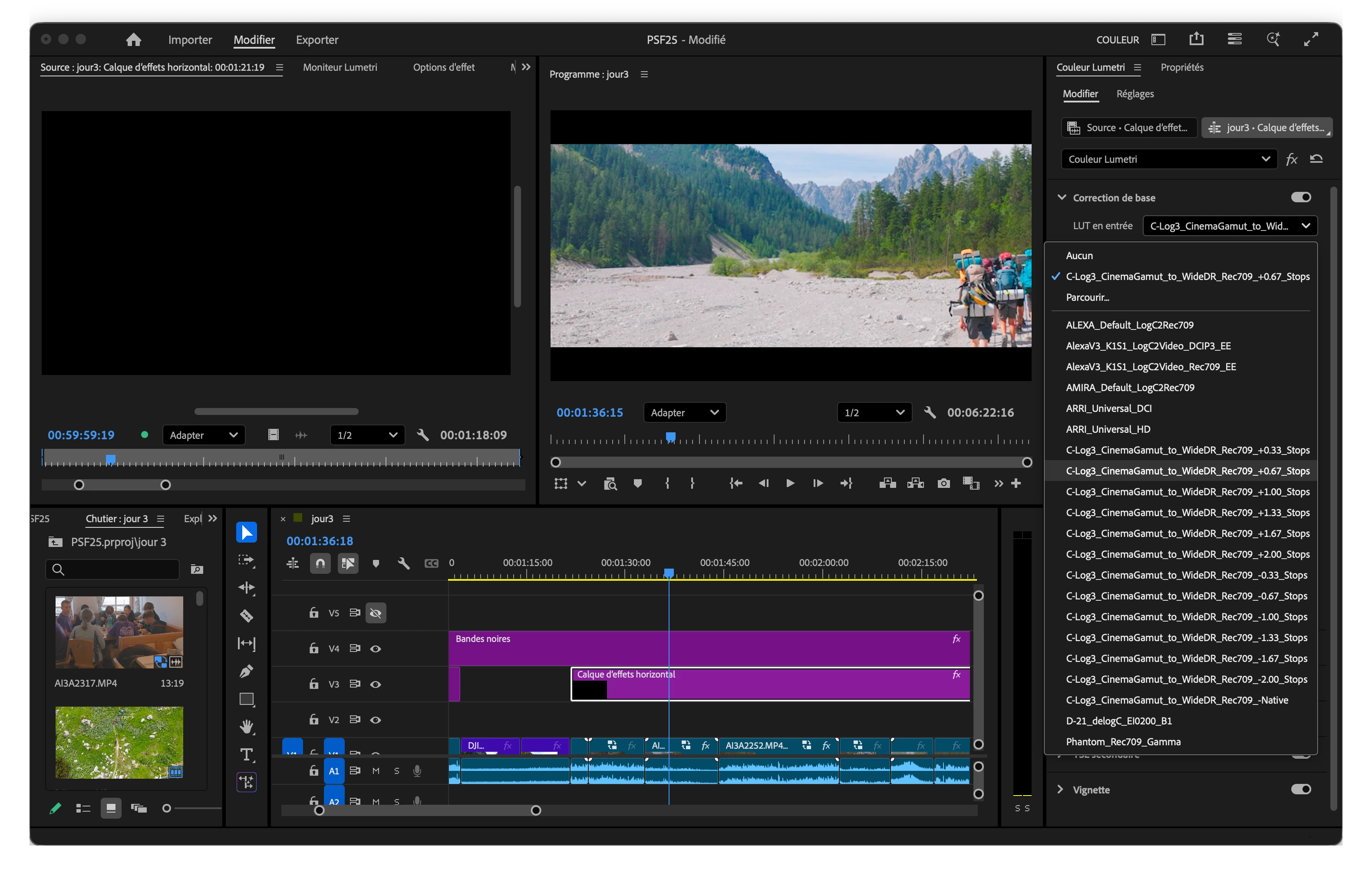
     

  3. I try to select a LUT to apply on a clip
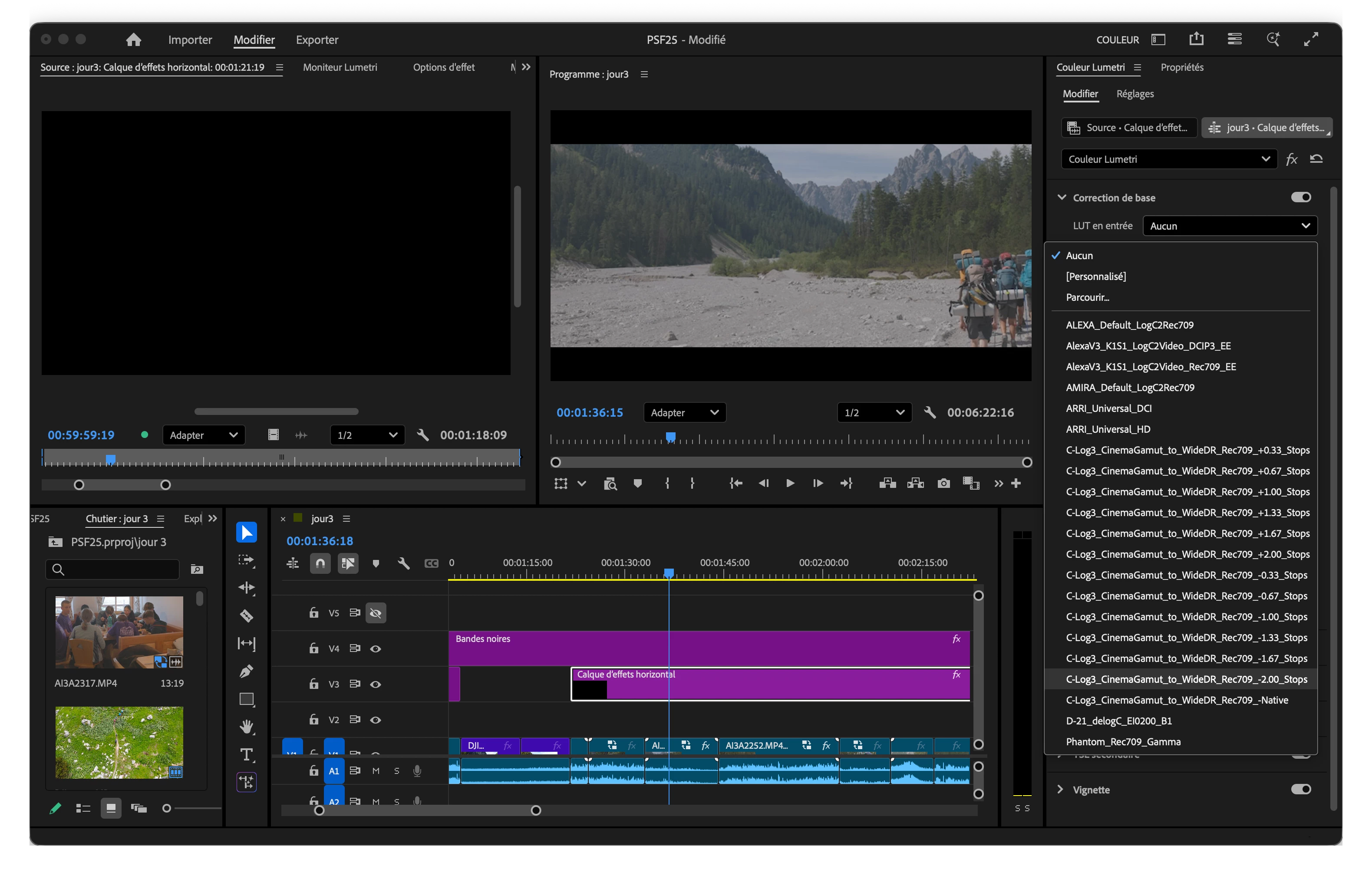
  4. Premiere has selected the right LUT, no matter it's position in the list
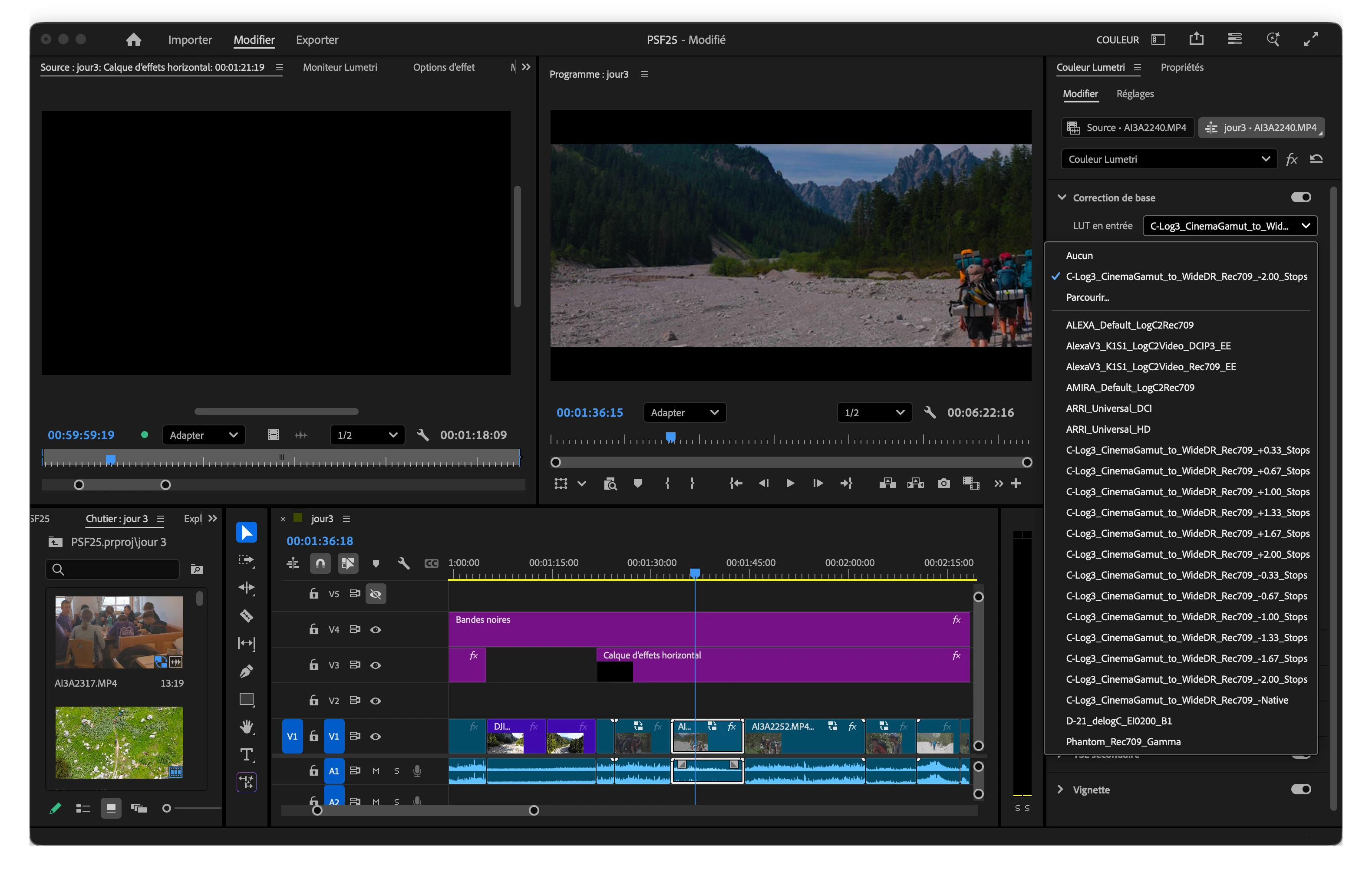


    I really don't understand why it would be different to apply a LUT on a clip rather than on a layer effect, and why would the LUT order in the folder would matter. Any help would be appreciated 🙂

3 replies

Community Manager
November 24, 2025

Hi @Robin32354954r7jv

Thank you for reporting a problem and welcome to the Premiere Pro forums. 


To clarify, the selection always defaults to the eighth LUT on the list when selecting with an adjustment layer, and this is happening accross all your projects? 


What if you add a LUT to a brand new adjustment layer or if you apply the LUT under the Source tab instead of the Sequence tab (try this with a new adjustment layer other than the one already being used)? 


Just to rule out a couple of things, can you click on the Lumetri panel menu and deselect 'Auto-Refresh Input LUT/Look' and try to select again? Also, what if you select the LUT from the drop-down with the down arrow key and enter key instead of a mouse click? 

Sorry for the frustration, 

Dani

R Neil Haugen
Legend
November 23, 2025

Premiere uses order in the folder to sort and apply the LUTs in the application folders that ship with the app. Users should never add to those as they will not get expected results. 


You seem to be using the correct process for adding user LUTs, and it should not behave like that for yours. Weird, doesn't do it here, and yea that's a pain.


What are you doing with the LUTs?

Everyone's mileage always varies ...
November 23, 2025

Warning

The screenshot under the third point is wrong. It should have been this one :