
Premiere freezing after interacting with timeline in Team project (only on one PC)
Since last week, every time I open my teams project and start editing in the timeline, without fail the program freezes but doesn't crash. I'll try to pause the timeline and the audio will still attempt to continue (freezing every so often) while the visual has completely frozen and will not update after the initial freeze. When I attempt to close the program this puts it into a 'not responding' state and I have to force it closed.
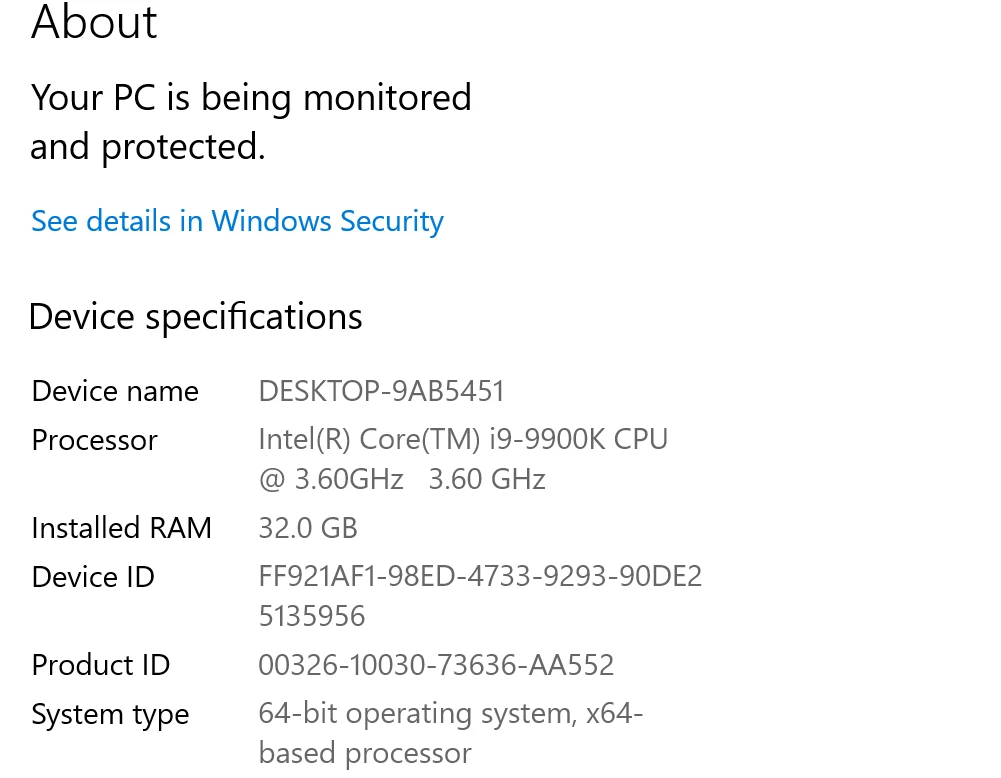
What's confusing is that my other device (a laptop with worse specs) has no problems running the exact same timeline and I can't think of anything that was changed in the project for this to suddenly become an issue. In addition, other projects still seem to run fine on my problem PC which would seem to indicate there's something in particular about this project that isn't working. This is my first time using a Team project so is there something I'm missing? The project in question isn't more complex than other timelines I've run with no issues. It just contains a clip with a few different Lumetri Colors and masks and some clips underneath. The only thing distinct about it is that it's 12fps but it had been working fine previously. Any ideas?
I've tried:
- Uninstalling and updating Premiere
- Uninstalling and updating GPU drivers
- Creating a new Teams project from the sequence (still same issue)


 AdChoices