
Subject: Timeline Panel “Link Media” Option Not Responding
Product: Adobe Premiere Pro
Version: v.26.0
Operating System: Mac Tahoe 26.2
Issue Summary:
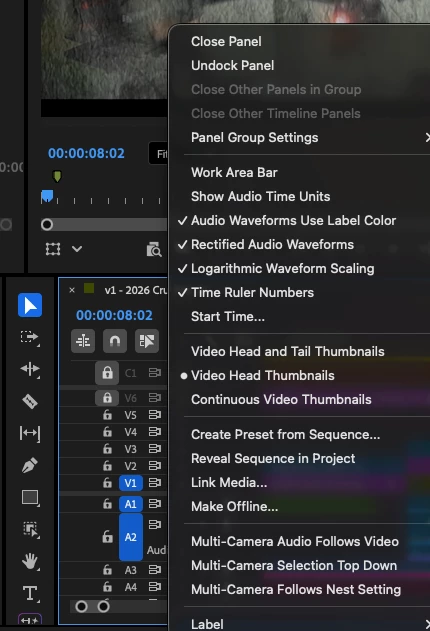
When right-clicking inside the Timeline panel and selecting “Link Media,” nothing happens. No dialog box opens to re-link files. The command appears unresponsive.
Steps to Reproduce:
-
Open Premiere Pro.
-
Open an existing project with offline media.
-
Go to the Timeline panel.
-
Right-click inside the Timeline panel.
-
Select “Link Media.”
-
Result: No action occurs.
Expected Result:
The Link Media dialog box should open, allowing relinking of offline media. This happened in every version of premiere previously where I cloud re-link from the timeline, and all the files that were missing in the NESTED parts as well had that. Now i have to individually go to every nest to re-link files. This slows down my workflow significantly.
Actual Result:
No response. The interface remains unchanged. No warning or error message appears.
Additional Notes:
– The issue occurs in the previous version of Premiere Pro
– Restarting the application does not resolve the issue.
– The same workflow worked correctly in earlier releases
– Attached screenshot of the Timeline panel context menu.
Reproducibility:
Always
Workarounds Attempted:
– Restarted Premiere Pro
– Restarted system
– Reset workspace
– Cleared media cache
– Tested with a new project


 AdChoices