

unnatiii
Participant
Nov 28, 2026 6:12 AM UTC
Open for Voting

Switching tabs is a nightmare after the 27 update
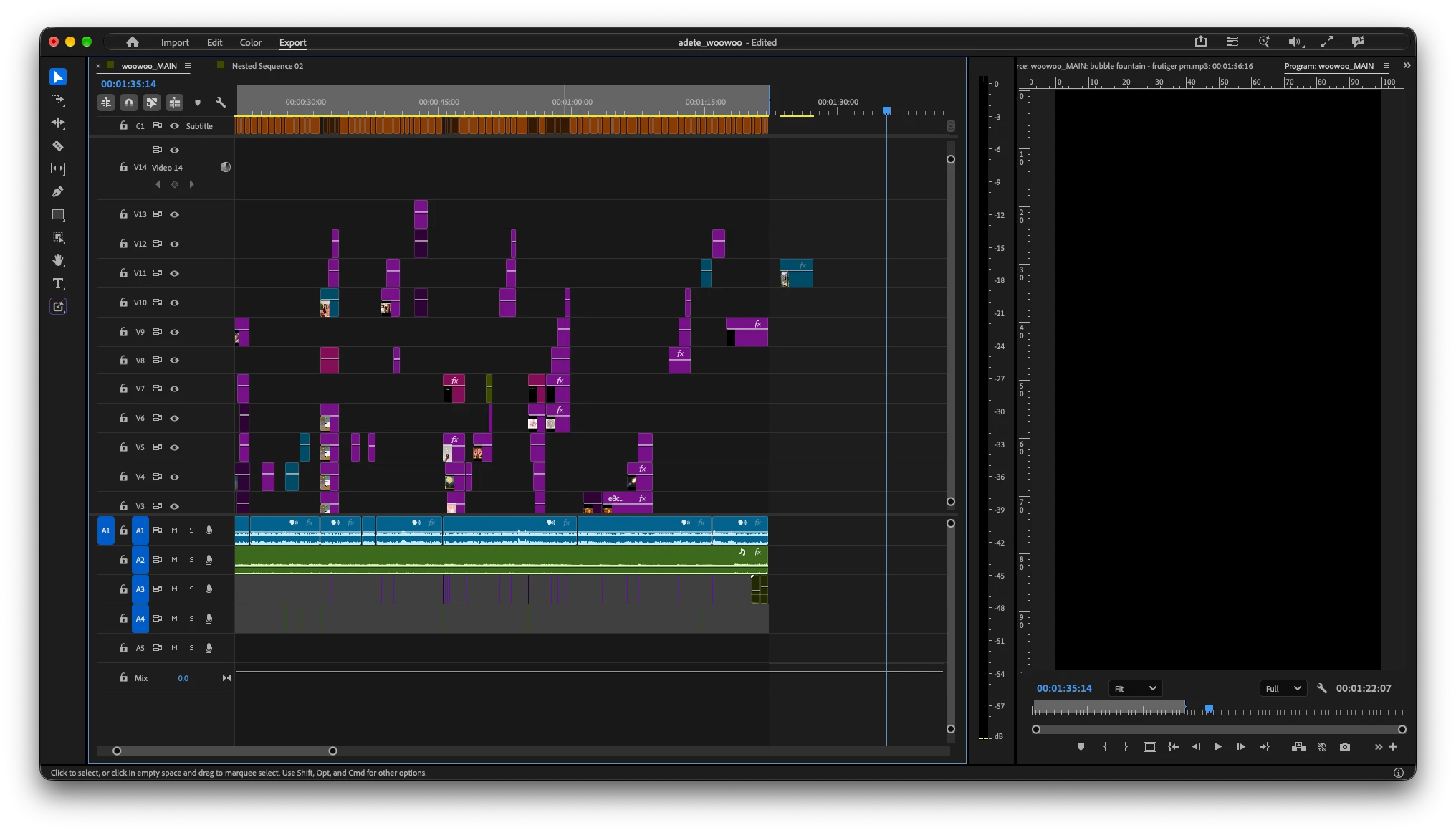

As you can see, I have already switched to the Export tab, but the interface has not changed and is still displaying the Edit tab. This problem has started only after the 27 update.

Switching between tabs is lagging, and often it's not even functional. Most of the time, it's just a permanent inability to even click on the tabs. For instance, I clicked on Export here. The tab in the bar switched, but the interface didn't. If I click on any other tab, I cannot click on them. They're not clickable anymore. It's not even a lag thing because I kept my laptop, which is the new Macbook Pro(a reliably fast device) with this for half an hour, and it did not even change the tab, I eventually have to quit the application every time and reopen it to solve the issue.


In my experience, it has been particularly laggy in switching from the Edit tab to the Color tab, but it eventually does switch. This whole  completely freezing thing happens only when you switch from the Edit tab to the Export tab. That's when all of your buttons of the tabs get frozen, and if you try to click on any of them, it won't work, and it stays like that. 

    1 reply

    CORCTON
    Community Expert
    Community Expert
    Nov 29, 2026 3:07 AM UTC

    Hi unnatiii, thanks for the screenshot and the detail — the tab label switches but the interface stays on Edit, the tabs then stop responding, and you have to quit and reopen every time. That matches the freeze / unresponsive case in Adobe's official troubleshooting.


    Adobe's official troubleshooting for Premiere when it "crashes, freezes, or becomes unresponsive" lists these steps, in this order — please try them one at a time and see where it changes:

    1. Check the current known issues linked in that article.

    2. Update Premiere to the latest version.

    3. Restart Premiere, or restart your Mac — I know quitting and reopening is already the only way you can get out of it right now, so this step is really just the temporary workaround, not a fix.

    4. Back up your preferences first, then reset them at launch: hold Option while launching Premiere, and in the Reset options dialog select "Reset app preferences", then Continue. (Backing up matters because custom shortcuts, workspaces and styles can be lost.)


    The last step in that article, checking the Windows build number, doesn't apply on macOS.


    Official article: https://helpx.adobe.com/premiere/desktop/troubleshooting/crash-issues/fix-premiere-crash-issues.html

    Resetting preferences: https://helpx.adobe.com/premiere/desktop/troubleshooting/preferences-and-settings-issues/reset-preferences-at-launch.html


    If it still freezes after those steps, please let us know which step you reached and whether the Edit-to-Export freeze happens in a new empty project as well as in your current project — that will help narrow the next step.

    Translate