


Allow sorting and filtering library assets by Licensed, Unlicensed, or Non-Stock
Hello! I would love, love, LOVE to be able to filter and sort files in my Adobe libraries by what kind of license they have: Licensed (from Adobe Stock), Unlicensed (also from Adobe Stock), or Non-Stock (anything else). We can already do this in the Stock site's library, but not in the CC Desktop App library, or the CC online equivalent library, or in Bridge. But sadly the Stock site doesn't let us move licensed images from one library or group to another - at least, not easily enough that I'd have found it within the last few years.
In other words, I would love to have one designated place I can access and manage my Adobe Stock library in detail. Currently different important features are split across several different places - the Stock site, the CC central hub app (whether desktop or online), and Bridge. But if I could do all those features at once in just one software/site/program? Oh, I'd swoon.
Here's some screenshots to illustrate what I mean.
CC Desktop
Here's the CC Desktop app library interface for one of my libraries of Stock images, unsorted and unfiltered.
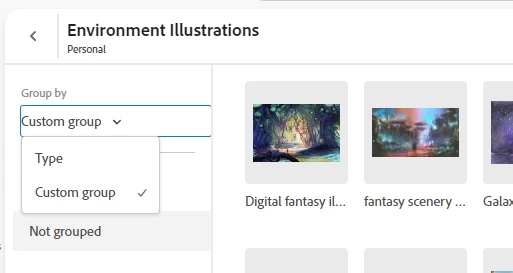
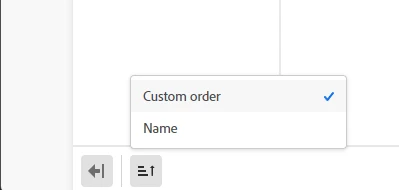
And here's the sort options for that library in this interface.
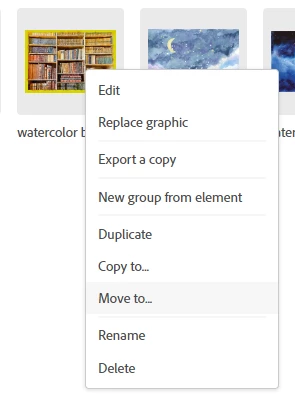
But I can move files here from one library to another.
Stock Site
Meanwhile, here's the Stock site's interface for the same library.
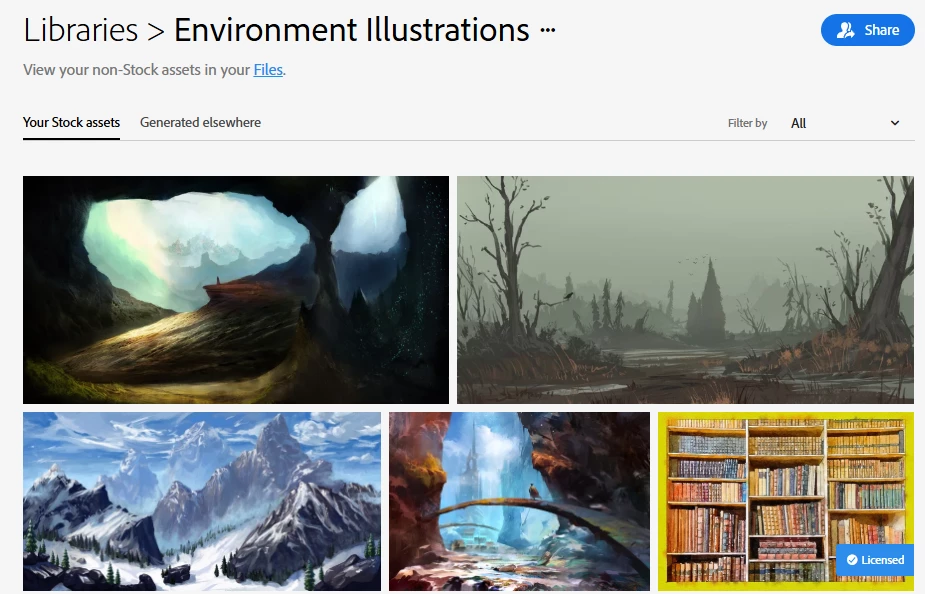
That same library, filtered to just have Unlicensed.

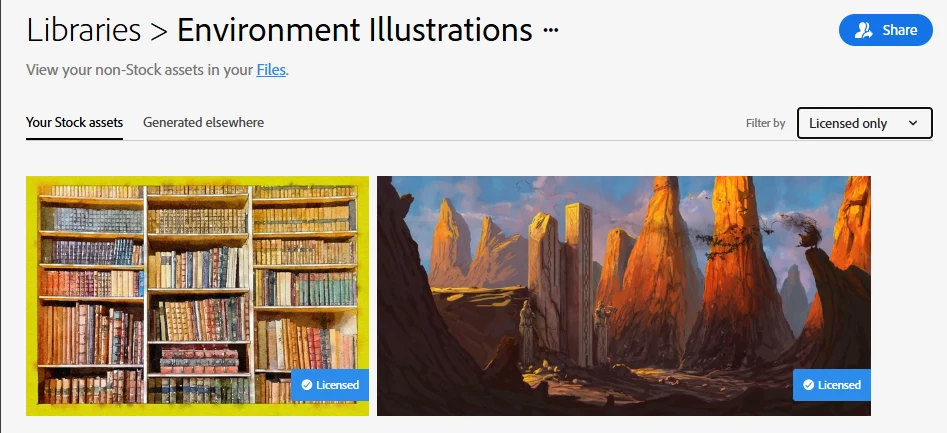
And the same again, but filtered to just Licensed.
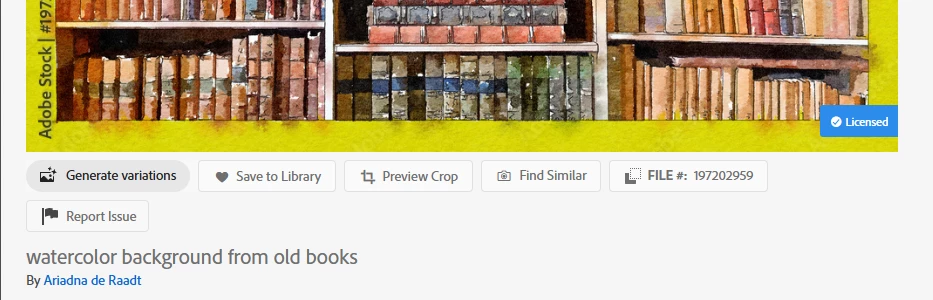
Here's one of my licensed pictures. There's no option here to move it to another library.
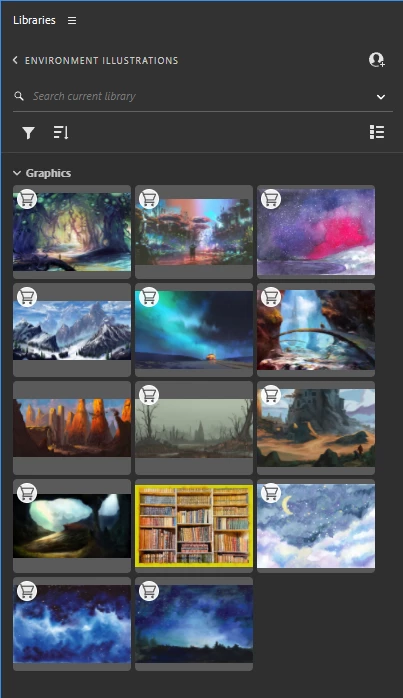
Bridge Library
And here's the same library in Bridge.
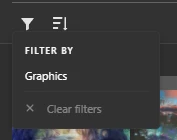
And here's the Filter options. These do not include anything about licenses.
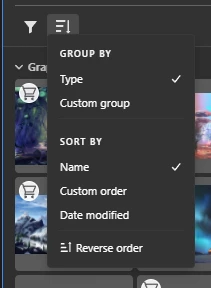
And here's the sort options. Again, no mention of licenses.
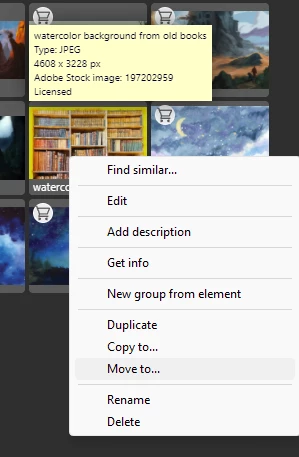
Bridge also allows moving files from one library to another.
Request
I'd love to have all of these options together at once in one of these platforms, if not in all three. Specifically, that's the functional option to do all of these:
- Move files from one library to another
- Sort by Licensed, Unlicensed, or Non-Stock
- Filter by Licensed, Unlicensed, or Non-Stock
Thank you!
 AdChoices