


Inspiring
October 17, 2016
Open for Voting

P: Option to stop syncing photos in a Collection when that Collection is stopped from syncing

  • October 17, 2016
  • 68 replies
  • 2767 views

Bring back the possibility to stop a Collection from being synced AND stop photos in that Collection from being synced as well, in one-step.

Since LR CC 2015.7 this happens when you stop syncing a Collection (clicking the little sync icon or deselecting Sync with Lightroom Mobile via mouse contextual menu):
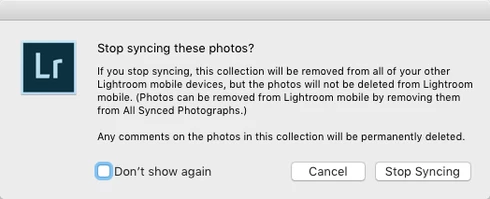


(Now you have to go and find those photos in that Collection from All Synced Photographs and remove them from there. Too many steps, too cumbersome and too easy to make a user error.)

There still is the requested option to remove photos at the same time when you delete a Synced Collection instead of just stopping it from syncing:
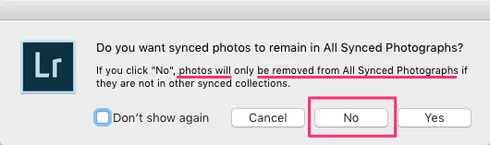


That same option should appear for just stopping the Collection being synced as well.

The first dialog for stopping a Collection from being synced is messy altogether as it asks if the user wants to "Stop syncing these photos?" but the button for doesn't actually stop syncing the photos and instead keeps those photos synced to LR Mobile and Web and just stops syncing the Collection name.

So at least more correct title could be "Stop syncing this Collection?" and that's not enough as there needs to be a way to stop syncing a Collection AND stop syncing photos in that Collection, in one step (unless they are part of another Synced Collection).

68 replies

Inspiring
August 1, 2017
Jonathan Goforth - thank you for saving me hours of frustration. It worked!
Inspiring
August 1, 2017
By the way, we had been asking for a feature for LR mobile for over a year: watermarks on our images. Instead, we get a horrible feature nobody asked for. 
Inspiring
August 1, 2017
My synced collections are now completely messed up! When I go to my iPad I suddenly have 2000+ Lightroom Photos. Where did that come from? Well it took me an hour to figure it out. It turns out that even though I had stopped syncing several Collections, Lightroom has decided for me - that I should keep syncing them to my iPad. Why? I don't want those Collections to appear on my iPad in one big amorphous lump. When I try to remove them from Catalog>All Synced Photographs, they are removed from the Collection on my desktop Lightroom also! Huh??? But I still want to keep those Collections on my desktop. They are valuable to me. I only want to stop syncing them, maybe permanently maybe only temporarily. And I had finally decided to get familiar with LR mobile and it started behaving great - easy to whip out the iPad and show a specific bunch of images to the relevant person. I got used to this great and wonderful resource. Now it's a mess. 
Jim Wilde
Community Expert
Community Expert
July 14, 2017
A simpler workaround still:

1. Select the 5 images in "Favourites", then click on All Synced Photographs
2. Edit menu: Invert Selection
3. This will de-select the 5 images in "Favourites" and select the remaining 95.
4. Right-click on any one of those 95 and select "Remove from All Synced Photographs"

Doing it this way retains the existing shared links.
Inspiring
July 14, 2017
Arjun, thanks for the workaround!

The only problem is, that after unsyncing and resyncing all the public links are changed (I share a lot of them). So it is not a real solution, but at least a workaround that can help from time to time. Thanks for looking at the problem  – and hoping for a feature, that helps to unsync all pictures, that are not intended to be synced by collections. The actual status is so confusing. Imagine a photo would be removed from collection A just because I deleted it in collection B.

I still think this ASP should be sent to the moon and new pictures should be added to one of the existing collections instead. If a picture is removed from all the different synced collections, syncing stops.

Regards, Detlef
arjunhaarith
Adobe Employee
Adobe Employee
July 14, 2017
Hi Detlef,

The logic goes like this :

1) If an image is part of a synced collection, then invariably it is part of "All synced photographs" (ASP). Because  All synced photographs is a master collection which houses all the synced photos.

2) An image can be synced with/without being in a synced collection.

3) If you remove an image from  ASP, then it will be removed from all synced collections. But it cannot be the other way round. That means, if you remove an image from a synced collection, it need not necessarily delete from ASP (as there are chances that it might be referenced in other synced collections). 
So you have an option to choose whether you want the photo to be in ASP or not, when you remove an image from a synced collection.

Now coming back to your question,
a) Easier workaround is unsync "Favorites" collection.
b) Delete all photos from "All sync photos" (assuming you dont need the rest 95 to be synced)
c) Resync the Favorites collection (only your 5 photos are added back to ASP)

Hope this helps.

Thanks,
Arjun
Inspiring
July 14, 2017
Arjun, is there a solution for this daily problem: Let's say I have

- 100 pictures in "all synced photographs"
- 5 of them are part of a synced collection, let's name it "favourites"

Now I want to remove the other 95 from "all synced photographs". If select all 100 and say "remove from all synced photographs", the 5 nice pics are removed from "the collection called "favourites" too.

How can I get rid of all the syncing without destroying my other collections? Do I have to look at every one of the 100 pictures to check, whether it is in a collection or not?

Regards, Detlef
arjunhaarith
Adobe Employee
Adobe Employee
July 5, 2017
Hi Detlef,

The 'All Synced Photographs' is basically a master collection to filter all your synced photographs  from different Lr mobile clients.  So if you remove this master collection,  then the synced images will be a part of your catalog ('All photos') and synced collections if any. Filtering it out based on sync status is what is important here.

Milan and Detlef, thanks for your feedbacks anyway.  We will try to figure out what best can be done in this area.

Thanks,
Arjun
Inspiring
July 4, 2017
My recommendation would be to eliminate this "all synced photographs" completely from LR. I use both LR desktop and mobile a lot. Daily. Thousands of pics. But I never figure out, what is synced how and where. I try to add new pictures within LR mobile only into already existing collections, I've added a special "Sync Collection". I only use it to transfer pictures from LR mobile to my desktop. But sometimes when I shoot pictures in a hurry I forget to take the pictures on my mobile device only within a collection, and then the trouble begins. It's too complicated.
visuals.sk
Participating Frequently
July 4, 2017
Hi Arjun,

thank for your response,

photos were removed from the user-created collection in Lightroom OSX
Problem is missing prompt during unsyncing collection about removing that photos also from "all synced photos"

Because now I have about 15,000 photos in All synced photographs, but only 4 collections I want to keep synced. (3 for portfolio showcase and 1 ongoing project)

When I select all photos in All synced photographs and choose to remove them from All synced photographs it also disappear from ordinary collection inside Lightroom (that 4 collection I want to keep synced and with photos inside it !


There is no easy way how to select only synced photos that do not belong to any synced collection and remove them ( 7 points workaround from Jonathan Goforth works but there is a risk of user's error. )

"By removing an image from All synced photos, then it only removes the image from a synced collection." - I understand that at this moment it is not possible to sync or unsync individual photo inside collection therfore its not possible to remove it just from All synced collection while it is in one or more synced collection.

However, there are probably more solutions for unsyncing individual photos from All synced photos (better than completely removing the photo from the collection.)
For example, a prompt that photo cant be removed because it is part of one or more collections that are still synchronized or prompt that this action will synchronize the entire collections in which the affected photos are placed.

You can also forget about All synced photos in Lightroom on the desktop and use them only to upload from a mobile app (photos created using a mobile device). In this case, it makes sense that all synced photos acts as a master collection buf only for mobile content. 
For content imported directly to Lightroom master collection will be All Photographs.

There are probably even better way to meet different users needs. So please try to rethink it little bit.

with Regards,
Milan